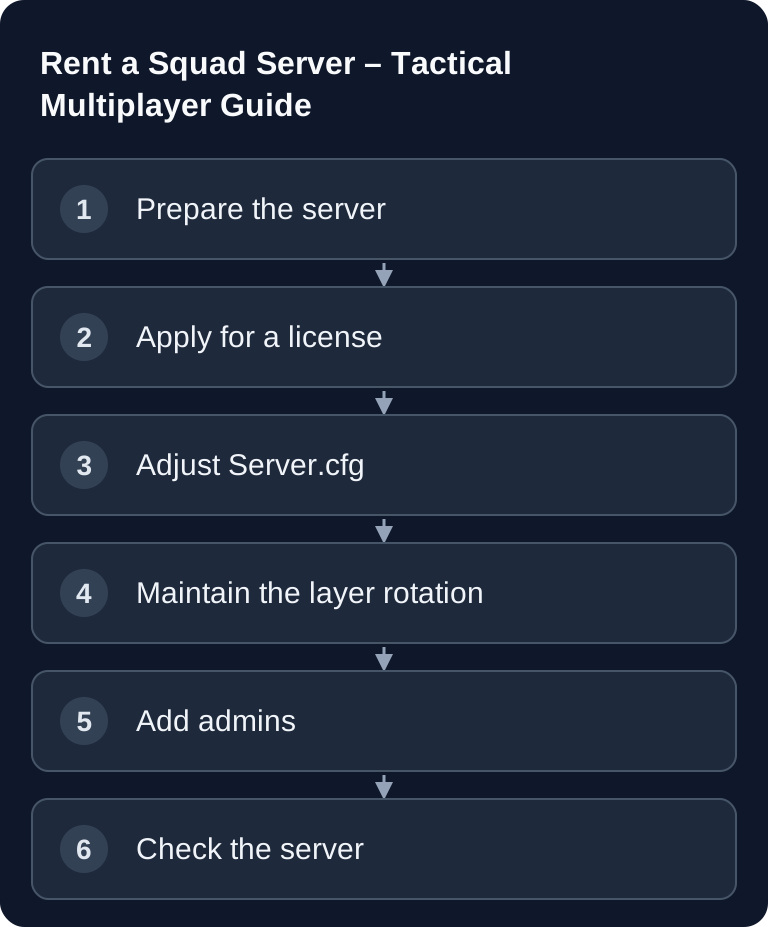
You set up a Squad server via Server.cfg, a valid layer rotation and Steam ID-based admin groups. An OWI license is required for the main server browser; without a license, the server belongs under Custom Servers. Check the license requirements before ordering, then test joining, layer changes and an admin broadcast.
Requirements
Decide on the slot count, your admin team and the desired browser placement. For licensing, OWI lists 8 GB RAM as the minimum plus an additional 4 GB per game instance; a blanket 6 GB offer therefore does not prove that the license requirements are met. Check the official hardware and license rules for your planned setup.
A license is required for placement in the main browser. According to the OWI policy, unlicensed servers appear under Custom Servers. The ServerConfig examples shipped with the game are authoritative for specific configuration keys; the community wiki linked previously is supplementary guidance, not a manufacturer approval for your hardware package.
If you are planning other co-op or survival servers alongside Squad, internal guides such as the Satisfactory Dedicated Server Multiplayer Guide and the Rent a 7 Days to Die Server Guide 2026 are helpful for building comparable operating procedures, admin access and community rules.
Order the Server and Define the Basics
- Go to game-serverhosting
- Choose resources that match your desired player count and the OWI requirements
- The server is set up automatically
Before the first start, decide how your server should appear in the browser. The name should be unique and indicate language, play style or community affiliation. Reserved slots make sense if admins or moderators need to be able to step in even when the server is full. Do not put made-up promises such as guaranteed tick rates or fixed performance values in the description or rules unless you can substantiate them for your specific setup.
Apply for a Server License
For the main browser, you apply for the license via the official OWI portal. Enter the key you receive in the designated license file of your installation and check the startup logs. Application and approval are separate steps; an order alone does not guarantee a license.
After entering it, check whether the server starts without license errors and whether it shows up in the server browser as expected. If you make changes to license files, server name or visibility, restart the server cleanly and check the logs. Keep your community rules consistent with the server name, the tags and the admin decisions actually applied.
Server Configuration in Server.cfg
The Server.cfg contains the visible and gameplay-relevant basic settings. Keep the existing values as a starting point and adjust them deliberately:
ServerName="My Squad Server"
MaxPlayers=80
NumReservedSlots=5
IsLANMatch=false
ShouldAdvertise=true
ServerName is the display name in the server browser. MaxPlayers describes the player limit in the manufacturer example. The GSH setup sets the effective limit at startup from the booked slots via FIXEDMAXPLAYERS; a custom CFG value does not increase the package. NumReservedSlots, on the other hand, keeps spots free for authorized users. IsLANMatch=false is relevant for public online servers. ShouldAdvertise=true ensures the server is advertised in the browser, provided the license, network and other prerequisites are in order.
Always change only a few parameters at a time and document what you adjusted. That way you find errors faster if the server is not visible after a restart or players cannot connect.
Plan the Layer Rotation
Layers determine map + game mode:
Use the layer identifiers exactly as your installed version specifies them, and maintain them in the designated LayerRotation.cfg. Display names such as "Tallil Outskirts AAS v1" are not reliably valid technical entries. Back up the previous rotation and test each new layer individually.
For public rounds, a comprehensible rotation matters more than the longest possible list. Mix familiar maps with more demanding variants so that new players are not overwhelmed right away and experienced squads still get variety. AAS offers fixed flows, RAAS brings more uncertainty to the flag chains, and Invasion relies more heavily on asymmetric attack and defense phases.
Test every layer line after making changes. Typos or layer names that are no longer valid can cause the rotation not to run as planned. If you use voting configurations later, keep the rotation, voting files and server rules consistent in content.
Assign Admin Rights in Admins.cfg
The existing example configuration shows the basic principle of groups and assigned Steam IDs:
Group=SuperAdmin:changemap,pause,cheat,kick,ban,cameraman
Admin=76561198012345678:SuperAdmin    // Steam ID
Only assign SuperAdmin to people you want to entrust with full operational control. For moderators, limited rights such as kick, ban or broadcast are often enough. A small, clear permission structure reduces operating errors and makes later audits easier. Save Steam IDs carefully; a wrong ID either gives nobody access or gives the wrong person rights.
Admin Commands
| Command | Description |
|---|---|
AdminChangeMap <map> |
Change map |
AdminKick <name> <grund> |
Kick player |
AdminBan <name> <dauer> <grund> |
Ban player |
AdminBroadcast <text> |
Message to everyone |
AdminForceTeamChange <name> |
Change team |
Use admin commands transparently. Where possible, announce interventions via broadcast and document recurring problems outside the game so that rules are not only enforced situationally.
Check the Result
After setup, you should check at least these points: the server starts without license or configuration errors, appears in the browser with the correct name, accepts players, loads the first desired layer and recognizes your admin Steam ID. Also test a simple broadcast and, if possible, a controlled map change.
If the server is not visible, first check ShouldAdvertise, license status, restart, firewall or port forwarding and log messages. If admin rights do not work, compare the Steam ID, group name and spelling of the permissions. If the rotation skips or gets stuck, check each line of the active LayerRotation.cfg and the actual layer identifiers one by one.
For other multiplayer setups with similar operating questions, you can use the Valheim Co-op Guide 2026 or the Project Zomboid Multiplayer Guide.
FAQ
Do I really need a license for a Squad server?
For the main browser you need an OWI license. An unlicensed server can be operated in the Custom Servers section; for both routes, observe the applicable OWI rules.
Is 6 GB RAM enough for every Squad server?
No. For a license, OWI lists 8 GB as the minimum plus an additional 4 GB per game instance. Check the hardware requirements and actual load before you select resources. Whether that is enough for your specific setup depends on slot count, server load, mods and how you operate it. Plan for reserves and evaluate utilization after launch based on your actual usage.
Where do I change the server name and player count?
These basic values are in the Server.cfg. Adjust the approved name, reserve and browser options there. The manufacturer field MaxPlayers does not replace the starting value set from the booking at GSH; for different slots you need the offered package change.
What is the difference between a map and a layer?
A layer combines a map with a specific game mode or variant. For the rotation, you use the technical layer identifiers that your installed server version actually offers. Display names with spaces from the user interface are not a reliably copyable substitute.
Why don't my admin rights work?
Usually it is due to a wrong Steam ID, a differing group name or a typo in Admins.cfg. Check the spelling, restart the server and then test a simple command such as AdminBroadcast <text>.
What do I do if the server doesn't appear in the browser?
Check ShouldAdvertise=true, the license status, network and port forwarding, and the server logs. Don't change several causes at once, otherwise troubleshooting becomes unnecessarily difficult.