Your own 7 Days to Die server is worth it if you want to control Blood Moon, loot, difficulty and admin permissions. With game-serverhosting, you rent a paid multi-game server with technical control, support and transparent operating procedures, instead of running your co-op world on a private computer with fluctuating availability.
Requirements
Before you set up the server, you should decide on three things: how many players will join regularly, whether the server should run publicly or privately, and how harsh the survival rules may be. For this, choose a currently bookable slot tier in the configurator and check the included resources. Even a small group uses the booked slot limit; its number is no guarantee for a specific load with mods or a large world.
The serverconfig.xml shipped with your server version is the technical baseline. The community wiki is a supplementary explanation, not primary documentation written by the developer. For console crossplay, the The Fun Pimps forum note additionally lists its own permitted values and requirements; check this route before the first console join.
If you are planning other survival or co-op servers in parallel, the Valheim Server Co-op Guide 2026 and the Project Zomboid Multiplayer Guide will also help you, as they explain similar decisions regarding slots, world size, admin access and private groups.
Rent a 7 Days to Die Server
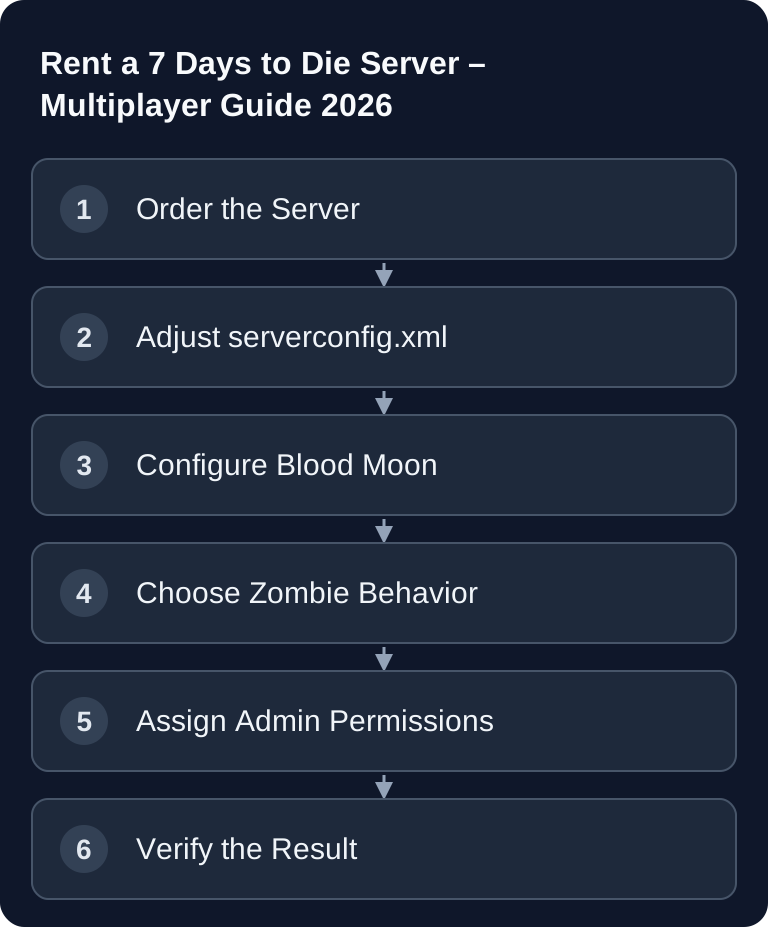
Order the Server
- Go to game-serverhosting
- Choose a currently bookable slot tier and check its included resources.
- The server is set up automatically
After provisioning, you should first check whether the server starts cleanly and is reachable in the server list or via direct connection. Only after that does it make sense to make extensive configuration changes. This way you can more easily tell later whether a problem comes from the base installation or from a changed setting.
Important Settings in serverconfig.xml
The central file is serverconfig.xml. Only change it while the server is stopped, or use the management interface provided by your hosting. After every change, the server usually needs a restart so the values are loaded reliably.
<property name="ServerName" value="My 7D2D Server"/>
<property name="ServerPassword" value="YOUR_OWN_PASSWORD"/>
<property name="ServerMaxPlayerCount" value="8"/>
<property name="GameDifficulty" value="3"/>
<property name="DayNightLength" value="60"/>
<property name="LootAbundance" value="150"/>
<property name="ZombieMove" value="0"/>
<property name="ZombieMoveNight" value="2"/>
<property name="BloodMoonFrequency" value="7"/>
<property name="AirDropFrequency" value="72"/>
This is an excerpt. Keep the complete XML document and replace existing properties instead of appending multiple lines with the same name.
ServerName names the instance and ServerPassword protects the private group. ServerMaxPlayerCount is the manufacturer parameter for the join limit. In the game-serverhosting setup, it is set at startup from the booked slots; a manual XML change does not extend the package. GameDifficulty, LootAbundance, ZombieMove/ZombieMoveNight and BloodMoonFrequency affect gameplay. Change one group of related values at a time and test under the same horde/exploration load.
Configure Blood Moon
Blood Moon is the most important rhythm setter for many 7 Days to Die servers. Horde nights that are too frequent can overwhelm new groups; hordes that are too rare take pressure out of progression. The following values from the initial setup are retained and serve as a starting point that you adapt to your group.
| Setting | Default | Recommended |
|---|---|---|
| BloodMoonFrequency | 7 | 7 as base interval |
| BloodMoonRange | 0 | 2 |
| BloodMoonEnemyCount | 8 | 8-16 |
BloodMoonFrequency sets the base interval. With BloodMoonRange, the exact day becomes less predictable. BloodMoonEnemyCount influences how many enemies can become relevant at the same time. Increase this value carefully, especially if players still have little gear, weaker bases or different experience levels.
Zombie Settings
Zombie behavior decides whether your server emphasizes relaxed building, survival roleplay or hectic combat. For mixed groups, "Run at night" is often an easily understood compromise: during the day there is time for gathering, at night the pressure rises.
| Key | What it controls separately |
|---|---|
ZombieMove |
Normal movement during the day |
ZombieMoveNight |
Normal movement at night |
ZombieFeralMove |
Behavior of feral zombies |
ZombieBMMove |
Movement during Blood Moon |
Compare the value scale in your current serverconfig.xml. The old key ZombiesRun does not reliably describe these separate situations.
If new players are joining, start conservatively. You can raise difficulty, loot and zombie behavior later, once the group has understood tools, weapons, healing and base defense.
Admin Permissions and Commands
Admin permissions are handy but sensitive. Only grant them to people who handle teleporting, item spawning and time control responsibly. Document internally who is an admin so that changes to the server remain traceable.
admin add <name> 0           # Admin permissions (level 0 = highest)
give <name> <item> <amount>   # Give items
teleportplayer <name> <x> <y> <z>  # Teleport
settime day                   # Make it day
killall                       # Kill all zombies
Test admin commands first in a non-critical situation. A wrong teleport or a careless time change can disrupt ongoing quests, Blood Moon preparation or group progress.
Performance Tips
Set world size and seed before generation; do not change them on an existing world as a short-term attempt to fix lag. Under high load, compare the horde enemy count, explored areas, active players and mods. Check the player limit taken from the booking in the startup log. You choose a different slot tier through the package change offered for that purpose, not through your own XML value.
- WorldGenSize: 6144 instead of 8192 for better performance
- ServerMaxPlayerCount: Managed starting value from the booked slots; no independent XML slot selection
- View Distance: Cannot be changed server-side, but map size helps
In addition, you should consider mods, very large worlds and high concurrent player counts separately. If lag appears after a change, step back gradually: first disable mods, then check player limit and world size, then analyze the logs.
Verify the Result
After the restart, connect to the server and check the password, server name, slot limit and day length. Ask a second player to join as well, so you are not only testing the local client. Then open the logs and check whether the serverconfig.xml was loaded without errors. If admin permissions were set, test a harmless command before making changes to the world.
Troubleshooting
If the server is not visible, first try the direct connection via address and port. Then check whether the server has fully started and whether a password has been set. If settings do not take effect, the cause is often a restart issue, an incorrectly edited file or an XML syntax error. In XML, missing quotation marks or a damaged line are enough for values not to be processed as expected.
If players report lag, do not change several parameters at once. First lower WorldGenSize for new worlds, check the actual player count against ServerMaxPlayerCount, and observe whether the problems occur especially during Blood Moon, when exploring new areas or after mod changes.
FAQ
How much RAM do I need for a 7 Days to Die server?
The deciding factor is the currently bookable slot tier with its included resources. Larger worlds, mods and horde nights can create additional demand; a fixed RAM-per-player figure is not a reliable performance commitment for this.
Should my server have a password?
For private groups, yes. Set ServerPassword if only friends or an established community should join. Public servers, on the other hand, need clear rules, active administration and regular monitoring.
Which Blood Moon setting makes sense to start with?
BloodMoonFrequency 7 is an example of the base interval. BloodMoonRange additionally changes the exact scheduling. Compare the meaning and value scale with the serverconfig.xml of your server version instead of deriving a fixed calendar day from this table.
Why are my changes to serverconfig.xml not taking effect?
Usually the server was not restarted, the wrong file was edited or the XML structure was damaged. Stop the server, check the file for clean tags and quotation marks, save it and then restart.
Can I change difficulty and zombie behavior later?
Yes, many server values can be adjusted afterwards. Change them gradually and inform your players beforehand, especially if Blood Moon, loot or zombie speed are affected.