Before Switching Versions
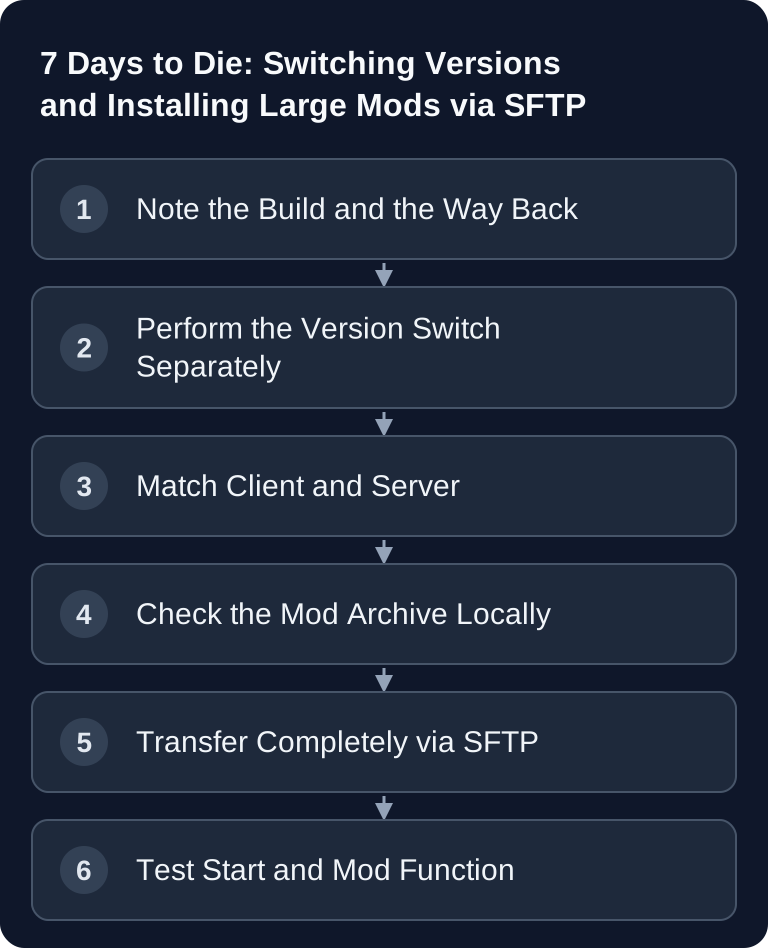
Only switch a 7 Days to Die server between Stable and Experimental with a compatible client and a backup made before the switch. Upload large mods via SFTP while the server is stopped; ModInfo.xml, dependencies and game build must match.
Also clarify beforehand what you actually want to achieve. Switching from Experimental back to Stable is not a simple downgrade click: a world that has already been saved under a newer build cannot be reliably played in an older version. In that case, plan either for a fresh world or for the backup made before the switch to Experimental. If you are only just setting up your server, work through the basic setup of a 7 Days to Die server first — the settings there are the foundation for everything else.
Choosing Stable or Experimental
- Open your server and go to Settings → Switch Version.
- Choose Stable for normal operation. Use Experimental only if your world and all mods explicitly support the desired build.
- Confirm the switch and wait until installation and restart are finished.
- Check the displayed game version in the startup log and connect once with the matching client.
For a major update, you should check the compatibility of your world and every mod beforehand. If the startup fails, do not repeatedly restore: stop the server, look for the first concrete mod or version problem in the log and restore your backup if needed.
The client side is important too: your game client must use the same branch as the server. Steam does not switch to Experimental automatically — you set this in the game properties under Betas. If the client stays on Stable while the server runs on Experimental, the server either does not appear in the list at all or the join aborts with a version message. This is not a server error and cannot be fixed by a restart.
Uploading Large Mods via SFTP
The browser file manager is intended for small files. For large mods or many files, use SFTP:
- Stop the server.
- In the panel, open SFTP/Credentials and copy the host, port, username and password.
- Connect with an SFTP client such as FileZilla or WinSCP. Explicitly use the SFTP protocol, not FTP.
- Unpack the mod archive locally. Upload the complete mod folder to
/Mods/. In the end, theModInfo.xmlfile must be located directly in the respective mod subfolder, for example/Mods/MyMod/ModInfo.xml. - Also upload all dependencies named by the mod. Remove old versions of the same mod so that no duplicate DLLs are loaded.
- Start the server and search the log for the mod name as well as for
ERR,Exceptionor missing dependencies.
Why SFTP and not the file manager in the browser? Large mod packages consist of many small files. A browser upload transfers them one by one and aborts in the middle of the package if the connection is unstable — leaving behind a half-uploaded mod that produces an error message at startup that looks like a version conflict. An SFTP client transfers folders in one go, shows progress and can resume interrupted transfers. General credentials and basics are covered in the guide on SFTP access to game server files.
When obtaining mods, make sure they match the game version. Collections such as 7daystodiemods.com list the supported 7DTD version for each mod — a mod for A21 generally does not run under a newer build. You can find a more detailed installation guide at Installing Mods on the 7 Days to Die Server.
If the Server Does Not Start
- Check whether the mod and server support the same 7DTD major version.
- Check for nested folders such as
/Mods/MyMod/MyMod/ModInfo.xml; one level of that is too many. - Start as a test without the most recently uploaded mod.
- Restore the backup if the version switch itself damaged the world.
Always tackle only one change at a time. If you switch the version, replace three mods and adjust the configuration all at once, you cannot tell afterwards which step prevented the start. The fastest way back is almost always: temporarily remove mods from /Mods/, confirm a clean start, then add the mods back one by one.
Only if the log does not name a specific file name or error, create a support ticket and include the affected mod link as well as the first error block from the startup log.
FAQ
Can I switch from Experimental back to Stable?
The version switch itself, yes — but your world not necessarily. Savegames saved under a newer build are often no longer readable in older versions. Plan for the way back with a backup made before the switch.
Do I also have to switch my game client?
Yes. Server and client must use the same branch. You set Experimental in Steam under the game properties in the Betas tab. Without this switch, the join fails with a version message.
Why is my mod not loaded after the upload?
In the vast majority of cases it is due to folder depth. ModInfo.xml must be located directly in the mod folder, i.e. /Mods/MyMod/ModInfo.xml. An additional level such as /Mods/MyMod/MyMod/ModInfo.xml causes the server to overlook the mod — without an error message.
Will my world and player data be lost when switching versions?
The switch replaces the server files, not the save data. With a major update, a world can still become incompatible — which is why you need the backup before every switch.
Why does the upload in the browser keep aborting?
The file manager transfers many small files individually. For large mod packages, an SFTP client is the more reliable choice because it transfers folders in one go and can resume interrupted transfers.
Recognizing an Incomplete Mod Upload
After the upload, check the folder structure and compare the file count with the locally unpacked archive. ModInfo.xml must be located directly in the mod subfolder. Also check whether the mod contains its own DLLs and, according to the author, must also be installed on clients. Start first with the previous version and only one new extension; if you switch the build at the same time, the cause of an error remains unclear. If transfers are interrupted, resume the upload and only start once all files are present. Keep the last working build together with its mods ready as a coherent way back.