Geyser lets Minecraft Bedrock Edition players join a supported Java server. This requires a compatible server type and version, Geyser to be running, and the Bedrock client to use the Bedrock port shown in the panel. Floodgate is optional and allows players to log in with a Bedrock account without needing an additional paid Java account.
Native Bedrock Server or Java Crossplay?
The two options serve different purposes:
| Option | Who connects? |
How it works |
|---|---|---|
| Native Bedrock Dedicated Server | Bedrock players |
The Bedrock client connects directly to a Bedrock server |
| Java server with Geyser | Java and Bedrock players |
Java players connect normally; Geyser translates Bedrock connections for the Java server |
Geyser does not turn a Java server into a native Bedrock server. If you only expect Bedrock players, a native Bedrock option may make more sense. For a mixed group, check whether your chosen Java server variant supports crossplay.
Which Server Variants Support Crossplay?
Automatic setup in the GSH panel is distinct from the currently compatible Geyser build. Check the available server type, Minecraft version, and overall crossplay status. At the time of checking, the Geyser version table lists Java 26.3 and Bedrock 26.40–26.63 as the current protocols; older Java servers need a documented protocol translation solution such as ViaVersion. The current Geyser-Spigot also requires at least Spigot/Paper 1.20.5 and Java 21. A supported proxy setup may be an option for older servers. Geyser for Fabric/NeoForge follows the currently supported game version. A promise of installation support “from 1.20 onward” alone is therefore not enough to ensure that current Bedrock clients can join successfully.
Do not rely on the name “Minecraft server” alone. Open the specific server in the panel and check:
- whether crossplay is offered for this server variant;
- which overall crossplay status the panel shows and whether crossplay is enabled or disabled;
- which server version is actually running;
- which address and Bedrock port are allocated.
If any of this information is missing or the panel reports that the variant is unsupported, do not promise crossplay to your players yet.
What Do Geyser and Floodgate Do?
Geyser translates network protocols so that a Bedrock client can communicate with a supported Java server. Floodgate adds an optional login method: Bedrock players can then use their Bedrock account without needing an additional paid Java account.
Floodgate does not guarantee compatibility across the board. Mods that require client installation, custom blocks, items, or other features that require extra files on the Java client do not automatically become Bedrock-compatible through Floodgate. Menus, skins, resource packs, and individual plugin features may also differ between editions.
Step 1: Check the Server Type and Version
Open your Minecraft server in the panel and check the server variant, version, and overall crossplay status. For a new server, wait until provisioning is fully complete. Then let the server complete a full startup so that its status and connection details are displayed reliably.
If you change the server type or version later, check crossplay support again. A configuration that works for Paper cannot automatically be applied to Fabric, NeoForge, Forge, Quilt, or a modpack that requires client installation.
Step 2: Find the Actual Bedrock Port
Geyser with built-in NetherNet signaling uses TCP and UDP on the same Bedrock port: TCP for signaling and UDP for game traffic. The software default, 19132, is not automatically your hosting port. Use the dedicated Bedrock allocation in the panel. RakNet's former UDP-only model is not sufficient for today's NetherNet. Geyser: Port Forwarding
Always give Bedrock players this combination:
- the server address shown in the panel;
- the Bedrock port shown in the panel;
- a reminder to use Bedrock Edition.
Java players continue to use the Java connection details. The panel information applies here too; a generic default port is no substitute for the current allocation.
Step 3: Keep Java, Bedrock, Query, and Voice Chat Separate
The Bedrock port for built-in NetherNet signaling needs TCP and UDP. It must therefore use neither the Java TCP port nor the UDP port used by Query or Voice Chat. The panel manages a dedicated Bedrock allocation for this purpose.
- Java uses the displayed Java port over TCP.
- Minecraft Query uses UDP on this Java port number in the managed Java setup. This is not an additional Query port you can choose freely.
- Geyser uses the separate Bedrock allocation over TCP and UDP.
- Voice Chat needs its own allocated UDP connection.
Do not change values based on guesswork or share the Bedrock port with Java. Compare the panel information with the active Geyser configuration; ask support to check any missing allocation. After a planned configuration change, restart the server in a controlled manner and test both editions.
Step 4: Test the Java Connection First
First, connect a Java client using the Java address from the panel. The test must confirm that:
- the server is ready to accept players;
- the server type and version match the planned configuration;
- the Java player can enter the world;
- there are no new startup or plugin error messages.
If this test already fails, the Bedrock port is not the problem. Fix the server startup, Java version, or affected server configuration first.
Step 5: Test the Bedrock Connection
On Windows and mobile devices, add the server in Bedrock Edition using the panel address and allocated Bedrock port. Do not just check whether it appears in a list; check whether the player actually enters the world.
Xbox, PlayStation, and Nintendo Switch do not support entering a custom host directly in the standard server list. A platform account, multiplayer permission, an online subscription, and an additional platform-specific connection method may be required. Use the current console guide in the server panel, rather than random DNS addresses from videos or comments.
The crossplay test is only complete when:
- a Java player can join;
- a Bedrock player can join using the address and port from the panel;
- the Bedrock player appears with the expected identity;
- the client and server versions in use are compatible;
- Voice Chat and Query still work, if these services are enabled.
Record the server version, Geyser version, test time, and ports used. This helps you distinguish between a version change and a network configuration issue after an update.
Troubleshoot Common Errors
Java Works, but Bedrock Does Not
First, check that the Bedrock client really uses the port from the panel, rather than the Java port or the generic default 19132. Then check whether Geyser is loaded and listening on its dedicated Bedrock allocation. Check TCP signaling and UDP game traffic; a single successful port test does not prove that a player can complete the join process.
Geyser Reports That a Port Is Already in Use
The Bedrock port can conflict with Java over TCP or with Query, Voice Chat, or a second instance over UDP. Use the separate allocations from the panel; do not change Query to an arbitrary port. Then perform a full restart and repeat both connection tests.
Bedrock Players Suddenly Need a Java Account
Check the startup log to confirm that Floodgate is actually loaded and Geyser is using the intended Floodgate login method. A newly generated or incorrectly assigned key file can cause login to fail. Restore the documented configuration with its matching keys instead of disabling online-mode or Geyser authentication based on guesswork. Then test the actual Bedrock account, its UUID, and its existing inventory.
A Mod or Plugin Behaves Differently for Bedrock Players
Geyser does not automatically translate all client-side content. Test the specific feature with both editions. If a mod requires additional client files, it is not suitable for an unmodified Bedrock client. Withdraw the affected claim rather than promise compatibility you have not tested.
Nobody Can Connect After an Update
Compare the new Minecraft, Geyser, and loader versions with the last working setup. Then check the startup log, crossplay status, and panel ports. If the error occurred immediately after a change, return to the last documented, supported setup and test Java and Bedrock again.
If the Log Says Auth-type set to Floodgate but Floodgate is not installed
[Geyser-Spigot] Auth-type set to Floodgate but Floodgate is not installed!
The Geyser configuration says auth-type: floodgate, but the Floodgate plugin is missing. Geyser therefore shuts itself down, and Bedrock players cannot join the server. Java players are not affected.
You have two options:
- Install Floodgate. This is the right way if Bedrock players should join without a Java account. Get Floodgate from the same source as Geyser, matching the Geyser version, and restart the server.
- Continue without Floodgate. In
plugins/Geyser-Spigot/config.yml, setauth-typein theremotesection toonline. Every Bedrock player then also needs a Java account.
Afterwards, check in the startup log that Geyser starts, and test a Bedrock join via the Bedrock port from the panel.
If the Log Says Failed to start Geyser on
[Geyser-Spigot] Failed to start Geyser on <ADDRESS>:<PORT>
Geyser cannot open the configured Bedrock port. Either another service such as Java, Query, voice chat or a second Geyser instance is already using it, or the port does not belong to your server. Bedrock players cannot join in that case.
- Read the Bedrock port in the panel as described in step 2.
- Compare it with the
portvalue in thebedrocksection ofplugins/Geyser-Spigot/config.yml. If it says 19132 or the Java port there, that is the cause. - If the message contains a fixed IP address, set
addressin thebedrocksection to0.0.0.0. - If both are correct and the message remains, voice chat or another plugin is probably using the same port. Then the section “Geyser Reports That a Port Is Already in Use” applies.
Afterwards, restart completely and test Java and Bedrock.
Roll Back Safely
Before changing the version, loader, modpack, or crossplay configuration, back up the affected files and the world. Change only one related set of settings at a time. If an error occurs, stop the server, restore the last working configuration, and test joining with Java first, then Bedrock.
A single successful test does not guarantee performance or availability. World size, plugins, mods, player count, network route, and concurrent load can change the outcome.
FAQ
Can Java and Bedrock Players Play Together?
Yes, if a supported Java server is running a compatible Geyser version and the Bedrock port is reachable. A native Bedrock server is a different server variant.
Which Port Should Bedrock Players Use?
The dedicated Bedrock port from the panel. Geyser-NetherNet with built-in signaling requires TCP and UDP on that port. 19132 is only a software default, not a guaranteed port for your server.
Do I Have to Install Geyser and Floodgate Myself?
If the panel offers automatic setup for your specific combination, it handles the supported components. Even so, check the Geyser, Java, and Bedrock versions, crossplay status, and Bedrock allocation afterward. Older servers may need additional protocol translation; not every Fabric/NeoForge modpack supports it.
Do Bedrock Players Need a Java Account?
With Floodgate configured correctly, they can use a Bedrock account without needing an additional paid Java account. Without Floodgate, login depends on the configured authentication mode.
Does Crossplay Work with Every Modpack?
No. Modpacks with mods that require client installation, in particular, are not automatically compatible. Check the server type, version, and specific modpack before promising crossplay.
Can Geyser, Voice Chat, and Query Use the Same Port?
No. The Bedrock port for built-in NetherNet signaling must not conflict with Java TCP or Query or Voice Chat UDP. In the managed setup, Query uses the Java port over UDP; Geyser gets a separate Bedrock allocation. Follow the information in the panel.
Compare Bedrock Server Variants
If you are planning a native Bedrock server instead of a Java server with Geyser, see the comparison PocketMine or BDS? Minecraft Bedrock Server Software Compared.
Source Review Date
Documentation and the panel's port model were cross-checked on November 16, 2026. The current versions supported by Geyser and the specific server's crossplay status in the panel are what matter. The following vendor and project sources document setup and compatibility; this source review does not replace a join test on your instance:
- https://geysermc.org/wiki/geyser/setup/
- https://geysermc.org/wiki/geyser/supported-versions/
- https://geysermc.org/wiki/floodgate/
Panel Screenshots
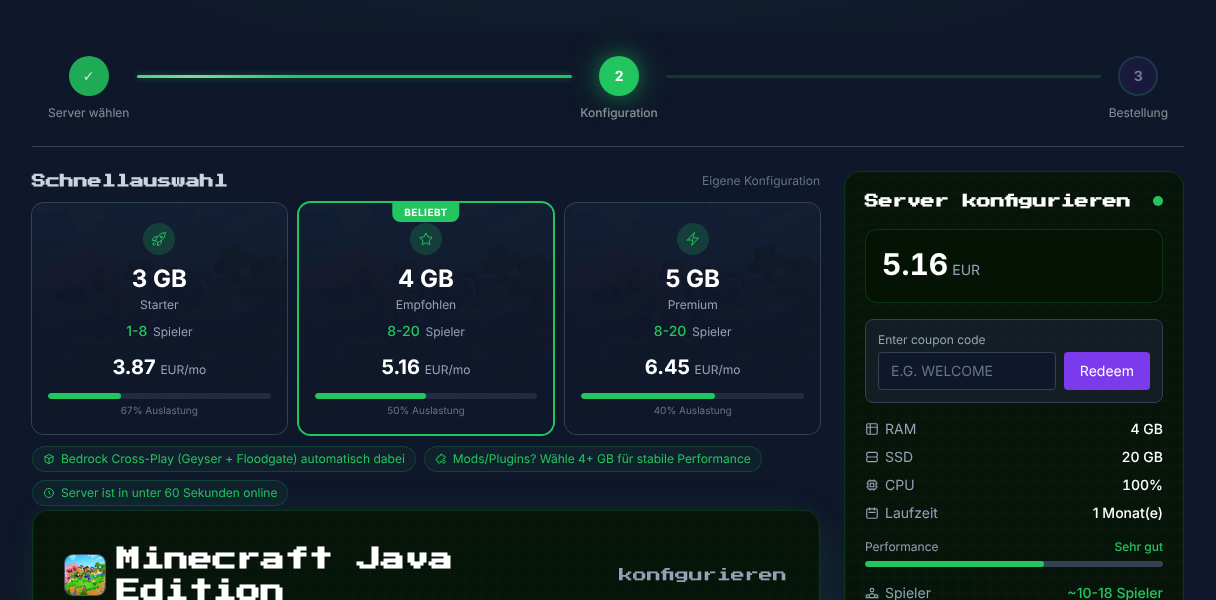 (Enlarge image)
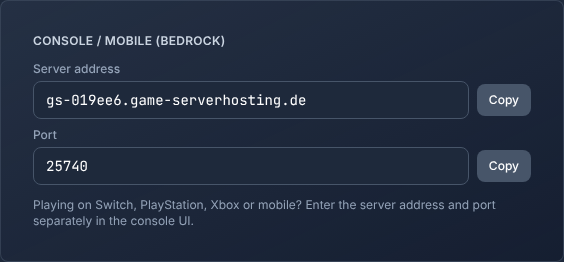 (Enlarge image)
More Guides and Sources
- Geyser documentation
- Set Up Simple Voice Chat on Your Minecraft Server — the second UDP service alongside Geyser
Video (0:21): Geyser (Bedrock-Crossplay)
Our own captures from a demonstration environment. The version and setup shown may differ from your server.
- Java player: first bridge block over the magma.
- Bedrock player (via Geyser): second block, bridge done.
- He crosses over and hands over a diamond.
- Java view: the diamond has arrived.
