In DayZ, Workshop files, .bikey signatures, launch lists and required client mods must all match. Also back up mission and persistence data before making changes. Install one extension per test and treat a wipe as a separate, deliberately confirmed data operation.
Switching Between Stable and Experimental in the Panel
Stable is the regular DayZ branch. Experimental is the test branch and requires the matching DayZ Experimental client. Switching branches in the panel completely clears the server. Therefore, back up the world, configuration, mods and keys beforehand.
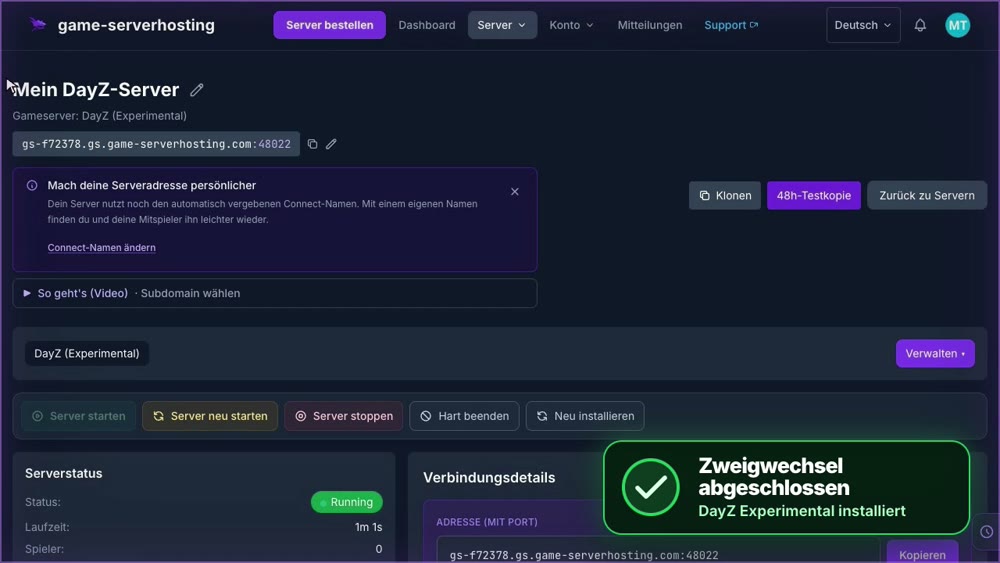
Open “Manage” → “Change game type”, tap the DayZ tile and below it choose “DayZ (Experimental)” or Stable. Confirm the data loss, enter the server name and click “Change game type”. Wait until the installation is complete and the server is running. Afterwards, check mod compatibility with the selected branch.
Official information on the DayZ Experimental client.
Why Mods Matter So Much in DayZ
The DayZ Workshop offers everything from pure quality-of-life tweaks (map overlays, extended base-building options) to complete total conversions with new weapons, vehicles and loot tables. On your own server, you decide which mods shape your gameplay experience — this guide assumes the basic server setup from the first part of this series.
Workshop Mods as @ModName Folders
Every DayZ Workshop mod is expected as its own folder with the prefix @ (for example @CommunityFramework). Upload the complete mod folder to your server's main directory via the file manager in the panel — the folder structure of the mod must remain unchanged so that the server recognizes it correctly.
The keys/ Folder
So that clients can connect to a modded server, the corresponding .bikey signature files must be located in the keys/ folder of your server. Every Workshop mod brings its own .bikey file(s), usually in the keys subfolder of the mod itself. If a key is missing, the server refuses the connection from clients with the mod installed — a common reason for “can't connect” problems after a fresh mod installation.
CLIENT_MODS vs. SERVERMODS: the Key Difference
The DayZ egg distinguishes two types of mods via separate startup variables:
- CLIENT_MODS: Mods that must be installed both on the server and on every connecting client (such as new items, weapons or map extensions that are visible and relevant to gameplay). They are loaded via the
-mod=launch parameter. - SERVERMODS: Mods that run exclusively on the server side and remain invisible to clients (such as pure admin or anti-cheat frameworks). They are loaded via the
-serverMod=launch parameter.
If you accidentally enter a mod in the wrong variable, it either does not work at all (a SERVERMODS mod is missing on the client side even though it is needed there) or clients are wrongly asked to install a purely server-side mod. Both variables accept multiple mods, separated by semicolons, in the same order in which they should be loaded.
types.xml and the Loot Economy at a Glance
Many popular DayZ mods (especially loot and economy mods) bring their own types.xml or additions to it — this file controls which items spawn in the world, how frequently, at which locations and with what maximum stock quantity. Server owners who want to adjust the default loot distribution (for example more military gear, rarer vehicle parts) edit this file directly or use a corresponding economy mod as a base.
mpmissions — Your Server's Mission Data
The mpmissions folder contains the actual mission data of your current map (such as Chernarus or a community map), including the types.xml mentioned above, spawn points and map-specific configuration. When changing maps or making larger economy adjustments, this folder is the central starting point.
Persistence Wipe: storage_* Folders
The entire game world — placed buildings, stored items, vehicles, tents — is persisted in the storage_* folders of your server. A full wipe (for example at the start of a season or after a larger mod change that is no longer compatible with the saved data format) means emptying or replacing these folders — this irreversibly deletes all player progress on the map. Announce a planned wipe to your community in good time and take a backup beforehand using the panel backup function.
Mod Updates After DayZ Patches
After a DayZ update, you check two separate layers: server and clients must use the matching DayZ build; forceSameBuild controls the EXE build revision here. Workshop mods may additionally need their own compatibility update. Check their release notes, actual mod versions and signature keys. Back up the configuration and mod list before the update, test a single join and, if problems occur, restore the last working combination.
Performance and Restarts
The more mods, especially economy and loot mods with many additional item definitions, the higher the server load. A regular, scheduled restart (see the first part of this series) becomes even more important as the number of mods grows, in order to keep performance stable.
Official Sources and Installation Check
Bohemia Interactive documents in the DayZ mod structure that Workshop mods typically contain addons, a keys folder and .bikey files. The official server configuration describes -mod and -serverMod as separate launch parameters. After every change, check whether all expected mods appear in the startup log and whether a client with the same mod list can join.
FAQ
When does a mod belong in CLIENT_MODS and when in SERVERMODS?
If the client needs content or scripts from the mod, it must be loaded via CLIENT_MODS or -mod. Purely server-side extensions use SERVERMODS or -serverMod. The documentation of the respective mod is authoritative.
Where do .bikey files go?
Copy them from the mod's keys subfolder into the server's central keys/ folder. If the matching key is missing or belongs to a different mod version, signature verification fails on join.
Do I have to update all mods immediately after every DayZ update?
First check the mod authors' compatibility announcements and back up the server. Update the server, mod files and keys as one consistent state. Mixing old and new files often causes startup or connection errors.
When is a persistence wipe necessary?
Not with every update. A wipe only makes sense if map, economy or mod changes are incompatible with the existing save state. Back up the storage_* folders and announce the data loss in advance.
Conclusion
With the right interplay of @ModName folders, correctly placed keys, cleanly separated CLIENT_MODS/SERVERMODS entries and a well-thought-out wipe and update rhythm, you can safely bring your DayZ server to the desired mod state — without frustrating clients with connection problems.
Solving Signature Errors Without Turning Off Verification
First compare the installed mod version on the server and client. Then check whether the matching .bikey from exactly this release is in the active keys folder. An old key file or a duplicate mod version can prevent the join even though the mod name is correct. Check the launch lists for complete folder names and the load order specified by the author. Keep signature verification enabled. A persistence wipe does not fix a missing key and additionally deletes player progress. Therefore, back up existing data and initially change only files or parameters of the affected extension.
DayZ: switch between Stable and Experimental: view an example
Our own captures from a demonstration environment. The version and setup shown may differ from your server.
- Open Manage → Change game type. Click the DayZ tile and choose DayZ (Experimental).
- Back up your data first: switching branches completely clears the server. Confirm deletion and enter the server name.
- Click Change game type. Wait for completion; the overview then shows DayZ Experimental and the running server.
GSH-Testserver · 2026-09-30