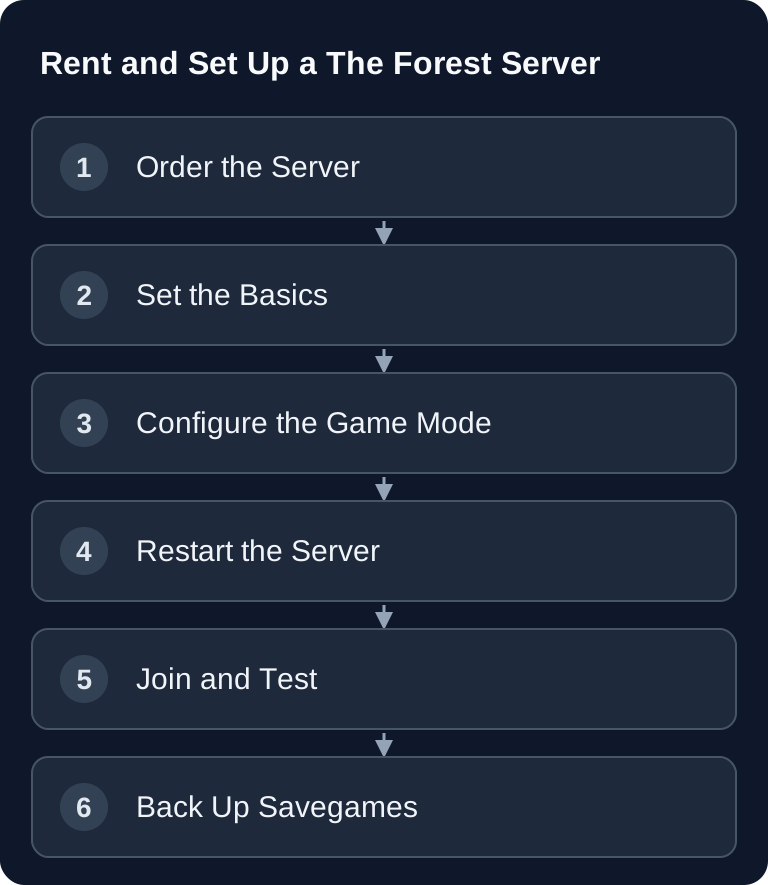
You set up a The Forest dedicated server with a server name, password, save slot, and initType Continue for an existing world. After the first restart, check that the same progress is loaded. Sons of the Forest uses different server software; order and configure both games separately.
Requirements
For a stable co-op server, you need a The Forest dedicated server, access to the configuration file, a restart function, and the savegame directory. The original setup provides 2-4 GB RAM. This is a practical starting size for small groups, but it is not a concrete performance guarantee: world size, player activity, enemy count, and structures can change the load.
The dedicated server page in the community wiki describes a maximum player count for The Forest via serverPlayers, with the example serverPlayers 8. The community wiki page on dedicated servers also documents ports, difficulty values, initType, save slots, and server options: Documentation at theforest.fandom.com. Use this source as a reference if you want to double-check individual parameters.
If you are looking for similar co-op setups, the Rent and Set Up a Valheim Server – Co-op Guide 2026 and the Rent and Set Up an Enshrouded Server – Co-op Guide are also helpful, as they cover comparable topics such as persistence, shared worlds, and server management.
Ordering a Server
- Open the game selection at game-serverhosting and explicitly check whether The Forest is offered. The server for the successor, Sons of the Forest, does not replace this game.
- Choose 2-4 GB RAM
- The server is set up automatically
When ordering, focus less on marketing terms and more on practical control: you should be able to change configuration values, trigger restarts, download savegames, and create backups. For The Forest, this is especially important because progress depends heavily on the server save, and a wrong start mode can quickly give the impression that the world has disappeared.
Basic Configuration
The existing example configuration remains a good basis for private co-op sessions. First adjust the name, password, and, if necessary, the Steam account token. Do not use a publicly known password if the server is only meant for friends.
serverName My Forest Server
serverPassword secret
serverPlayers 8
initType Continue
difficulty Normal
veganMode off
vegetarianMode off
Enter serverSteamAccount only with a Steam token that is actually intended for this server. Explanations belong outside the values; do not copy # comments as a token or setting value.
What matters is initType Continue: it is meant to continue loading an existing save. If you deliberately want to start a new world, switch to New; afterwards you should check again which save slot is being used. serverPassword protects the session from outside players. serverPlayers 8 is the value in this example. Check additional player slots against the documentation of your specific dedicated server version and the package actually offered.
Difficulty Levels
| Mode | Description |
|---|---|
| Peaceful | No mutants |
| Normal | Standard |
| Hard | More and stronger enemies |
| Hard Survival | Stricter survival rules; not a permadeath mode guaranteed by this setting |
For the first session together, Normal is usually the cleanest starting point, because you can test mechanics, building, caves, and combat without extreme pressure. Peaceful is suitable if the group mainly wants to build or get to know the map. You should only choose Hard and HardSurvival once everyone understands that mistakes are punished much more severely.
Understanding the Optional Modes
veganMode and vegetarianMode are not just comfort switches, but noticeably change the feel of the game. veganMode on largely removes enemies and takes away a large part of the threat from the survival horror. vegetarianMode on reduces enemy encounters during the day, but makes the night feel more dangerous. For beginners, vegetarianMode is therefore a sensible compromise if building and exploring are the focus but tension should be preserved.
Before you change these values on a running world, back up the savegame. That way you can go back if, after a few play sessions, the group notices that the chosen setting does not fit the desired pace.
Joining
- Start The Forest → Multiplayer
- "Join Dedicated Server"
- Search for the server or enter the IP directly
- Enter the password
If the server does not appear in the list right away, separately check the game port and query port from your installation and the corresponding Steam server list. A reachable query address is not automatically the direct game address. Also check whether the server was actually restarted after the last configuration change. With rented servers, the most common mistake is not the setting itself, but a configuration that was saved but not yet loaded.
Verifying the Result
After the first join, you should check four things: the server name is displayed correctly, the password is requested, the player count matches the configuration, and the world loads the same progress again after a restart. As a test, build a small object, save or wait for the autosave, restart the server, and then check whether the object is still there.
Also check the difficulty in practice in the game. If you use Peaceful, veganMode, or vegetarianMode, enemy behavior should change accordingly. Do not rely only on the file, but test the effect in the world.
Savegames and Backups
Savegames are located in the server folder and can be downloaded. Back them up regularly, especially before larger changes to difficulty, initType, slot values, or server files. Keep at least one backup that was created before the last configuration change. That way you can distinguish between a technical problem and a deliberately restarted world.
A similar backup approach is worthwhile for other survival servers with significant world progress, for example with the Rent and Set Up a V Rising Server – Vampire Guide or the Rent a Terraria Server – Set Up Multiplayer.
Troubleshooting
Server Does Not Appear in the List
Wait a moment after the restart, refresh the server list, and test joining directly via IP. Also check whether the server process is running and whether the server name contains unusual special characters that make searching harder.
Password Does Not Work
Check serverPassword for spaces, typos, and old browser or client inputs. Save the configuration again and restart the server so the new value is loaded.
World Restarts Instead of Continuing
Check initType Continue and the save slot being used. If New is active or a different slot is loaded, it looks as if the progress was lost. In that case, do not keep playing; back up the current state and check existing backups.
Enemies Behave Differently Than Expected
Compare difficulty, veganMode, and vegetarianMode. These settings overlap in how the game feels. For clear tests, first use difficulty Normal, veganMode off, and vegetarianMode off, then change only one value at a time and restart.
FAQ
How much RAM should I choose for a The Forest server?
Use 2-4 GB RAM only as a starting range and check the actual load. This is a sensible starting range for smaller co-op sessions. Plan for more headroom if many players are active or the world is heavily built up.
How many players does The Forest support on a dedicated server?
The configuration example shown here sets serverPlayers 8. Check additional player slots against the documentation of your specific dedicated server version and the package actually offered before you plan for them.
Should I use initType New or Continue?
For an ongoing world, use initType Continue. New is only appropriate if you deliberately want to start a new world. You should create a backup before any change.
Which is better: Peaceful, veganMode, or vegetarianMode?
Peaceful removes much of the threat. veganMode is also intended for very calm sessions. vegetarianMode reduces enemy encounters and is better suited if beginners are meant to build and learn without completely removing the survival pressure.
Can I download my savegame?
Yes, savegames are located in the server folder and can be downloaded, provided your hosting access offers file management or backup access. Always back them up separately before larger changes.
Does Sons of the Forest use the same dedicated server?
No. The successor Sons of the Forest has its own dedicated server. This guide applies only to The Forest.