Last checked: September 25, 2026. The Forest has been on version 1.11c for years (v1.12 only concerned the VR version); ModAPI is still being maintained (v2.0.9623, September 2026).
The Forest mods differ by client, multiplayer and dedicated server. In ModAPI, choose the matching game entry and heed the author's SP/MP/DS notes. Local helpers do not automatically require the same installation for all players; world-altering mods, however, must be suitable for your shared version. The ModAPI FAQ explains the limits of multiplayer mods and what to do after game updates.
Requirements
For The Forest mods, you need an installed PC version of The Forest, access to the local game folder and a server whose configuration you can edit and restart. At game-serverhosting, this approach fits well with a controlled multi-game setup: you keep server files, restarts and configuration changes separate from the players' client mods and can document changes cleanly.
Before every change, create a backup of your save and your server configuration. Mods can affect save files, balance and stability. This applies especially when you combine several mods or adjust an existing world after the fact.
Installing ModAPI for The Forest
ModAPI is the most important tool for The Forest mods:
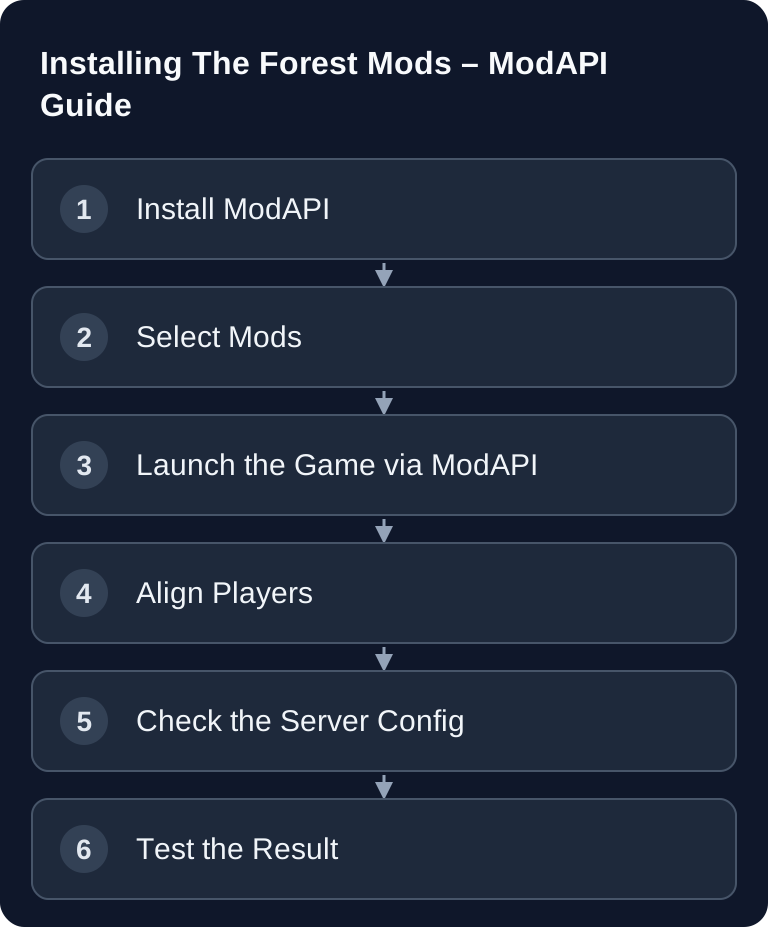
- Download and install ModAPI
- Select the The Forest path
- Browse and enable mods
- Click "Launch"
Extract ModAPI to C:/Program Files (x86)/, not into the Steam folder, select the correct The Forest installation folder in the tool and launch the game the first time via “Start game” in ModAPI. After that, you can start The Forest normally through Steam; the mods stay active until you change them again in ModAPI.
Whether an unmodified client can join and which effects it sees depends on the specific mod. Therefore, besides the modified client, test a second client with the intended minimal installation. A successful login alone does not prove that items or game mechanics are in sync.
Popular Mods
| Mod | Description |
|---|---|
| Champions of the Forest | RPG elements, leveling |
| Ultimate Cheatmenu | Admin tools |
| Map | Map with player and enemy positions |
| Destroyer Of Worlds | Remove objects and structures |
| Easy Building | Half building costs |
| Damage Numbers | Health bars and names for enemies |
These mods mainly change the gameplay experience on the client side. Before using them, check whether the respective mod still matches the installed game version and whether it works sensibly in multiplayer. You should only use admin or cheat menus in closed groups, because they can strongly affect game balance and trust.
Server Mods and Limits
The Forest has limited server mod support:
- Most mods are client-side
- ModAPI has its own entry “The Forest Dedicated Server” with
[DS]mods such as Command Console, Players List, Ban List, WhiteList, Log Viewer, Live Web Map and Auto Restart; you install these on the server, not on the players' machines - Whether all players need the same mods depends on the mod: local helpers such as Map or Cheatmenu only work for you, while world-altering mods such as Champions of the Forest must be installed in the same version for everyone (heed the author's SP/MP/DS note)
In practice, this means: do not treat ModAPI like a classic server mod system. The server provides the world, slots, saves and configuration logic; many mod functions, on the other hand, run on the clients. For stable operation, you should test large mod changes on a separate test save first.
If you also run other survival servers, a consistent approach to mod lists and rollbacks is worthwhile. You can find similar principles in the guide on Installing Valheim Mods with BepInEx and in Installing V Rising Mods, even though the technical frameworks work differently there.
Configuration-Based Adjustments
Instead of mods, you can change many things via the config:
veganMode off         // Normal starting point
vegetarianMode on     // Night enemies; alternative game rule
treeRegrowMode on     // 10% of the trees regrow while sleeping
allowBuildingDestruction off  // Indestructible buildings
The community wiki page on dedicated servers documents such server options and admin commands at Documentation at theforest.fandom.com. Among other things, veganMode, vegetarianMode, treeRegrowMode and allowBuildingDestruction are described there as configuration values or command options.
Use these values when you want to enforce a change server-wide and transparently for all players. treeRegrowMode on, for example, suits long-term worlds where wood resources should be preserved. allowBuildingDestruction off can protect bases from accidental or deliberate damage. veganMode and vegetarianMode change enemy behavior and should be chosen deliberately, because they shift the difficulty considerably.
Verifying the Result
After a config change, restart the server and connect with a client. Then check not only whether the server is reachable but also whether the specific change is visible in the game. For example, test whether buildings take damage, whether enemies appear as expected and whether trees regrow under the appropriate game conditions.
For client mods, additionally check whether mod menus open, HUD elements are visible and all players see the same effects. For purely local HUDs or helper functions, an effect on only one client is to be expected. For shared items, enemies or building parts, however, a discrepancy points to version or installation problems. Therefore, compare against the behavior documented by the author.
Troubleshooting
ModAPI Does Not Find The Forest
Select the installation folder manually. Make sure to point to the actual The Forest game folder, not just the Steam library folder. Then restart ModAPI and check again.
Players Cannot Join
Align the ModAPI version, mod selection and game version. As a test, remove all mods and reconnect. If joining works without mods, the cause is probably a mod or an incompatible combination.
Config Changes Do Not Take Effect
Check whether you edited the active server config and whether the server was fully restarted after saving. Also verify spelling and values, for example on or off.
Save Seems Corrupted or Unstable
Stop further changes and restore a backup. Then test each mod individually before re-enabling the complete mod list. For productive worlds, you should never adopt new mods directly without a test run.
Sons of the Forest
The successor already has an active mod community. You can find mods on Nexus Mods. However, do not confuse these mods with The Forest mods: the game, mod frameworks and compatibility must be considered separately.
FAQ
Can I install The Forest mods directly on the server?
Yes, for the [DS] mods from the ModAPI entry “The Forest Dedicated Server” (Command Console, Players List, Ban List, WhiteList, Log Viewer, Live Web Map, Auto Restart). Gameplay mods still run client-side via ModAPI; you can also control a lot through the configuration values in server.cfg.
Do all players have to install the same mods?
Only for mods that change items, enemies or building parts (for example Champions of the Forest): these must run in the same version for everyone. Purely local helpers such as Map or Cheatmenu only affect your own client. If you want to enforce identical mod lists, use [BAC] Blight's Anti Cheat; the ModAPI team regards cheats as a singleplayer feature anyway and recommends private lobbies in multiplayer.
Are config changes safer than mods?
They are usually easier to trace, because they are set by the server and require no additional client files. Even so, you should create a backup beforehand and test the change.
Which mods should I test first?
Start with a single mod that has a clearly visible effect. Then restart the server and client, check the behavior in the game and only then add further mods.
Can I remove mods again later?
Often yes, but not every mod leaves a save unchanged. Therefore, remove mods on a test save first and keep a backup ready before you change a running world.