The CS2 Match Center installs the managed MetaMod, CounterStrikeSharp and MatchZy stack and bundles match control as well as GOTV. First check for a free server and the stack status; then load teams, map and format. A running game server alone does not confirm that a match is ready to start.
What the CS2 Match Center does
The Match Center bundles the match stack of MetaMod:Source, CounterStrikeSharp and MatchZy as a managed installation. Instead of uploading archives manually, checking paths and loading plugins one by one, you start the setup in the Match tab of your CS2 server. This fits the game-serverhosting positioning: paid multi-game hosting with technical control, support and traceable operating procedures.
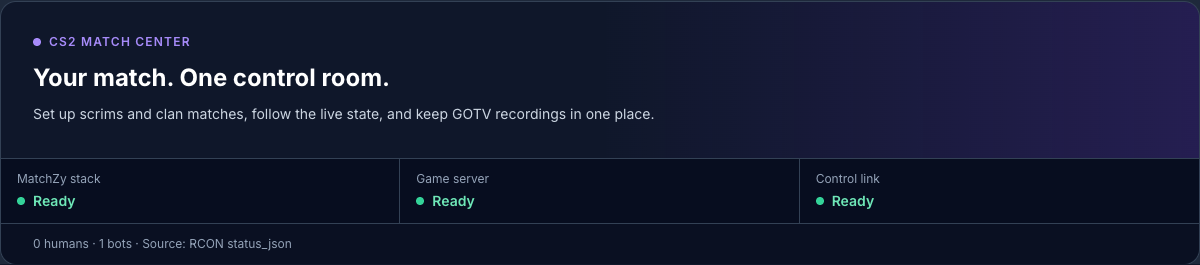
In the upper area you see the state of the match stack, game server and control. The player row shows humans and bots separately. This information comes from status_json via RCON and is therefore a server query, not an estimate. This way, before installations, restarts or match actions, you can tell whether the server is currently in use.
The official MatchZy documentation describes the manual installation as a sequence of MetaMod, CounterStrikeSharp and MatchZy, plus check commands such as meta list and css_plugins list: Documentation at shobhit-pathak.github.io. The Match Center maps this stack in the panel and reduces the manual work to guided steps.
No SourceMod for CS2
A common misconception is that a CS2 match server needs SourceMod. For this stack, that is not the case: MatchZy runs on CounterStrikeSharp. AlliedModders lists Counter-Strike 2 in the official SourceMod compatibility overview with the SourceMod status “Unsupported”: Documentation at wiki.alliedmods.net.
That is why SourceMod appears in the match stack as “Not yet available for CS2”. The entry is visible but cannot be activated. If the status changes later through verified builds, a provider switch can be prepared within the same interface. For the setup in this guide, however, the following applies: you use MetaMod:Source, CounterStrikeSharp and MatchZy, not SourceMod.
The match stack at a glance
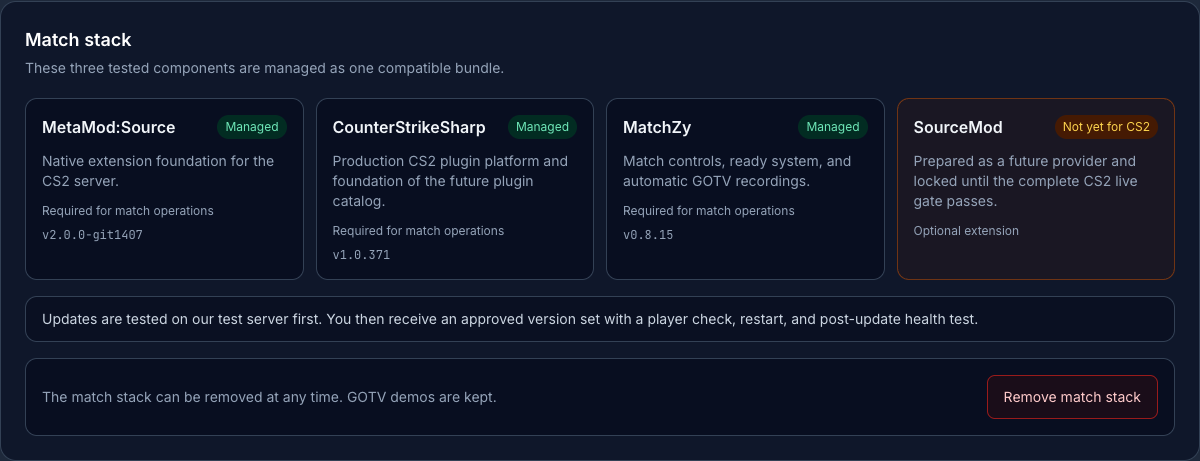
| Component | Version | Status |
|---|---|---|
| MetaMod:Source | v2.0.0-git1472 | Managed |
| CounterStrikeSharp | v1.0.376 | Managed |
| MatchZy | v0.8.15 | Managed |
| SourceMod | – | Not yet available for CS2 |
“Managed” means: versions and updates are not pulled onto the server unchecked as latest. The stack is treated as a coherent version set. Before deployment, installation, server start, plugin load, RCON status, a test match and a GOTV demo are verified. Downloads are validated against their SHA-256 checksum before being extracted.
Before restarts, the system also checks the player status. If the server is in use or the status cannot be determined reliably, the update waits. This matters because match servers are often used in fixed time slots, and an unplanned restart would disrupt a scrim or tournament game.
Requirements
You need an active CS2 server in the game-serverhosting panel and access to the Match tab. The server should be reachable so that status queries via RCON work. Also make sure that no players are active on the server when you install, update or remove the stack.
You do not need your own GSLT token in this setup if your CS2 server is run in the panel with the token provided by game-serverhosting. For deviating special configurations, still check the server details in the panel or ask support before you plan productive matches.
Install the match stack
Open the Match tab of your CS2 server. If your server is enabled for the Match Center, you will see the installation area for the match stack. Start the managed installation. The panel installs MetaMod:Source, CounterStrikeSharp and MatchZy in the intended paths and prepares the MatchZy configuration.
After installation, the stack should be shown as managed in the panel. Then check the server status. If the server does not start or the plugin status remains unclear, do not start a match, but first use the notes in the troubleshooting section.
Set up a match
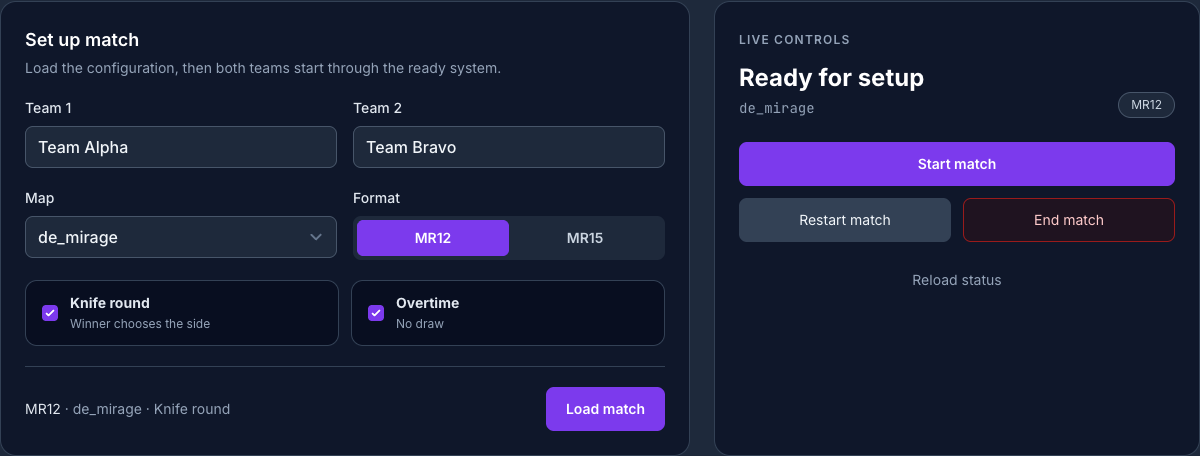
In the “Set up match” form, you enter Team 1 and Team 2. Then you choose the map, for example de_mirage, and set the format. MR12 and MR15 are available. Optionally, you enable Knife Round and Overtime via checkboxes.
Then click “Load match”. This transfers the configuration to MatchZy. The ready system makes sure the match does not start uncontrolled: all players report ready before you trigger the start.
Live control and verification
Live control shows the current match state, for example “Ready for setup”. From there you start the match, end it or perform a restart. Before the start, you should check three points: Are both teams named correctly? Is the desired map loaded? Is the game server shown as reachable?
During the match, you can keep monitoring the state via the panel. MatchZy continuously backs up the round state. In case of disconnects or false starts, you can go back to an earlier round state instead of setting up the match completely from scratch.
Download GOTV demos
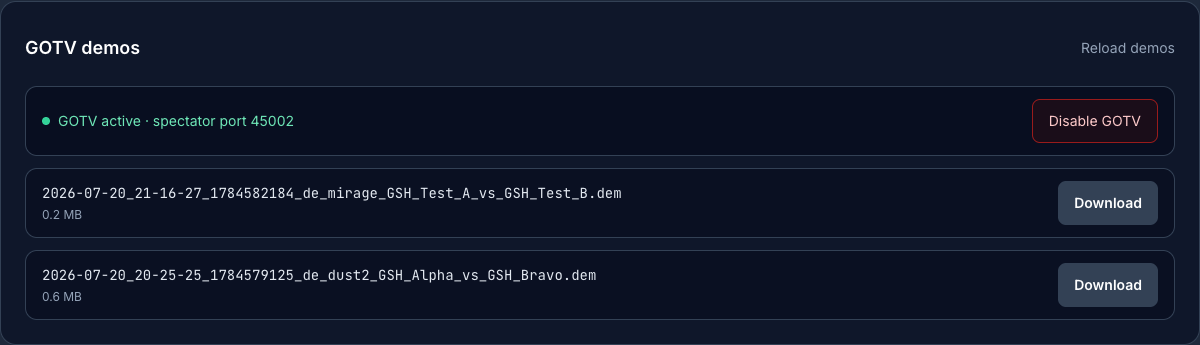
For every match, the Match Center records a GOTV demo if GOTV is active. In the GOTV section you see the status and the spectator port. The screenshot shows 45002 as an example; your actual port is assigned individually.
Via the toggle, you can disable or re-enable GOTV as needed. Finished demos are available for download in the panel. Download the demo after the match and check that the file, date and match reference fit the game that was played.
Remove the match stack
Via “Remove match stack” you can uninstall the managed stack again. The same safety rules apply as for installation and updates: active players or an unknown player status block the restart.
Only the managed paths are removed: MetaMod:Source, CounterStrikeSharp including MatchZy, and the managed MatchZy configuration. GOTV demos are kept as customer data. Third-party plugins that you installed yourself are not intentionally removed.
Availability and context
The Match Center is being enabled for CS2 servers step by step. Internal test servers and individually enabled pilot servers come first. Your server receives the feature as soon as its server ID has been added to the rollout. This statement is a snapshot as of July 22, 2026.
If you run other games in your team besides CS2, our internal guides on server structure will help: the guide Rent and Set Up a Valheim Server – Co-op Guide 2026 shows a similar approach for co-op hosting, while Rent and Set Up a V Rising Server – Vampire Guide explains the setup of another dedicated multiplayer server.
Troubleshooting
Match stack is not shown as managed
First check whether the installation is complete and the server was allowed to restart. If players were active or the player status was unknown, the restart may have been deliberately blocked. Wait for a free time slot and start the installation again via the panel.
Match does not load
Check team names, map selection and format. Only use maps offered in the dropdown. If the panel cannot read the server status cleanly, the match configuration should not be used productively until RCON and server status are reachable again.
Ready system does not start
The match only starts once the players are ready and live control shows the appropriate state. Check whether all intended players are connected and that no bots or wrong slots distort the player overview.
GOTV demo is missing
Check whether GOTV was active before the match. Also make sure the match ended regularly. If no demo is shown, check the GOTV section again later or contact support with the match time, server ID and map.
Do a dry run of a match before the tournament
With the intended team configuration, first test ready, warmup, match start and regular end. Then check whether the GOTV recording exists for exactly this time and this map and can be downloaded. Do not only check the toggle position before the match: a missing demo may only show up at the end. If the status query remains unknown, sort out RCON and the connection before you repeat installations or restarts. For a bug report, note the server ID, match time, map and the last visible match state; tokens and passwords do not belong in it.
FAQ
Do I need SourceMod for my CS2 match server?
No. For this CS2 match stack, you use CounterStrikeSharp as the plugin platform. MatchZy runs on it, not on SourceMod.
Which components does the Match Center install?
The managed stack consists of MetaMod:Source, CounterStrikeSharp and MatchZy. SourceMod is displayed but is not active for CS2 in this setup.
Do I need my own GSLT token?
No, if your CS2 server is run with the GSLT provided in the game-serverhosting setup. In special cases, you should check the server details in the panel.
Are my GOTV demos kept if I remove the match stack?
Yes. GOTV demos count as customer data and are kept when you remove the managed match stack.
Can I restore rounds after a disconnect?
Yes. MatchZy backs up round states, so you can go back to an earlier state in case of disconnects or false starts.
Is the Match Center available for every CS2 server?
As of July 22, 2026, it is being enabled step by step. Your server needs an explicit approval on the pilot list.