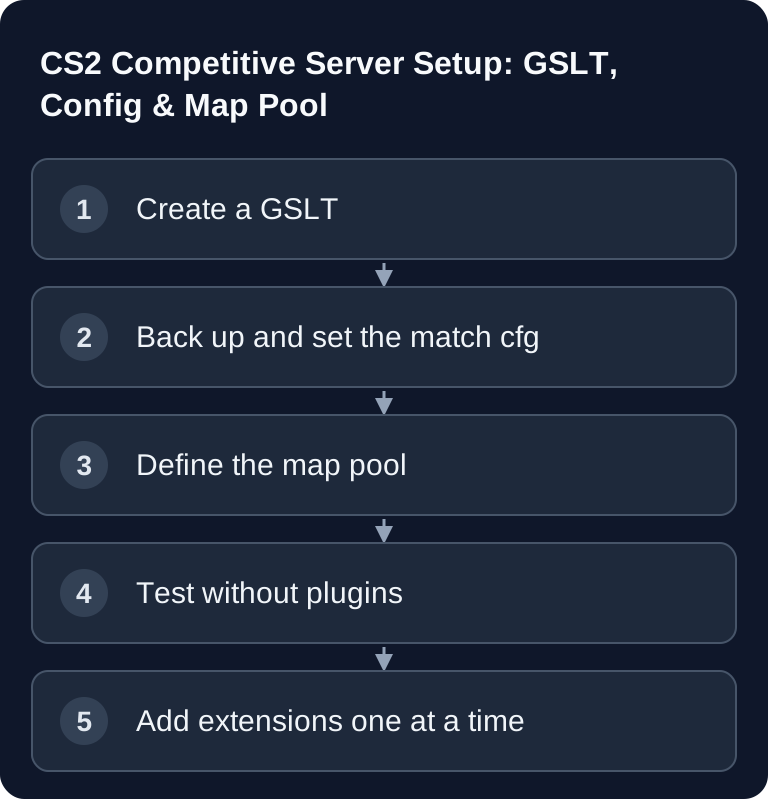
You set up a CS2 server for scrims with a valid GSLT, a dedicated match cfg and a map pool that has been tested in advance. Test halftime and overtime with the same configuration that gets loaded in the match. The general server.cfg basics stay separate from the competitive rules described here.
Requirements and Clear Responsibilities
You need panel/file access, the server console, your own Steam account and a Game Server Login Token. This article does not install plugins and does not explain Workshop downloads in detail. Use these guides for that:
- Installing CS2 Plugins
- Loading CS2 Workshop Maps
- Setting Up the MatchZy Match Center
- Checking Tickrate and Performance
Creating a GSLT with App ID 730
Open Valve's Game Server Account Management, log in and create a separate token with App ID 730 for each public server. Save it in the designated field of the panel. A GSLT is access information: do not publish it, do not show it in screenshots and replace it immediately after it has been exposed.
Start the server and check in the log whether the login is accepted. A valid token alone does not guarantee visibility; the build, ports and startup state must be correct as well.
Deliberately Defining the Match cfg
Set your competitive values in a dedicated, documented match configuration. A comprehensible starting point is:
mp_maxrounds 24
mp_halftime 1
mp_match_can_clinch 1
mp_startmoney 800
mp_freezetime 15
mp_buytime 20
mp_roundtime_defuse 1.92
mp_overtime_enable 1
mp_overtime_maxrounds 6
Don't verify the rules only by looking at the file contents. Play through at least warmup, round start, halftime and overtime once in a controlled way. If a panel preset manages the same cvars, document whether the preset or the file is the source of truth.
Map Pool for Season 5 and Your Own Matches
On July 8, 2026, for Premier Season 5, Valve added Cache to Active Duty and removed Overpass. This is the current official competitive pool, but it does not automatically change your private rotation. Decide deliberately whether you mirror the official pool or maintain a training pool.
Keep the pool for scrims small, check spelling and order, and test every map before the session. The Workshop guide covers Workshop IDs, downloads and rotation in more depth. You can find current pool and patch changes in the CS2 Update Hub.
Checking the Match Flow
After every change, run a reproducible test:
- Stop the server cleanly and back up the match cfg.
- Start the server and check the log for GSLT/cfg messages.
- Connect with two test accounts or separate teams.
- Check warmup, ready flow, round start, halftime and overtime.
- Load every map and perform a map change.
Only once the baseline works without plugins do you add MatchZy or other extensions. That way you can tell whether an error comes from the match cfg or the plugin.
Troubleshooting
Server Does Not Appear Publicly
Check the GSLT, App ID 730, build, port and startup log. Replace an exposed token and verify the login after the restart.
Competitive Values Are Not Applied
Compare the loaded files in their load order: startup/game mode cfg, server.cfg, match cfg and, if applicable, the plugin config. A file loaded later can override earlier cvars. Check the actual values only after the match has started and repeat the same test without plugins; that tells you whether the override comes from a file or an extension.
The Wrong Map Starts
Check the start map, rotation and exact map names. Test official maps first; handle Workshop problems separately via ID, download and mapcycle.
Overtime Does Not Start
Check mp_overtime_enable, mp_overtime_maxrounds and whether a plugin overrides the values at match start. Repeat the test once without extensions.
Limits and Fallback
The example values are a starting point, not a binding league rule set. For tournaments, always adopt the organizer's current rule set. If errors occur, restore the last working match cfg, start without plugins and check the flow again.
Primary Sources
FAQ
Does every CS2 server need its own GSLT?
Use a separate token for every public server. This lets you attribute exposure, revocation and troubleshooting unambiguously to one server.
Is Cache automatically in my rotation?
No. Cache has been part of the official Active Duty pool since Season 5; you change your private rotation yourself.
Does this guide install MatchZy?
No. This guide provides the GSLT and match rules. Installation and the Match Center flow belong in the specialized plugin/MatchZy guides.
What tickrate should I promise?
No unsubstantiated number. CS2 uses sub-tick; evaluate the server through reproducible match, network and load tests.