You optimize CS2 performance not through a single magic tickrate setting, but through stable server FPS, clean network conditions, a suitable player count and controlled plugins. The sub-tick system changes how classic 64- or 128-tick discussions should be judged: what matters is whether your server responds consistently under real load and whether connection problems can be measured and traced.
Tickrate, Sub-Tick and Managing Expectations
What is tickrate?
The tickrate determines how often the server calculates the game state per second. In older Counter-Strike versions it was a central point of comparison, because movement, hit registration and updates were strongly tied to fixed server ticks.
The 64/128-tick comparisons from CS:GO are not a configuration guide for CS2. Evaluate the current instance by even simulation, connection quality and reproducible match tests; an old -tickrate or cl_cmdrate value is no proof of an effective CS2 setting.
CS2 sub-tick system
CS2 uses a new sub-tick system:
- Actions are sent to the server with an exact timestamp
- The server calculates the tick and interpolates the position
- In theory, the tickrate should have less influence
In practice, this means: don't judge your server solely by a number in the launch parameter. If players report delay, rubberbanding or uneven hit registration, first check CPU load, server FPS, packet loss, ping variance, map complexity and plugin interference. Paid multi-game hosting like game-serverhosting is mainly worthwhile here if you need technical control, support and transparent operating procedures, rather than running everything yourself on an arbitrary root system.
As an official primary source, Valve's Steam Support is relevant: the Steam documentation on Source dedicated servers describes, among other things, the server name, maximum player count, UDP port, RCON and the "Secure (Valve Anti-Cheat)" option: Documentation at help.steampowered.com. For CS2-specific server starts, Valve's own rules repository for Major setups lists SteamCMD with app_update 730 validate and a start via ./cs2 -dedicated: Documentation at github.com.
Requirements Before Optimizing
Before you change values, the server should start reproducibly, be reachable and run with your target configuration. Check at least: current server build, correct Game Server Login Token, open UDP port, working map rotation, RCON access and a documented baseline of your server.cfg. Also note how many players realistically play at the same time and whether workshop maps, training plugins, retake modes, deathmatch or tournament setups are running.
Performance problems can only be evaluated cleanly if you separate idle from match operation. A server can look unremarkable in the panel and still briefly drop during utility spam, many entities or plugin events. Therefore, plan a test with several players or bots that resembles your real operation.
Network Optimization
For network diagnostics, use the current Source 2 telemetry from Valve. It shows client framerate and network problems. Old CS:GO values such as cl_interp, cl_cmdrate and cl_updaterate are not a reliable CS2 optimization template.
Enable telemetry for framerate, ping and network problems in-game. When an issue occurs, record the time, map and affected players. Compare the client values with the server metrics from the same time window.
The measurement afterwards is what matters. Look for stable ping, no packet loss and an even response during movement, spray control and peeks. If several players from the same region report similar problems, this points more toward server, routing or load issues. If only individual players are affected, check their connection, Wi-Fi, background downloads and regional distance to the server location.
Measuring Server Performance
Use measurements during a running round, not just right after the start. The following commands serve as practical diagnostic points:
A low client framerate can also occur with a healthy server. Several simultaneously affected players and matching CPU/log spikes point more toward a server problem. Packet loss or jitter without a server load spike need a separate check of the network path.
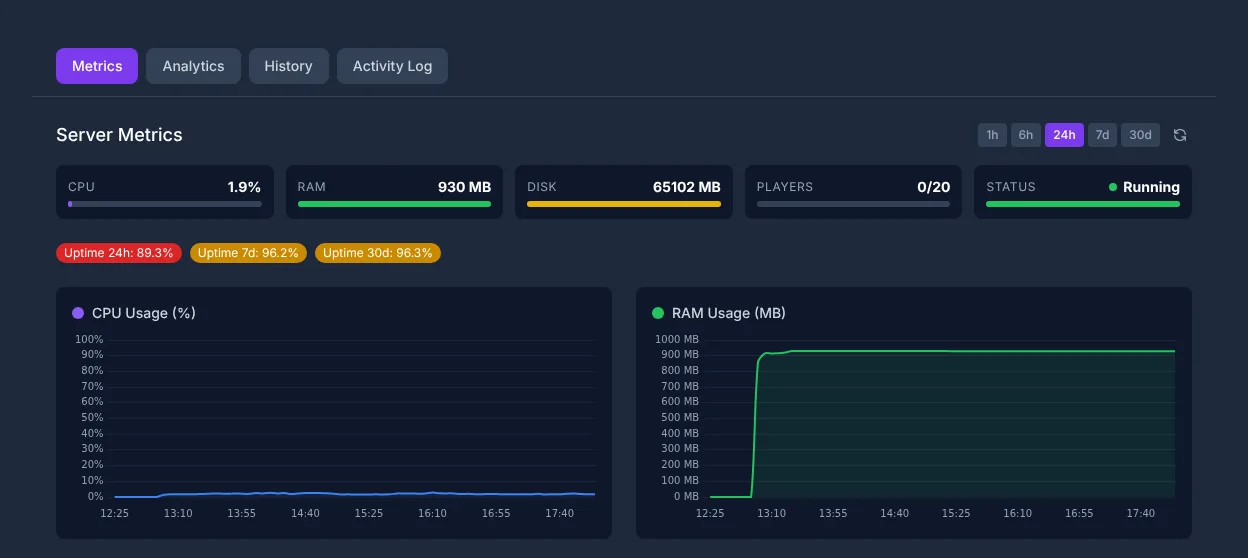
Check the same situations in every test run: warmup, full round, many grenades, map changes and several consecutive matches. If CPU spikes coincide exactly with lags, the most likely lever is not a network cvar, but load reduction or more CPU headroom. If RAM runs low, observe map changes, plugin logs and longer uptime. For other games the weighting is different; for context, you will find similar resource planning in the guide to Palworld server performance and RAM and in the Rent and Set Up a Valheim Server guide.
Performance Tips for Server Admins
- CPU priority: CS2 servers are CPU-heavy, not RAM-heavy
- Player count: 5v5 = optimal, 10v10 needs more CPU
- Workshop maps: Can need more resources than standard maps
- Limit plugins: Every plugin costs performance
- Server region: Check the regions currently offered in the order step and choose a location close to your group of players.
Apply these points as a test sequence. Start with a standard map and without additional plugins. If the server runs stably like that, enable extensions one by one. For workshop maps, pay attention to file size, entity density, scripting and logs. For plugins, check whether they are actively maintained and match the current CS2 version. A plugin that only occasionally throws errors can still worsen frametimes during certain events.
Anti-Cheat (VAC) and Tournament Operation
For tournament operation, check the current VAC/Secure configuration and the organizer's ruleset. A workshop map is not an anti-cheat system. Test demo recording, access rights and recovery before the match; only install additional plugins if their origin and compatibility have been clarified.
Keep anti-cheat expectations realistic: VAC is Valve's system, but it does not replace proper tournament administration. For organized matches, you should limit RCON access, change server passwords regularly, test GOTV/CSTV in advance and keep logs. Be especially careful with plugins, because not every extension is reliably maintained or stays compatible with future CS2 updates.
Checking the Result
An optimized CS2 server shows even server FPS under real load, no conspicuous CPU spikes, stable ping for players from the target region and no recurring errors in the console. Document your working configuration with the date, player count, map, plugin list and observed behavior. That way you can compare in a targeted way after updates or plugin changes, instead of starting from scratch with every lag report.
Troubleshooting
If players report lag, first ask about the time, map, player count, ping, loss and whether several players were affected at the same time. Then check server metrics for the same period. For problems after an update, validate the server files, disable new plugins and test a standard map. For routing problems, a location closer to the majority of your players helps. If only individual players are affected, the cause is often on the client side or with the respective internet provider.
FAQ
Can I simply set CS2 to 128 tick?
CS2 uses sub-tick, so the classic 128-tick argument from CS:GO is not directly transferable. Focus on stable server FPS, a good connection and reproducible tests.
Which player count makes sense for CS2?
For classic competitive matches, 5v5 is the obvious target size. Larger setups like 10v10 can work, but need more CPU headroom and should be tested under real load.
Are workshop maps a performance risk?
Yes, they can require more resources than standard maps. Test new workshop maps one at a time and observe CPU, RAM, console errors and player feedback during full rounds.
Which metrics are more important than a tickrate number?
More important are stable server FPS, low and even ping, no packet loss, no CPU spikes and an error-free console during real gameplay situations.
Should I install many plugins?
Only if you really need them. Every plugin increases complexity and can affect performance or stability. Enable plugins one by one and document the effect.