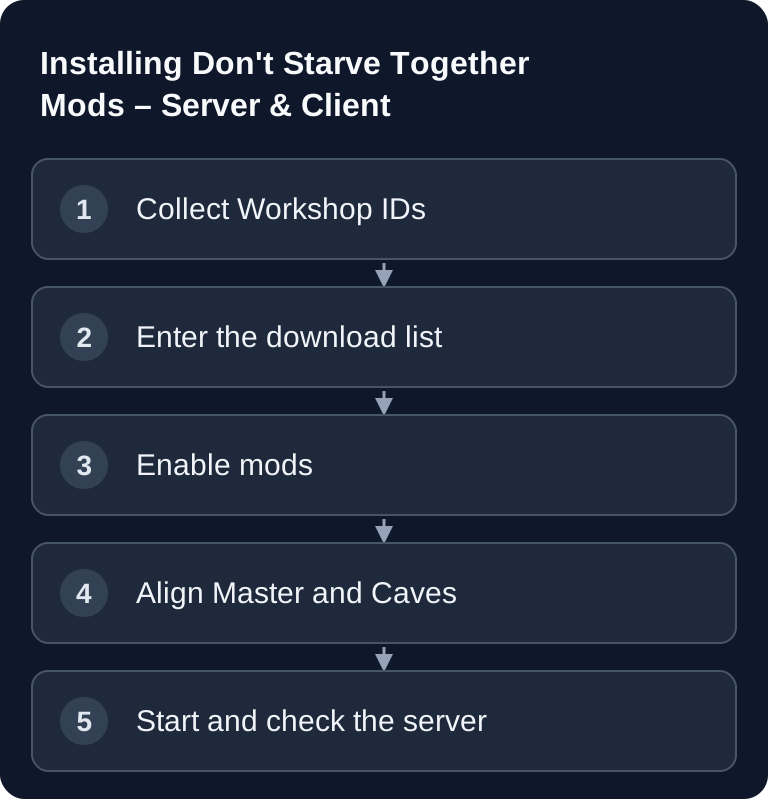
You install mods for Don't Starve Together on a dedicated server in two steps: first you let the server download the desired Workshop mods via their IDs, then you enable and configure them in the appropriate modoverrides.lua. It is important to treat the Master and Caves shards separately and always verify with a restart after changes.
Requirements
You need access to the configuration files of your Don't Starve Together server and should stop the server before making changes. With game-serverhosting, the sensible workflow is: edit files, save the change, restart the server, check the log, and only then add more mods. That way it stays clear which mod is responsible when problems occur.
The official reference for dedicated server operation is the Klei guide in the manufacturer's forum: Documentation at forums.kleientertainment.com. For mods, the respective Steam Workshop page is also relevant, because it lists the mod author, Workshop ID, dependencies, and notes on server or client use.
If you are still setting up the server itself, the internal guide Renting and Setting Up a Don't Starve Together Server fits. For similar mod workflows in other games, Installing Factorio Mods on the Server and Installing V Rising Mods with BepInEx are good points of comparison.
Finding Workshop IDs
Every Steam Workshop mod has a numeric ID. You can find it in the URL of the Workshop page, usually as the value after id=. Example: for a URL like steamcommunity.com/sharedfiles/filedetails/?id=378160973, 378160973 is the Workshop ID.
Note down only mods that you really want to use on the server. Many quality-of-life mods are purely client-side and do not belong in the server configuration. Other mods change the world, balance, interface, or inventory and must be enabled on the server side. So always check the mod's description and the author's notes.
Setting Up Mods via the Workshop
Enter the mods the server should download in dedicated_server_mods_setup.lua. This file is the download list. It does not yet enable the mods in your world, but first ensures that the dedicated server knows the Workshop content.
-- Mods to be downloaded
ServerModSetup("378160973")    -- Global Positions
ServerModSetup("462434129")    -- Wormhole Marks
ServerModSetup("458587300")    -- Season Clock
ServerModSetup("375850593")    -- Extra Equip Slots
Pay attention to clean quotation marks, no extra spaces in the ID, and no duplicate entries. Comments after the lines are helpful because you can immediately see later which ID belongs to which mod.
Enabling and Configuring Mods
Mods are enabled in modoverrides.lua. This file determines which downloaded Workshop mods are active in the world. For a server with Caves, you need the configuration for Master and Caves, because both shards can use their own settings.
In modoverrides.lua (for Master and Caves):
return {
  ["workshop-378160973"] = { enabled = true },
  ["workshop-462434129"] = { enabled = true }
}
Only add configuration_options with demonstrably valid keys from the mod or from a configuration generated by the game; a made-up option name does not enable any feature.
The key consists of workshop- plus the Workshop ID. enabled = true enables the mod. If a mod supports its own options, they belong in configuration_options. Which options are valid is not generally fixed but depends on the respective mod. So only adopt options that appear in the Workshop description, in existing example configurations, or in a configuration generated by the game.
Popular Mods
The following table preserves the existing example mods. It is not a recommendation list with performance or stability promises, but a practical starting point for commonly used mod types.
| Mod | Workshop ID | Description |
|---|---|---|
| Global Positions | 378160973 | See players on the map |
| Wormhole Marks | 462434129 | Marks wormholes |
| Geometric Placement | 351325790 | Precise placement |
| Extra Equip Slots | 375850593 | More equipment slots |
| Health Info | 375859599 | HP display for mobs |
Add new mods one at a time and test after each restart. Mods that change inventory, combat, world generation, or the user interface in particular can influence each other. A step-by-step approach saves a lot of time when conflicts occur.
Client Mods vs. Server Mods
- Server mods: Must be installed on the server
- Client mods: Must be installed on the player's side
- Both sides: Must be installed on both
For mods needed on both sides, the client can download required content when connecting. A mod's popularity or title does not tell you which side it needs to be installed on. Still, you should not assume that every mod works without further effort. Some mods require certain client settings, while others are only meant for local convenience features and should not go into the server files.
Verifying the Result
Restart the server after the change and watch the startup process. A clean test has three parts: the server starts without Lua errors, the world is reachable, and a player can connect without getting stuck in a mod download or error loop.
Then check in the game whether the desired feature is actually active. With Global Positions, for example, you should see whether player positions appear on the map as expected. With Caves, you also test switching between the surface and the caves, because an error is often visible in only one shard.
Troubleshooting
- Mods do not load: Check the Workshop IDs
- Crash: Disable mods one by one
- Caves mods:
modoverrides.luain BOTH shard folders!
For startup errors, back up the cluster state and both shard configurations. Test disabling the most recently changed content mods on a copy of the world so that a later save does not permanently overwrite missing mod data. Read the first Lua error message in the Master and Caves logs. The Klei guide on bug report logs helps you save the right logs for diagnosis. If the error persists, also check dedicated_server_mods_setup.lua, especially brackets, quotation marks, and commas in Lua tables.
If players get stuck while connecting, a mod may be outdated, a dependency may be missing, or a client component may be required. Then open the mod's Workshop page and check the author's notes. With several new mods, do not disable them all permanently, but halve the list as a test until the trigger is narrowed down.
For Caves problems, the most common cause is a different configuration between the Master and Caves shards. Do not copy settings blindly, but check whether the mod is meant for both shards. World generation mods often belong in a different category than pure interface or convenience mods.
FAQ
Do I have to restart the server after every mod change?
Yes. Changes to dedicated_server_mods_setup.lua and modoverrides.lua reliably take effect only after a server restart.
Where do I enter the Workshop ID?
The pure download list goes in dedicated_server_mods_setup.lua. The mod is then enabled in modoverrides.lua via the key workshop-ID, for example workshop-378160973.
Do I need the same modoverrides.lua for Caves?
If your server uses Caves, you must take the mod configuration for both shards into account. Many setups need one modoverrides.lua in the Master folder and another in the Caves folder.
Do players automatically download server mods?
For many mods needed on both sides, the client automatically downloads the required content when connecting. However, this does not replace checking whether the mod is up to date, fits the server, and has no additional notes from the mod author.
What do I do if a mod crashes the server?
First test the most recently added mod on a copy of the world, keeping the previous configuration as a fallback. If several mods were changed at the same time, test them individually or in small groups until the conflict is clear.