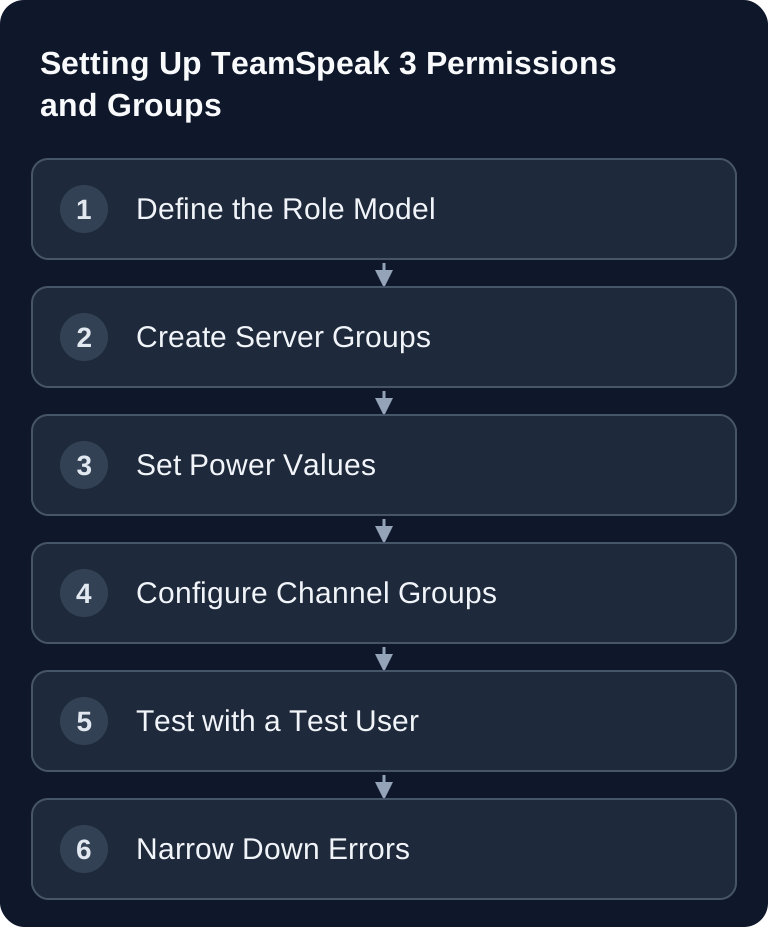
You assign TeamSpeak permissions through server groups for global tasks and channel groups for individual conversation rooms. For every action, you compare the actual power with the needed power of the target; a single general rank value is not enough. Test joining, viewing, kicking and group management separately with a normal identity before you assign roles in production.
Requirements
You need server admin permissions on your TeamSpeak 3 server and access to the TeamSpeak client with the permission management visible. After a fresh TS3 installation, according to the official TeamSpeak help, you receive a server admin token that you can redeem in the client under Permissions → Use Token: Documentation at support.teamspeak.com
For the actual permissions work, you should also prepare a short list of roles: Who administers the server? Who moderates conversations? Who may create channels? Who should only listen or speak only after being approved? If you run several game server communities, a consistent pattern is worthwhile. You can find fitting examples in our guide on renting and setting up a Minecraft server and in the guide to renting and setting up a Rust server, because community structures and moderation should be clarified early there as well.
Understanding the Permission System
TeamSpeak has a powerful permission system with three levels:
- Server groups (global)
- Channel groups (per channel)
- Client permissions (per user)
Server groups are the normal case. They define what a user is generally allowed to do on the server: speak, write, see channels, move users, kick, ban or manage groups. Channel groups complement the model where a user needs additional permissions only in a specific channel. You should use direct client permissions sparingly, because they are harder to trace later.
The official TeamSpeak documentation also describes the separation between server groups and channel groups as well as the permission types Boolean, Integer and Power: Documentation at support.teamspeak.com
Standard Server Groups
A practical starting point is four groups. The following values are a clear example, not a universal mandatory configuration:
| Group | Permissions | Power |
|---|---|---|
| Server Admin | Everything | 100 |
| Moderator | Kick, Ban, Channels | 60 |
| Member | Speak, Chat | 30 |
| Guest | View only | 10 |
Before restructuring, back up the current group state and keep an independent, working admin identity. Change a copied test group first. If a test user can add themselves to a higher role, correct that role's member-add and needed power before you assign the group to more users. This guide assumes an existing TeamSpeak server; it does not confirm a current TeamSpeak offering in the GSH order catalog.
Creating a New Group
- Right-click Server → Server Groups
- "Add Group" → enter a name
- Set permissions
In practice it is often cleaner to copy an existing default group and then reduce it or extend it in a targeted way. This way you avoid missing important base permissions. Name groups clearly, for example Server Admin, Moderator, Member, Guest and optionally Event Host or Clan Lead. Avoid fancy names for technical roles when several people administer the server.
Important Permissions
You should check the following permissions from the original model especially carefully:
i_group_needed_modify_power     # Who may modify this group
i_group_needed_member_add_power # Who may add members
i_client_kick_from_server_power # Kick power versus the target's needed kick power
b_client_ban_create             # Create bans
b_channel_create_temporary      # Create temporary channels
b_channel_create_permanent      # Create permanent channels
i_channel_join_power            # Join a channel
i_channel_subscribe_power       # View participants in the channel
What matters is the pairing logic of power values: a role needs enough power of its own to perform an action against a target with a certain needed value. If a moderator may kick users, but the target user or target group has a needed value that is too high, the action still fails. That is not a bug, but part of the protection model.
Using Channel Groups Sensibly
Channel groups apply only in specific channels:
| Group | Typical Use |
|---|---|
| Channel Admin | Channel owner |
| Channel Moderator | Can mute users |
| Channel Guest | Default permissions |
Use channel groups for clearly bounded responsibility. A raid leader, clan officer or event host does not automatically need global moderation permissions. They can move or mute users in their channel without being allowed to manage groups, bans or permanent channels server-wide.
If you separate voice areas for different games, keep the structure simple: lobby, game areas, private group rooms and a support channel. For larger communities with several game servers, consistent names help. You can also look at the organizational logic in the FiveM roleplay guide or the Palworld server guide.
Checking the Result
Test every role in practice after setup. Connect with a second client or a test user and check at least these cases: Can a guest join the server? Do they see only the intended channels? Can a member speak and write? Can a moderator kick, but not change admins? Can a channel admin moderate only in their own channel? Can nobody except admins change server groups?
Then briefly document which group is meant for what. This doesn't need to be a long operating manual. A table in your internal notes system is enough so that support and future admins understand why permissions were set the way they were.
Troubleshooting
A User Cannot Join a Channel
Check i_channel_join_power against i_channel_needed_join_power and the allowed channel types. i_channel_subscribe_power, on the other hand, controls viewing a channel. The TeamSpeak answer on visitor permissions separates these two checks. Then check channel groups and direct exceptions.
A Moderator Cannot Kick or Ban
Compare i_client_kick_from_server_power with i_client_needed_kick_from_server_power. For bans, check b_client_ban_create and i_client_ban_power against i_client_needed_ban_power. Read the permission name given in the error message instead of raising all permissions across the board.
A User Has Too Many Permissions
Don't look only in server groups. Also check channel groups and direct client permissions. Old exceptions on individual users in particular easily go unnoticed.
Groups Cannot Be Changed
Check i_group_needed_modify_power and i_group_needed_member_add_power. If these values are set too high, even a role that is generally authorized cannot add members or edit groups.
Tips
- Least Privilege: Only grant the permissions that are truly necessary
- Power System: For each action, compare your own power with the target's needed power; higher values are not a general precedence for all group permissions.
- Icons: Upload icons for groups (64x64 PNG)
- Automatic Groups: Use bots for automatic group assignment
FAQ
Which permissions should a TeamSpeak moderator get?
A moderator typically needs permissions to move, mute, kick and, depending on the community, also to create temporary bans. Group management and server settings should only be given to admins.
Are channel groups better than server groups?
No, they serve different purposes. Server groups regulate global permissions. Channel groups are useful when someone needs additional authority only in a specific channel.
Why does a permission I set still not work?
Most of the time a needed power value blocks the action. Check the role's own power and the target's needed value. After that, check channel groups and direct client permissions.
Should I use direct client permissions?
Only in exceptional cases. Individual permissions per user are harder to maintain than groups. For permanent roles, server groups or channel groups are almost always clearer.
How do I prevent moderators from editing other moderators?
Set the needed power of the moderator group higher than the modify or member-add power of the moderators themselves. Admins keep correspondingly higher values.