ARK Admin Commands तुम्हें अपना ARK-Server नियंत्रित तरीके से मैनेज करने में मदद करते हैं: तुम Admin अधिकार सेट करते हो, world सेव करते हो, creatures spawn करते हो, खिलाड़ियों को moderate करते हो और अलग-अलग स्थितियों को live adjust करते हो। ज़रूरी है कि commands सोच-समझकर इस्तेमाल करो, बदलावों की जांच करो और Dino-respawns या structure destruction जैसी risky actions पहले से announce करो।
Admin Commands के लिए ज़रूरी शर्तें
Admin commands इस्तेमाल करने से पहले तुम्हें server configuration और सेट किए गए ServerAdminPassword तक access चाहिए। rented ARK-Server पर तुम ये values आमतौर पर panel में Konfiguration के तहत manage करते हो। game-serverhosting में focus एक paid multi-game setup पर है, जिसमें technical control, support और traceable operational processes मिलते हैं, ताकि तुम admin access, restarts और configuration changes साफ़ तरीके से manage कर सको।
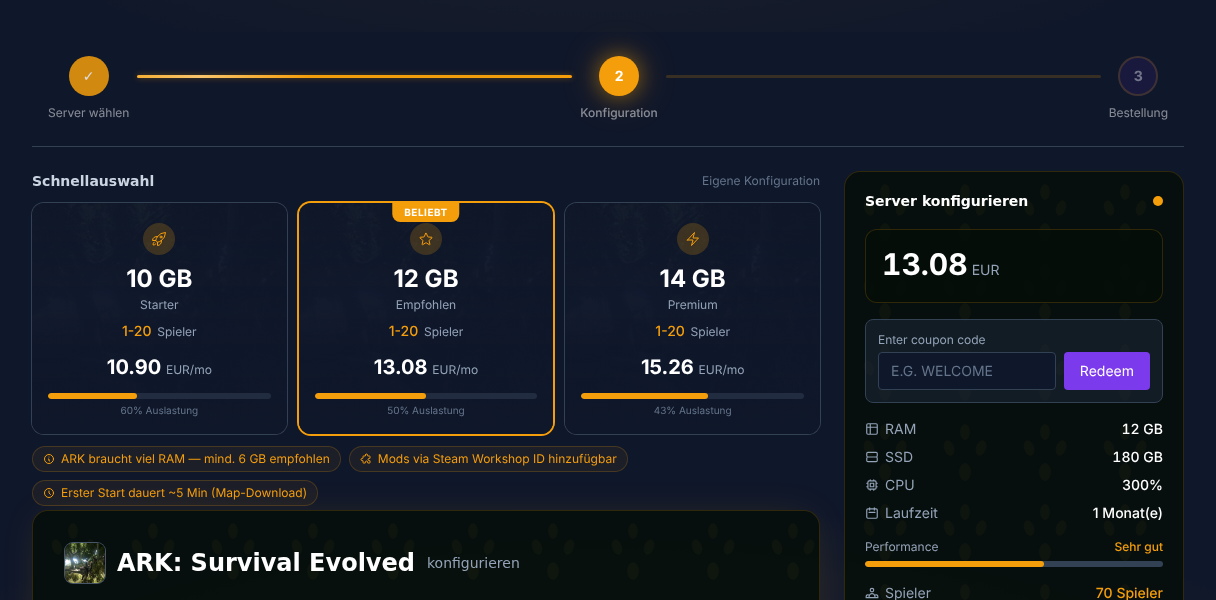
ARK: Survival Evolved के लिए तुम्हें पर्याप्त resources plan करने चाहिए। इस guide का base value वही है: कम से कम 8 GB RAM चुनो; ज़्यादा players के लिए 12 GB recommend किए गए थे। यह कोई guaranteed performance promise नहीं है, बल्कि practical orientation है, क्योंकि ARK map, mods, player count और Dino density के हिसाब से काफ़ी ज़्यादा memory मांग सकता है।
- ARK Server mieten पर जाओ
- कम से कम 8 GB RAM चुनो (recommended: ज़्यादा players के लिए 12 GB)
- Server SteamCMD के ज़रिए पूरी तरह automatically install होता है
- Server settings में अपना ServerAdminPassword सेट करो —
enablecheatsके लिए तुम्हें इसकी ज़रूरत होगी
अगर तुम्हें server operation, logs और file changes के लिए terminal basics भी चाहिए, तो ज़रूरी Linux Gameserver commands वाला guide मदद करेगा। दूसरे games में admin workflows के लिए तुम्हें मिलती-जुलती overviews मिलेंगी, जैसे admins के लिए Rust Server commands या Valheim Server commands।
Admin कंसोल activate करें
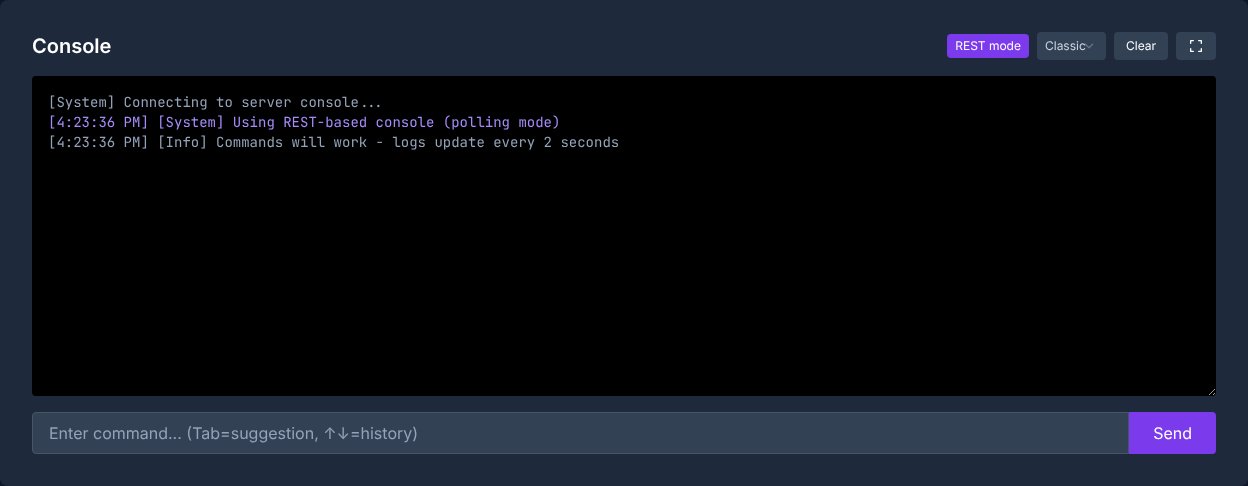
Platform के हिसाब से Admin कंसोल ऐसे खोलो:
| Platform | Key combination |
|---|---|
| PC | Tab |
| Xbox | LB + RB + X + Y एक साथ |
| PlayStation | L1 + R1 + Quadrat + Dreieck एक साथ |
कंसोल खोलने के बाद तुम इससे authenticate करते हो:
enablecheats <तुम्हाराAdminपासवर्ड>
इसके बाद तुम Admin commands चला सकते हो। ARK Official Community Wiki for Console Commands के मुताबिक, multiplayer servers पर खासकर cheat commands को enablecheats के बाद cheat या admincheat prefix की ज़रूरत होती है; singleplayer में यह अलग होता है। इस guide में servers पर सबसे सुरक्षित तरीका यह है कि जब कोई command game world, creatures, players या inventories बदलती है, तो तुम admincheat इस्तेमाल करो।

बुनियादी Admin commands
Server admin के रूप में तुम्हें ये commands अक्सर चाहिए होंगी। हर command के बाद सीधे game में जांचो कि effect लागू हुआ या नहीं, फिर ही और changes stack करो।
| Command | Description |
|---|---|
fly |
उड़ना activate करें |
walk |
उड़ना deactivate करें |
ghost |
Noclip (दीवारों से होकर जाना) |
god |
Invulnerability |
infinitestats |
Infinite stamina, hunger, thirst |
saveworld |
Game world तुरंत सेव करें |
settimeofday <HH:MM> |
दिन का समय सेट करें (जैसे 12:00) |
slomo <Wert> |
Game speed (1 = normal, 0.5 = half) |
Production servers पर god, ghost और slomo कम इस्तेमाल करो। ये commands support cases, building corrections या troubleshooting के लिए उपयोगी हैं, लेकिन normal player experience को distort कर सकती हैं।
Dino commands
Dinos को spawn और manage करना ARK में Admin Commands इस्तेमाल करने की मुख्य वजहों में से एक है:
# Dino spawn करें (simple)
admincheat summon <DinoID>

# Level value के साथ Dino spawn करें
admincheat SpawnDino <Blueprint> <Distanz> <Z-Offset> <Level>

# Targeted Dino tame करें (Narcotics की ज़रूरत नहीं)
admincheat forcetame

# सभी wild Dinos मारें और उन्हें फिर से spawn होने दें
admincheat destroywilddinos

# Targeted Dino को color करें (Region 0-5, color 0-255)
admincheat settargetdinocolor <Region> <Farbe>
ज़रूरी Dino IDs (Spawn commands)
| Dino | Spawn command |
|---|---|
| T-Rex | summon Rex_Character_BP_C |
| Giganotosaurus | summon Gigant_Character_BP_C |
| Wyvern (Fire) | summon Wyvern_Character_BP_Fire_C |
| Argentavis | summon Argent_Character_BP_C |
| Quetzal | summon Quetz_Character_BP_C |
| Mammoth | summon Mammoth_Character_BP_C |
| Ankylosaurus | summon Ankylo_Character_BP_C |
destroywilddinos खास तौर पर बहुत बड़ा intervention है: सभी wild creatures हटाए जाते हैं और उसके बाद फिर से distribute होते हैं। यह command सिर्फ तब चलाओ जब तुम spawn problems fix कर रहे हो या configuration changes के बाद नई Dino tables load करना चाहते हो।
Player management
Admin के रूप में तुम players को moderate, teleport और problems में intervene कर सकते हो:
# Player list दिखाएं (SteamID के साथ)
listplayers

# Player kick करें
kick <SteamID>

# Player को permanently ban करें
banplayer <SteamID>

# Ban हटाएं
unbanplayer <SteamID>

# Player को अपने पास teleport करें
admincheat teleportplayernametome <Spielername>

# खुद को किसी player तक teleport करें
admincheat teleporttoplayernameid <Spielername>

# Player inventory खाली करें
admincheat destroyall <Item-Klasse>
destroyall पर note: यह command किसी specified class की entities destroy करती है, इसलिए यह normal inventory management से ज़्यादा risky है। इसे सिर्फ तब इस्तेमाल करो जब तुम्हें target class पक्के तौर पर पता हो और तुमने पहले save या backup plan कर लिया हो।
Server management
ये commands पूरे server को affect करती हैं:
# Game world सेव करें
saveworld

# सभी players को server message भेजें
broadcast <तुम्हारा message>

# Server controlled तरीके से shutdown करें (10 seconds के बाद)
admincheat DoExit

# Radius में सभी player structures destroy करें
admincheat destroystructures

# Weather बदलें (सिर्फ कुछ maps पर)
admincheat setweather <WetterTyp>
DoExit, destroystructures या बड़े world changes से पहले तुम्हें broadcast से inform करना चाहिए और saveworld से secure करना चाहिए। इससे process transparent रहता है और players समझते हैं कि server थोड़ी देर react या restart क्यों कर रहा है।
GameUserSettings.ini — ज़रूरी settings
यह file central server parameters control करती है। Panel में Konfiguration के तहत मिलती है:
[ServerSettings]
ServerAdminPassword=तुम्हाराSecurePassword
MaxPlayers=20
DifficultyOffset=1.0
TamingSpeedMultiplier=5.0
XPMultiplier=2.0
HarvestAmountMultiplier=3.0
BabyMatureSpeedMultiplier=10.0
EggHatchSpeedMultiplier=10.0
AllowFlyerCarryPvE=True
PreventDownloadSurvivors=False
PreventDownloadItems=False
.ini values controlled तरीके से बदलो: server stop करो या planned restart announce करो, file save करो, server restart करो और फिर game में check करो कि multipliers, player limit या admin password apply हुए या नहीं। पुराने generic SetHarvesting command वाले note को exact command form के बिना reliable नहीं माना जा सकता; permanent server values के लिए configuration file ही traceable तरीका है।
Result check करें
Setup के बाद सबसे पहले एक harmless command test करो। कंसोल खोलो, enablecheats <तुम्हाराAdminपासवर्ड> चलाओ और फिर broadcast Test भेजो। अगर message दिखता है, authentication काम कर रहा है। इसके बाद तुम saveworld test कर सकते हो और panel या log में check कर सकते हो कि save process बिना error के चलता है या नहीं।
Dino या teleport commands के लिए तुम्हें safe area में test करना चाहिए, किसी active base के बीच में नहीं। नए admins के लिए separate password concept और clear agreement recommend होता है कि live operation में कौन-सी commands allowed हैं।
Troubleshooting
अगर enablecheats काम नहीं करता, तो पहले uppercase/lowercase, spaces और यह check करो कि password exact ServerAdminPassword value से match करता है या नहीं। .ini changes के बाद server restart करो।
अगर कोई command ignore होती लगती है, तो multiplayer servers पर admincheat या cheat prefix जोड़ो। कुछ commands सिर्फ crosshair में target पर या सिर्फ specific maps पर काम करती हैं।
अगर player commands fail होती हैं, तो listplayers इस्तेमाल करो और मिलते-जुलते names की बजाय सही SteamID के साथ काम करो। Risky actions के लिए rule है: पहले check करो, फिर execute करो, उसके बाद save करो।
जांच, limits और सुरक्षित rollback
Guide “ARK Admin Commands – सभी Cheats और Commands 2026” article में बताए गए server type और checking time पर visible version state के लिए लागू है। Menu names, available versions, mod या plugin compatibility और required resources updates के बाद बदल सकते हैं। इसलिए values को बिना check किए किसी दूसरे game, loader या server version पर apply मत करो।
World, savegame, configuration या extensions में changes से पहले affected files का backup बनाओ। फिर सिर्फ एक connected step बदलो और उसे उसी client और server version से check करो जिसके साथ तुम बाद में खेलना चाहते हो।
| Checkpoint | Expected result | Abort और rollback |
|---|---|---|
| Server start | Server बिना नए error message के ready state तक पहुंचता है। | Start errors पर change वापस लो और latest backup restore करो। |
| Connection test | Test account panel में दिखाए गए address से connect कर सकता है। | Version या connection errors पर version, port और approvals दोबारा match करो। |
| Function test | बदला गया exact function existing world या game data को damage किए बिना काम करता है। | Side effects पर server stop करो और backed-up files restore करो। |
एक successful single test performance या availability guarantee नहीं है। World size, mods, plugins, player count, network path और simultaneous load result बदल सकते हैं। Version, change और test result document करो, ताकि बाद की deviations समझ सको।
FAQ
cheat और admincheat में क्या फर्क है?
Multiplayer servers पर कई Admin commands enablecheats के बाद cheat या admincheat के साथ चलती हैं। Singleplayer में prefix अक्सर ज़रूरी नहीं होता। Server operation के लिए admincheat clear और आसानी से पहचान में आने वाली spelling है।
मैं Admin password कैसे सेट करूं?
GameUserSettings.ini में [ServerSettings] के तहत value ServerAdminPassword=तुम्हाराPassword डालो। File save करो और server restart करो, ताकि ARK change load करे।
enablecheats काम क्यों नहीं कर रहा?
अक्सर password exact match नहीं करता, change के बाद server restart नहीं हुआ होता या तुम गलत console इस्तेमाल कर रहे होते हो। यह भी check करो कि password से पहले या बाद में गलती से spaces तो नहीं हैं।
क्या मैं दूसरे players को Admin rights दे सकता हूं?
हां, लेकिन AllowPlayerToJoinNoCheck के ज़रिए नहीं; यह command whitelist access से जुड़ी है। Permanent admins के लिए तुम suitable SteamIDs को AllowedCheaterSteamIDs.txt में manage कर सकते हो, अगर तुम्हारा server setup यह file इस्तेमाल करता है।
मुझे saveworld कब इस्तेमाल करना चाहिए?
Important admin actions के बाद, planned restarts से पहले और risky changes से पहले saveworld इस्तेमाल करो। इससे crash या restart के कारण अभी किए गए corrections खोने का risk कम होता है।