v1.0.4: Check Mod Files After Removing Them
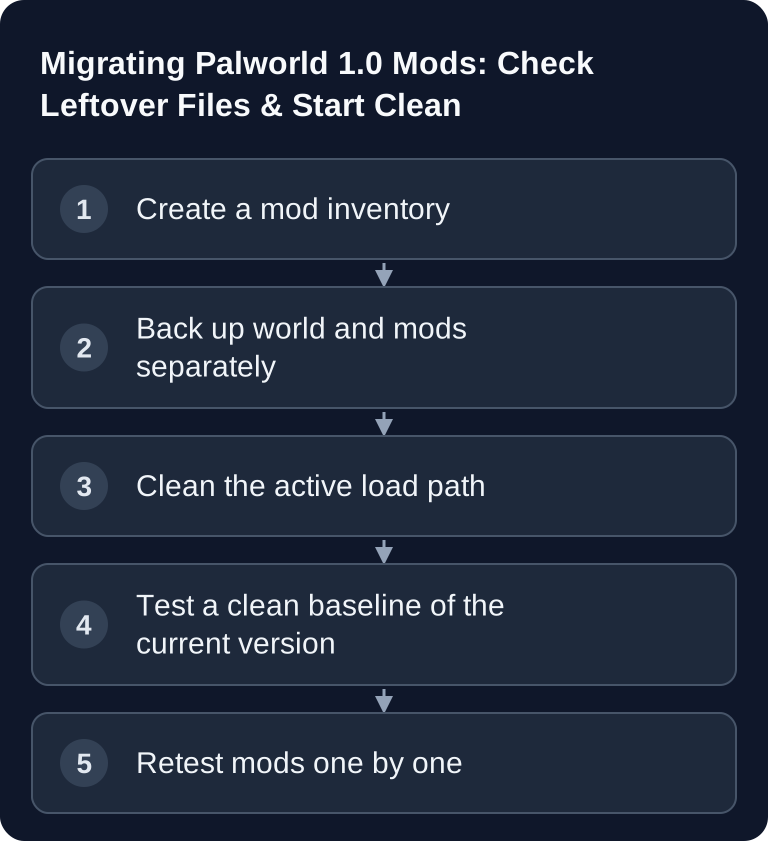
A Palworld mod migration starts with a complete inventory of files and loaders. Remove old components from all active load paths, back up the world and test without mods first. Only then add individual extensions that are approved for your patch version. Pocketpair's Update v1.0.4 of September 7, 2026 mentions a fix for Steam mod files that were not deleted correctly; so keep checking the files that are actually loaded.
After removing a mod, check the actual load path and then the startup log. Keep the old file outside the active mod directory. Align server and client and test without the affected extension first. The fix is not a blanket compatibility approval for old mods.
Here you will learn how to fully inventory old Palworld mods from before and after v1.0, take them out of the load path and retest them one by one. For the server/client update, world check and current version, use Palworld 1.0 Server Update to v1.0.5.
Update note checked on September 16, 2026: Palworld v1.0.5 (September 15, two client bug fixes; the v1.0.4 fix for mod files that were not deleted still applies). In the official 1.0 notes, Pocketpair warns that mods can cause crashes, unexpected behavior, and corrupted or lost save data. That is why “disabled” is only sufficient if the files are guaranteed not to be loaded anymore.
Create a Mod Inventory Before the Migration
Note down the following for each extension:
- name and version,
- source: Steam Workshop, manual upload or another tool,
- required on the server side, client side or on both sides,
- file path and dependencies,
- last confirmed Palworld build,
- responsible person and rollback path.
A mod list based only on visible Workshop subscriptions is incomplete if manual loader, DLL, pak or configuration files are also present. For the regular installation, use the Palworld mod guide.
Back Up the World and Mod State Separately
Authenticate as admin, run /Save and stop the server cleanly. Then create two separate backups:
- The world and the active
PalWorldSettings.inias a clean fallback base. - The complete previous mod/loader set, for analysis and possible restoration only.
Do not copy the old mod structure back into the new system unchecked. The backup is an archive, not an installation instruction.
Fully Remove Old Files From the Load Path
Remove mods from all active sources. For Workshop mods, a toggle is not always enough if old files remain locally. Move manual mod, loader and configuration files into a separate archive that is not loaded. Never delete your only backup; what matters is that the server finds no old code during the baseline test.
Then check the startup parameters, bAllowClientMod and hints in the startup log. The first green test must succeed without mods.
Run a Clean Baseline Test
Start the updated server without mods and check:
- the correct world loads,
- an unmodified client can join,
- bases, Pals, guilds and inventories are visible,
/Saveworks,- the startup log contains no old loader or mod path.
If this test fails, the cause is not a restored mod. In that case, first work through the update, world path or configuration in the update guide.
Bring Mods Back One at a Time and on Both Sides
Only restore a mod whose maintainer supports the Palworld build you are using. Install its dependencies first, then the mod on all required sides. Restart and test exactly its function using a copy of the world or a controlled maintenance window.
Document the following after each step:
| Check | Expectation | Rollback |
|---|---|---|
| Startup log | no new loader/dependency warning | Remove the mod from the load path again |
| Join | required clients can connect fully | Align client/server versions and mod files |
| World | Bases, Pals and inventories stay consistent | Stop and use the backed-up world copy |
| Function | only the expected change is active | Roll back the last mod and configuration |
Only after a green test do you move on to the next mod. This way, a defect can be clearly attributed.
Distinguish Client and Server Mods
A purely client-side mod does not automatically belong on the server. A server-side extension, in turn, may require a matching client version. Follow the classification given by the respective maintainer and align hash, version and dependencies. An identical name does not prove an identical file.
Troubleshooting
The server loads old components despite “disabled” mods
Search the startup log for file paths and loader names. Remove any remaining files from all active mod directories and restart. The archive lives outside the load path.
Unmodified clients can connect, modified ones cannot
Compare the Palworld build, mod version, dependencies and whether the mod has to be installed on both sides. Test exactly one mod.
The world is inconsistent after a mod
Stop further write operations immediately. Remove the most recently added mod and test a copy of the last clean world backup. Do not blindly restore over the currently damaged state.
A mod has no approval for your patch version yet
Keep it off the production system. An old file does not become compatible just because the server starts. Wait for a confirmed version or run a separate test environment.
Primary Sources
- Pocketpair: Palworld v1.0.3
- Pocketpair: official mod guideline
- Pocketpair: configuration parameters
- Pocketpair: admin commands
FAQ
Is it enough to disable Workshop mods in the menu?
Only if it is guaranteed that no old file gets loaded afterward. Check the actual mod path and the startup log.
Should I update all mods at the same time?
No. Start with a clean server and add dependencies and mods one by one, with a test after each restart.
May I delete the old mod structure?
Keep an external archive for analysis and rollback, but remove the files from the active load path. Never delete your only backup.
When should I rather start a new world?
If an essential mod writes world state and offers no safe migration path, test a new world separately. Decide only after comparing, not based on assumptions.
Don't Verify a Mod Only by the Visible Toggle
Compare the loaded components in the log before and after startup. For every extension, check whether it leaves behind additional DLLs, loaders or configuration files; switching off a Workshop entry does not automatically remove manual files. Archive old components outside all active load paths. If a world contains mod content, test the removal on a copy and check whether missing content gets altered when saving. Therefore, do not overwrite your last backup with an unchecked vanilla test. Note the mod name, version, path and first error for the next attempt.