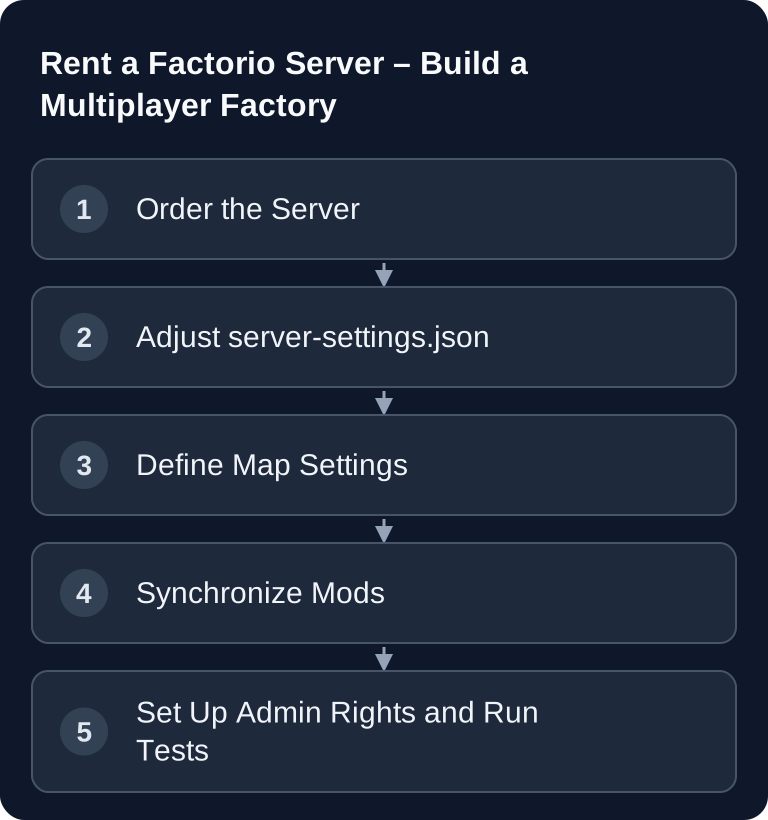
You set up a Factorio dedicated server with a complete server-settings.json and an existing or newly generated save. First test the password, direct joining and autosave without any additional mods. Map generation and ongoing simulation rules require different settings; for mods, see the separate version and sync guide.
Requirements
Before you set up the Factorio dedicated server, you should clarify what kind of play is planned: a small co-op factory, a long-term megabase, a modpack or a public server. To get started, 2-4 GB RAM can serve as a starting range; Factorio is comparatively efficient, but larger maps and extensive modpacks can demand noticeably more headroom.
You also need access to the server files, a current Factorio client, the planned mods and a clear decision on visibility. The official Factorio wiki documentation describes multiplayer games as joinable, hosted or dedicated servers and lists UDP port 34197 as the default for Factorio. It also points out that all game instances need the same game version and the same mods: official Factorio multiplayer documentation.
If you're planning similar long-running co-op servers, the Satisfactory Dedicated Server Multiplayer Guide and the Rent a Project Zomboid Server Multiplayer Guide are also helpful comparisons for basic principles like persistence, player permissions and maintenance.
Order a Factorio Server
- Go to game-serverhosting
- Choose 2-4 GB RAM (Factorio is efficient)
- The server is set up automatically
After provisioning, first check whether the server starts and whether you can reach the management interface, files and logs. Don't change several things at once: start with a working vanilla installation, test joining and only then adjust server settings, map options and mods.
Configure Server Settings
The central file is server-settings.json. There you define, among other things, the server name, description, maximum player count, visibility, password, user verification and autosaves. For public servers, you should be especially careful with the password, user verification and admin rights.
{
  "name": "My Factorio Server",
  "description": "Welcome!",
  "max_players": 10,
  "visibility": {
    "public": false,
    "lan": true
  },
  "require_user_verification": true,
  "game_password": "secret",
  "autosave_interval": 10,
  "autosave_slots": 5
}
max_players should fit your group. A small fixed team rarely needs high limits; a community server, on the other hand, benefits from clear access control. With visibility.public you control whether the server should be listed publicly. game_password protects private sessions, while require_user_verification gives additional control for regular accounts.
Autosaves are important in Factorio because factories grow over many hours. A short interval reduces possible progress loss, but causes storage activity more often. The existing configuration with autosave_interval and autosave_slots is a sensible starting point that you can adapt to your play pace and server load.
Define Map Settings
Map settings shape the character of your game more strongly than many later server options. So define them before the productive start and briefly test them with your group.
Use the example files shipped with your Factorio version as a basis. map-gen-settings.json contains the generation, such as starting_area and peaceful_mode; map-settings.json contains, among other things, the structured sections enemy_expansion and pollution. Don't mix these values in a single, freely invented JSON structure. When creating a save manually, you select both files via --map-gen-settings and --map-settings; the official command line parameters document this separation.
starting_area affects the early pressure from enemies. peaceful_mode, enemy_expansion and pollution.enabled determine how strongly the environment and aliens react to your factory. For a relaxed building session you can reduce enemy pressure; for classic Factorio with defense and escalation, expansion and pollution stay active.
Install Mods
- Download mods from mods.factorio.com
- Upload them to the
mods/folder - Adjust
mod-list.json - Restart the server
- All players need the same mods!
Plan mods like a server version: test them first locally or on a test environment, then transfer them to the running server. Large overhaul mods in particular change recipes, research, balancing and savegames. Don't remove such mods lightly from an active world, because savegames can become faulty or unplayable afterwards.
Popular Mods
| Mod | Description |
|---|---|
| Krastorio 2 | Extended endgame |
| Space Exploration | Space expansion |
| Bob's + Angel's | Complex production chains |
| Rampant | Aggressive aliens |
For long-term modpacks, a short server note is helpful: Factorio version, mod list, map start date and special rules. That way new players can join cleanly and you can later recognize more quickly which change caused a problem.
Admin Commands
/promote <name>          # Admin rights
/ban <name>              # Ban a player
/kick <name>             # Kick a player
/evolution               # Show the evolution factor
Only grant admin rights to people who are really supposed to take over settings and moderation. Admins can directly influence gameplay. For public or semi-public servers, clear rules on bans, kicks and mod changes make sense so that support cases remain traceable.
Verify the Result
After every major change, you should test the server deliberately. Restart the server, connect with a normal client and check the server name, password, visibility and player limit. Then open the mod list in the client and compare it with the server. Create or load the map, wait for an autosave and check whether the save exists.
If you work with multiple game servers, repeatable verification steps help. The Rent a Terraria Server Guide and the Rent a 7 Days to Die Server Guide show comparable multiplayer topics such as access, persistence and configuration from other games.
Troubleshooting
Players Can't Connect
First check the server status, password, IP or domain, and port. According to the official multiplayer documentation, Factorio uses UDP 34197 by default. If the server isn't publicly listed, players must connect directly or use the appropriate LAN option.
Mod Errors When Joining
Mod errors almost always involve a mismatched version, a missing file or a wrong mod-list.json. Compare server and client, download the matching mod versions again from mods.factorio.com and then restart server and client.
Map Doesn't Start as Expected
Map generator and map settings must be taken into account when the map is created. If a world has already been generated, some settings won't retroactively change the existing map layout. In that case you need either a new save or a deliberately planned migration.
Autosaves Are Missing or Too Infrequent
Check autosave_interval, autosave_slots and the write permissions in the save directory. If you have many large saves, it can make sense to deliberately define slots and a backup strategy instead of keeping old files indefinitely.
FAQ
How much RAM do I need for a Factorio server?
Use 2-4 GB RAM only as a starting range and check the actual load. This works as a starting point for many small to medium sessions. Large maps, long runtimes and extensive modpacks may need more headroom.
Do all players have to install the same mods?
Yes. For a stable multiplayer game, server and clients must use the same Factorio version and the same mods. This applies especially to overhaul mods like Krastorio 2, Space Exploration or Bob's + Angel's.
Can I run a Factorio server privately?
Yes. Set public to false, use a game_password and share access details only with your group. If the server isn't publicly listed, players connect directly or via the appropriate visibility option.
When should I change map settings?
Ideally before starting a productive world. Settings such as starting area, water, enemy expansion and pollution shape the game early on. Later changes may have limited effect depending on the option.
How do I check whether admin rights work?
Connect to the server, run /promote <name> for the desired player as an existing admin or via the server console, and then test a simple admin action. Document your admins so that later moderation or support cases remain traceable.