To join a GSH modpack server, the pack project, client release, Minecraft version and loader must match the connection card. The same pack name is not enough. If several players are joining, compare this shared baseline first before you reinstall any profiles.
With a modpack, four things have to match: modpack name, client version, Minecraft version and loader. In your server panel, you'll find these details directly in the Connection section. Always use these values – not simply the latest vanilla version.
What you need before you start
- A purchased Minecraft Java account.
- The launcher named on the connection card: CurseForge or Modrinth.
- The client version of the modpack shown there.
- The server address from your panel.
With a ready-made modpack, you normally don't have to install the loader build by hand. CurseForge or Modrinth automatically sets up Forge, NeoForge, Fabric or Quilt inside the pack profile.
Joining with CurseForge
- Install the CurseForge app and log in if needed.
- In the server panel under Connection, open the "Open modpack in CurseForge" button.
- Before installing, check the client version shown on the connection card. Especially with large packs like All the Mods, several releases can use the same Minecraft version but contain different mods.
- In CurseForge, click Install on the modpack, or use the version selector to pick exactly the release shown.
- Launch Minecraft using the Play button of this modpack profile. Don't launch the normal "Latest Release" profile at the same time.
- Open Multiplayer → Add Server, copy the server address from the panel and join.
Joining with Modrinth
- Install the Modrinth App.
- Open the linked modpack version via the connection card.
- Install it in the Modrinth App. Make sure the version name and Minecraft version match the panel.
- Launch the generated modpack profile, open Multiplayer and add the server address.
Joining with Prism Launcher
Prism Launcher is a lightweight, open-source launcher. It installs packs from both sources and manages each instance with its own Java and memory settings.
- Install Prism Launcher and sign in once with your Microsoft account.
- Click Add Instance and choose CurseForge or Modrinth in the left column.
- Search for the modpack and, in the version selector, choose exactly the client version from your panel.
- Launch the generated instance, open Multiplayer and add the server address.
For CurseForge packs, use the built-in search instead of a manually downloaded archive: Prism then resolves the mods directly through the official interface. If you want to keep the mods folder permanently in sync, you'll also find a Packwiz address in the server panel under Plugins → Sync client mods, which Prism evaluates on every launch.
Inviting friends the right way
Don't just send your friends the server address. They also need:
- the name of the modpack,
- the exact client version,
- the launcher link from your panel,
- and only then the server address.
The easiest way is to copy these four details directly from the connection card. All players must use the same pack profile. Additional mods of their own can also prevent a join if they change network or content data.
Exception: purely server-side modpacks
Some optimization packs install only server-side mods. For such packs, the panel explicitly states that no client pack is needed. In that case, the Minecraft version shown there in the normal Java client is enough. If this note is missing, assume the full modpack is required on every client.
"Incompatible client – please use 1.21.1"
This message means the client you launched uses a different Minecraft protocol version. Close Minecraft completely and launch the modpack profile that your panel lists as, for example, Minecraft 1.21.1. Changing the version number in the normal vanilla profile is not enough: without the mods and the right loader, the client stays incompatible.
Message about missing or mismatched mods
The server and client are not using the same pack release. In the launcher, open the profile's version management and install exactly the version from the panel. As a test, disable any mods you added yourself. If the server was just updated to a new modpack version, all players must switch to that release as well.
Right name, wrong pack
Many modpack series publish several editions under almost identical names. A search for "All the Mods 10" shows, among others, side by side:
- All the Mods 10 – ATM10 – the standard edition
- All the Mods 10: To the Sky – ATM10SKY – the Skyblock edition with its own mods
- plus the neighboring series ATM9 and ATM11, each also with a "To the Sky" edition
These packs are not interchangeable. The Skyblock editions bring additional mods, such as Ex Deorum or Translocators, that don't exist in the standard edition.
Here's how you recognize exactly this case: The message names channels that are missing on the server side but required on the client – so your client has mods that the server doesn't know at all. With a merely wrong version, it's the other way around: the server reports a different Minecraft version, and the mod lists themselves match.
Here's how to avoid it: Always open the pack via the button on your connection card instead of searching for it in the launcher yourself. The link leads straight to the correct edition and the correct file. If you do search by hand, compare the full pack name from the panel word for word – the part after the colon makes the difference.
Server can't be reached
First check the server status in the panel. A sleeping or newly installed server needs a moment to wake up or for its first start. Wait until the status shows Online, copy the address again and check whether an allowlist is enabled. A version error and a connection error are two different problems: with a version error, you're already reaching the server but using the wrong client profile.
After a modpack update
Modpack updates often change mods, configurations and occasionally even Minecraft or the loader. So don't update only the server. After every update, open the connection card again and share the new client version shown there with all players. Old profiles can't reliably join after the server update.
FAQ
Can I just use "Latest Release" in the Minecraft Launcher?
For a normal client modpack, no. "Latest Release" launches vanilla Minecraft without the pack and without its loader. Only packs explicitly marked as server-side allow the normal client.
Do I have to install NeoForge or Fabric separately?
No. If you install the modpack via CurseForge or Modrinth and launch it through its profile, the matching loader is set up automatically.
Why does the server show a different file than CurseForge?
For many packs, CurseForge publishes two related files: the client release for players and a separate server pack for the host. Your panel deliberately shows you the client version you need in the launcher – not the internal server file.
I installed the pack with the right name and still can't get in
Then it's probably the wrong edition of the same series. "All the Mods 10" and "All the Mods 10: To the Sky" are two separate packs with different mods. If the error message names channels that are missing on the server side but required on the client, this is exactly your case. Open the pack via the button on your connection card – it always leads to the correct edition.
Can a friend join with a different pack version?
Sometimes this seems to work with small updates, but it isn't reliable. Even a single mismatched mod can reject the join or later lead to missing blocks and corrupted world data. Always use exactly the same release.
Keeping a working group profile
Once a client can join fully, note down the pack project, release and loader as well as the server version. Pass this combination on to new players; add extra client mods only after the basic join has succeeded. If only one person fails, compare their profile with this known state. If everyone fails at once after a server update, first check the client version shown and any new server requirements. Keep an older client separate instead of mixing its files with the new release. A controlled group comparison saves reinstalls and protects local configurations.
All the Mods 10: view an example
Our own captures from a demonstration environment. The version and setup shown may differ from your server.
- Multiplayer → Add Server: pick a name and enter the address from your panel.
- The server is listed with its ping – select it and join.
- On the first join the pack loads the world; sped up here, in reality it took about 70 seconds.
- Arrived in the All the Mods 10 world.
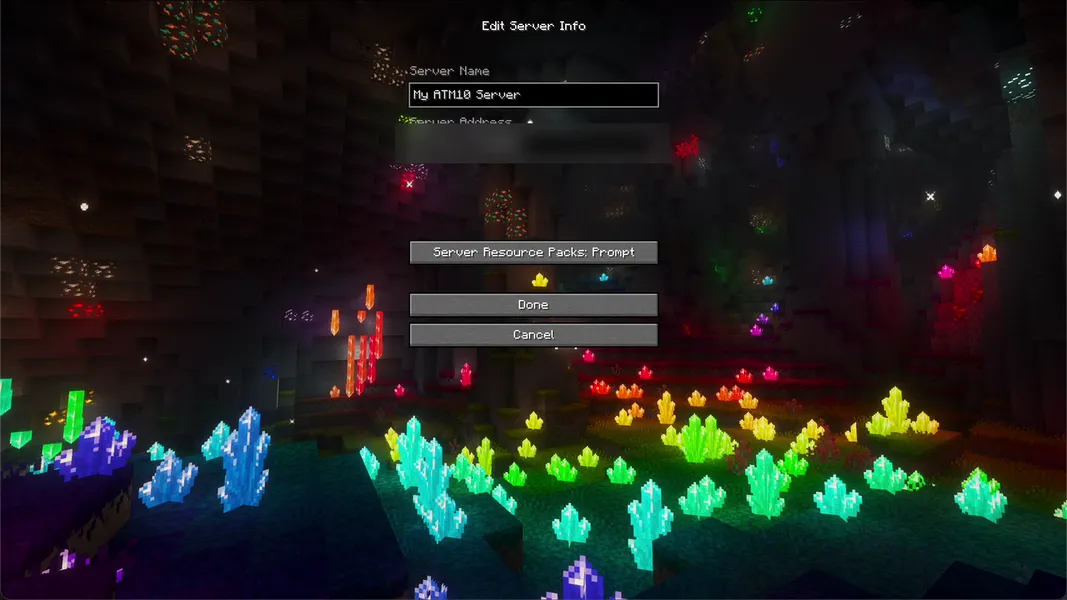
All the Mods 10 8.2 · NeoForge 21.1.251 · Minecraft 1.21.1 · 2026-09-25
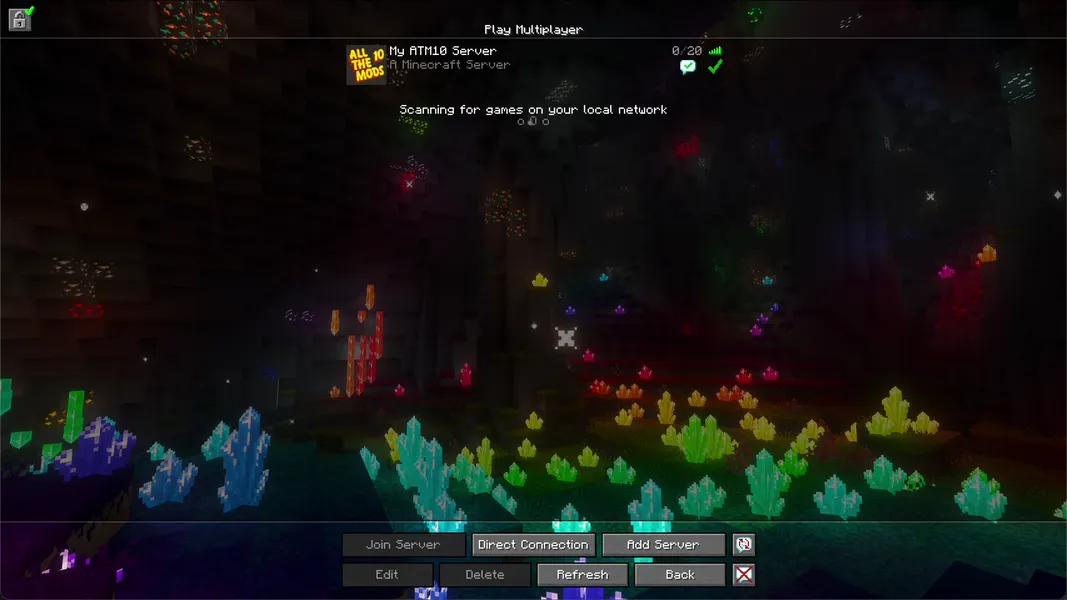
All the Mods 10 8.2 · NeoForge 21.1.251 · Minecraft 1.21.1 · 2026-09-25
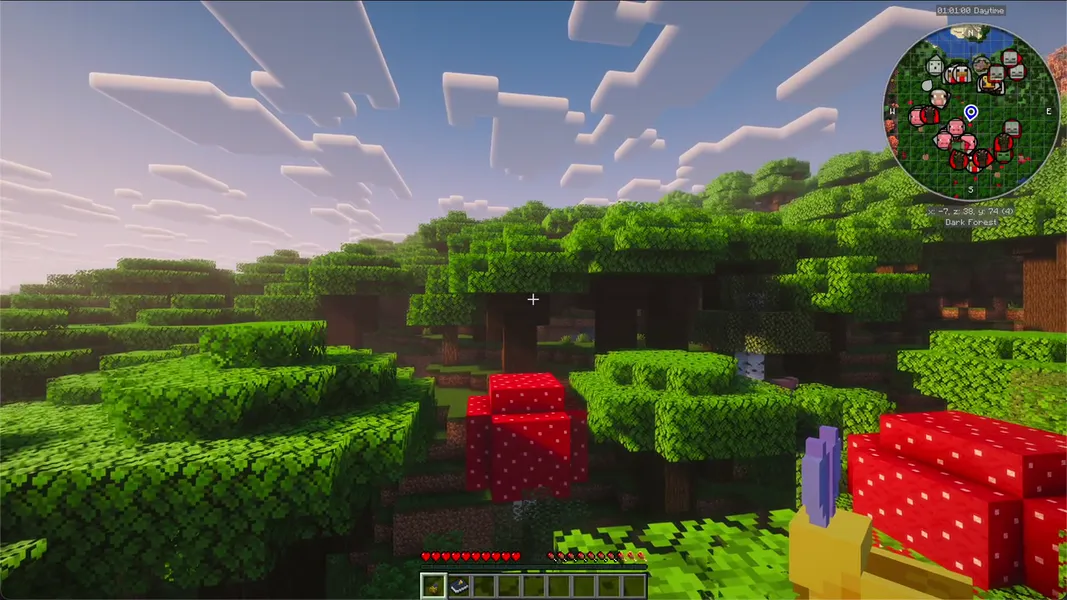
All the Mods 10 8.2 · NeoForge 21.1.251 · Minecraft 1.21.1 · 2026-09-25