
Checked with Palworld v1.0.5 and the Pocketpair server documentation as of v1.0.4.
Palworld crossplay requires the same game version and the right way to join: Steam and Mac can connect directly; Xbox, PS5 and Microsoft Store PC need the community listing. Check these requirements separately before you change the world or server configuration.
What Palworld Crossplay Supports Today (as of v1.0.5)
The current Pocketpair overview of server types lists Steam, Xbox/Microsoft Store PC, Mac and PS5 as crossplay platforms and explicitly requires a community server for Xbox and PS5. The community server guide names the launch parameter -publiclobby. According to the configuration reference, CrossplayPlatforms defaults to (Steam,Xbox,PS5,Mac); AllowConnectPlatform is no longer available.
As of September 2026, there is no Nintendo Switch version, and no announcement for Switch 2 either; Switch is therefore not listed as a platform here. Likewise, you should not equate crossplay with cross-save: Palworld supports Xbox Play Anywhere. Xbox and the Windows version from the Microsoft Store can share saves through the same Microsoft account, as Xbox Play Anywhere explains. This does not mean saves transfer universally to Steam or PS5. On a dedicated server, the world is stored server-side anyway, so every platform plays the same state there.
Supported Platforms at a Glance
| Platform | Supported |
Way to join |
|---|---|---|
| Steam (PC) | Yes |
Directly via IP/port or community list |
| Xbox Series X/S | Yes |
Community server required |
| Microsoft Store PC / Game Pass | Yes |
Community server required (no IP field in the client) |
| PlayStation 5 | Yes |
Community server required |
| Mac | Yes |
Directly via IP/port or community list |
| Nintendo Switch | No supported version |
Not available |
Crossplay removes the barrier of the shared play platform, but it does not unify the way to join. If joining fails, first check whether Xbox, PS5 or Game Pass PC are connecting to a community server started with -publiclobby; then check the version, server name, IP/port and password.
Requirements Before Inviting Players
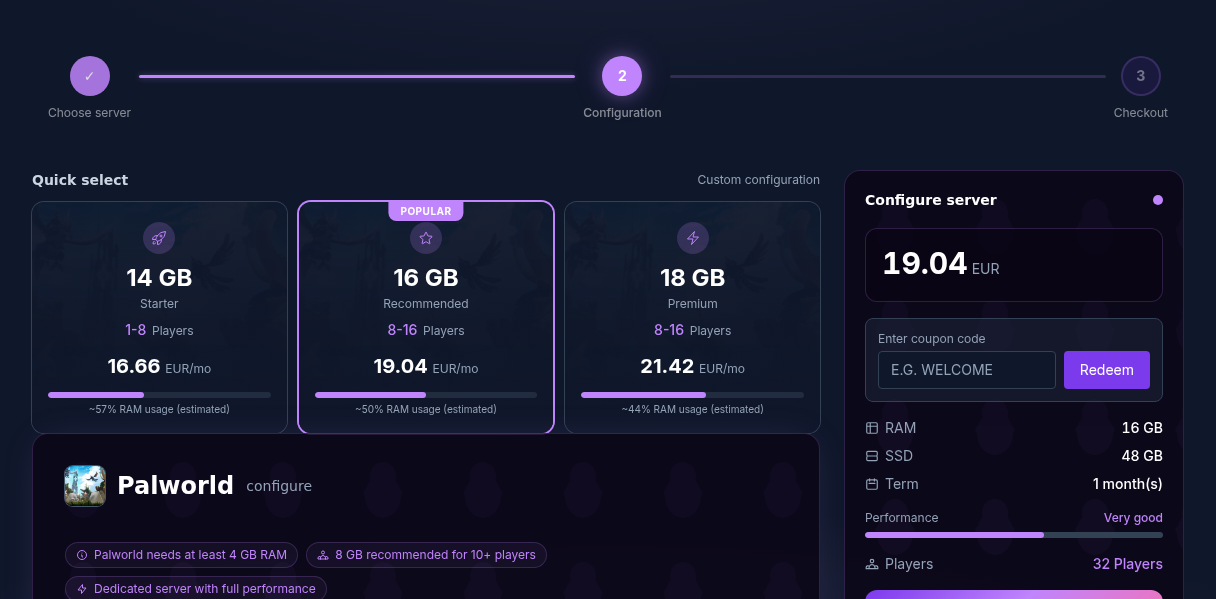
For a clean crossplay session, you first need a running Palworld server. With game-serverhosting, you use paid multi-game hosting with technical control over the server data, a traceable dashboard status and support if you get stuck during setup or operation.
 (Enlarge image)
In the order wizard, select Palworld as the game and set up the desired number of players. If you are just getting started, the guide Rent and Set Up a Palworld Server helps with the basic configuration. For later fine-tuning of the world and server parameters, Optimize Palworld Server Settings is the right complement.
Setting Up the Crossplay Server
1. Start the server and wait for the status
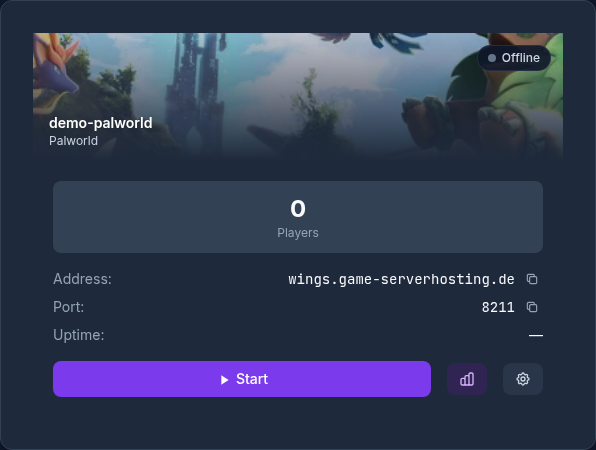
Start the Palworld server in the dashboard and wait until it is shown as ready. Share the connection details only once the server has fully started. Joining too early easily leads to misinterpretations, because players then suspect a crossplay problem even though the service is simply not reachable yet.
 (Enlarge image)
2. Share IP, port and password
Share the IP address, port and password with Steam and Mac players whose client supports direct connections. For Xbox, PS5 and Game Pass players, you instead give the exact server name and the password; they look for the server in the community server list. A unique server name saves time there, because the list is long and the search filters by name.
3. Match game versions
Version parity is the most important technical point. The server and clients must use the same Palworld version. Example: if the server runs on 1.0.5 but an Xbox client is still on 1.0.4, joining fails even though crossplay is supported in principle. Since v1.0.4, the error message for a version conflict names the version of the connection target, so you can immediately see which side needs to catch up.
Updates do not reach players on every platform at exactly the same local moment. Downloads can pause, consoles can cache old installation states, and a client may not yet be updated in the background. Have affected players fully close the game, check the platform updates and restart the console or PC if necessary.
4. Decide on community server visibility
At game-serverhosting, COMMUNITY_SERVER is switched on by default; the switch sets -publiclobby and publishes the server in the community server list. Leave it active as soon as Xbox, PS5 or Game Pass PC should join, and check it first if console players cannot find the server. It must also be active for any generally public listing.
Running without a community listing only makes sense for pure Steam and Mac groups that reach the server via IP and port. As soon as Xbox, PS5 or Game Pass PC take part, community server mode is a technical requirement and not just a visibility option. A password protects the server even in the public listing.
5. Voice chat across platforms
Since 1.0, Palworld has a built-in voice chat. On a dedicated server, it only works if bEnableVoiceChat is active in the world settings; the range is controlled by VoiceChatMaxVolumeDistance and VoiceChatZeroVolumeDistance. According to Pocketpair, the Microsoft Store/Game Pass version for PC (WinGDK) does not support voice chat, so these players still need Discord or another external channel.
Checking the Result
Do not test the server with just one Steam client. Ask at least one player from every platform you actually use to join the server. Check these points while doing so:
- Do the server and all clients use the same Palworld version?
- Is
COMMUNITY_SERVERenabled for Xbox, PS5 or Game Pass PC? - Can console players find the exact server name in the community list?
- Are the IP and port correct for direct connections?
- Is the password correct?
If all players can join, crossplay is set up correctly. For larger groups, you should also monitor the load. You can find notes on memory and performance in Palworld Server Performance and RAM.
Troubleshooting
Connection failed despite the right platform
Crossplay allows playing together, but it does not remove the platform-specific ways to join. For Xbox, PS5 and Game Pass PC, first check community server mode; then compare the versions of the server and clients, and restart the game or device if necessary.
The error message names a different version
Since v1.0.4, the version error shows the version of the other side. If it shows a higher number than on your server, update the server; if it shows a lower one, the client has to catch up. After the server update, the checklist in Migrating Palworld 1.0 Mods helps, and you can find the current patch status in the Palworld Update Hub.
Server does not appear in the community browser
Check whether COMMUNITY_SERVER is enabled, -publiclobby is set and the server has been fully restarted. Then wait for the list to refresh and use the name search in the client. For Xbox, PS5 and Game Pass PC, a direct connection via IP is no substitute, as their client does not have the field.
One player gets in, another does not
Compare the right data depending on the platform: for direct connections IP, port, password and version; for Xbox, PS5 and Game Pass PC the server name in the community list, password and version.
Password is rejected
Set the password again in the panel and avoid special characters during the test that are easily mistyped on consoles or different keyboard layouts. Then share the new password again with all players.
Testing Crossplay Without Overwriting Player Progress
First test a known player on their previous platform and then the new platform join. Compare the password, game version and community listing. If a new character is created on the other device, that is not proof of a missing world: the platform identity may differ. Therefore, do not delete any world data on suspicion and do not copy player files without a suitable migration guide. Note the platform, time, server name and exact message for support. With a pure listing problem, the world stays unchanged; with a missing character, check the identity and the original way of joining.
FAQ
Does Palworld have crossplay between Steam and Xbox?
Yes. Steam and Xbox players can play together. However, Xbox players join via a server published as a community server; a blanket direct-IP guide for both platforms is wrong.
Can I join a dedicated server with the Game Pass or Microsoft Store version?
Yes, but only via the community server list. Like the console versions, the PC version from the Microsoft Store has no input field for IP and port. The server must therefore run with -publiclobby, and you search for it in the game by server name.
Can PS5 players join the same server as PC players?
Yes. PS5 is one of the supported crossplay platforms, but it needs a community server provided with -publiclobby to join.
Does Palworld crossplay also work with Mac?
Yes. According to the current Pocketpair documentation, Mac is one of the supported platforms. Use the dedicated server route offered by the client and keep the server and client on the same version.
Do I have to enable crossplay separately on the server?
CrossplayPlatforms allows Steam, Xbox, PS5 and Mac by default. In addition, for Xbox, PS5 and Game Pass joins, the server must run as a community server with -publiclobby; at game-serverhosting, COMMUNITY_SERVER is switched on out of the box for this.
Why does joining fail after an update?
Usually the server and client are not on the same version. Update both sides, fully close the game and, on consoles, restart the device if necessary.
Is there Palworld crossplay with Nintendo Switch?
No. As of September 2026, there is neither a Switch nor a Switch 2 version, and no announcement from Pocketpair, so Switch is not listed as a crossplay platform here.
Can I take my save from PS5 to Steam?
Crossplay alone does not transfer local PS5 saves to Steam. Xbox Play Anywhere does support shared saves between Xbox and the Microsoft Store version using the same Microsoft account. A dedicated server stores the world server-side, but this does not guarantee the same character across different platform identities. Check player assignment separately from the crossplay connection.
Did anything change for crossplay with Palworld 1.0?
Not for the platforms and ways to join. New since 1.0 are voice chat on dedicated servers and, since v1.0.4, the version information in the error message for a version conflict.
Video (0:41, with sound): Configure a Palworld server
Our own captures from a demonstration environment. The version and setup shown may differ from your server.
- Open Game Settings in the panel, then Server Settings.
- Enter the name under Server name in game; the join password only shows as dots.
- Set Max Players, 8 in the example.
- The card “List in Community Browser” is Active from the start; the listing allows access via Xbox, PS5, Steam and Mac.
- “Disable Community Server” switches the listing off; the change restarts the server and disconnects online players.
- “Apply Settings & Restart” restarts the server automatically; don't stop it by hand meanwhile.
- The Gameplay Settings tab has a curated set of game values with presets and a search; open a group and set a value, for example the EXP Rate.
