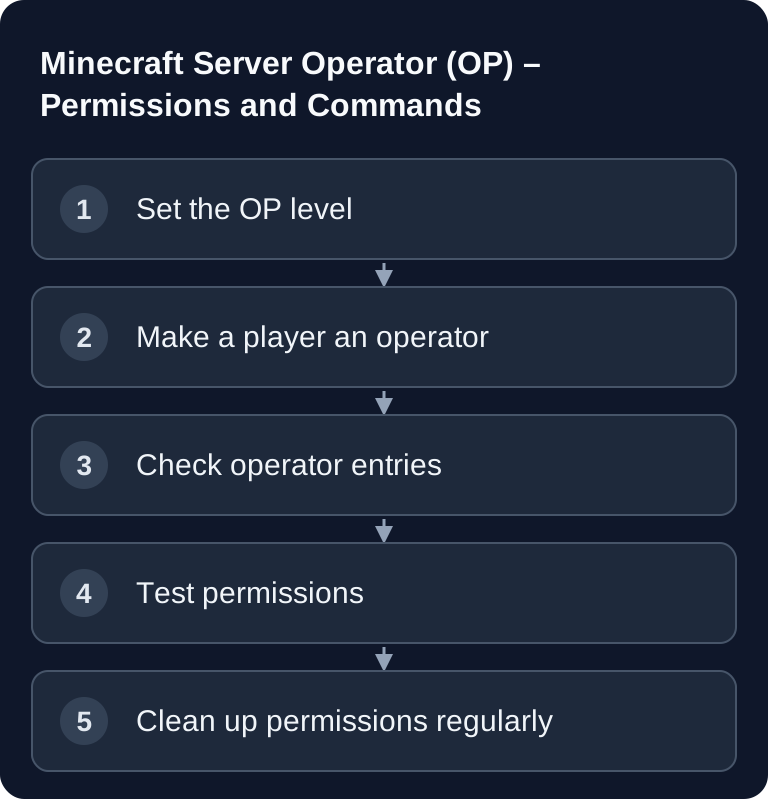
In Minecraft Java, you grant OP in the server console with op <playername> and remove it with deop <playername>; in-game, you prefix it with /. The default for new grants comes from op-permission-level. Even level 3 allows /op again and is therefore not a pure kick/ban role. For moderators who need only a few individual commands, use targeted permissions on Paper or Purpur and test without OP.
What Does OP Mean on a Minecraft Server?
An OP, or operator, has extended permissions on the server. Which commands an operator may use depends on the permission level. Minecraft itself points out that in multiplayer you need a sufficiently high permission level to use commands; you can find the official introduction in the Minecraft article on commands: documentation on minecraft.net
On paid multi-game hosting like game-serverhosting, OP management is primarily a security and operations process: you decide who may moderate, who gets deeper server commands and who cannot accidentally trigger critical actions in an emergency. Technical control doesn't come from giving every admin level 4, but from traceable roles and clean documentation.
Requirements
Before you change OP permissions, you should have access to the server console or an already authorized admin account. You also need access to the server.properties file if you want to change the default level for new operators. To review individual operators, you can view ops.json. Manage entries via /op and /deop; PaperMC advises against editing this server data file directly.
If you're adjusting other Minecraft configurations at the same time, it's worth a look at the guide to the most important settings in the Minecraft server.properties. If you switch server software or versions, also check the guide on changing the Minecraft server version so that permission management and plugin support fit together.
OP Levels at a Glance
Minecraft allows the values 0 to 4 for op-permission-level and for level in ops.json; the usual admin classification mainly uses 1 to 4. The higher the level, the further the commands reach. Use the lowest permissions that are sufficient for the respective task.
| Level | Permissions | Typical for |
|---|---|---|
| 0 | No additional OP commands | Special case; normal players don't need OP |
| 1 | Bypass spawn protection | Trusted players |
| 2 | Cheats + command blocks | Moderators |
| 3 | /kick, /ban, /op | Admins |
| 4 | /stop, all commands | Server owners |
Level 1 is rarely intended for classic administration. Level 2 suits players who build creatively, test or take on command-block-related tasks. Level 3 is relevant for moderation with actions against players. You should limit level 4 to a few people, because it also allows critical commands such as /stop.
Granting and Removing OP
The cleanest way to grant OP is via the console, because you don't have to be in the game yourself. The commands also work in-game if your account already has sufficient permissions.
/op <playername>         # Grant OP (level from server.properties)
/deop <playername>       # Remove OP
The /op command uses the default level from server.properties. This is important: if level 4 is set there, newly appointed operators immediately receive full permissions. If you only want to grant moderation permissions, set the default level lower and adjust exceptions in a targeted way.
Setting the Default Level in server.properties
In server.properties you control which level a player receives when you run /op <playername>.
# Default level for new operators
op-permission-level=4
Choose the default according to the scope actually needed. Level 3 allows OP grants: a moderator with this permission can appoint further operators, who receive the configured default level. If you only want to delegate kick and ban, a permission group without OP is therefore a better fit than a blanket level 3 grant. Change server.properties while the server is stopped, and after starting, check both existing entries and a new controlled grant.
Individual Operators and ops.json
ops.json stores the UUID, name, level and bypassesPlayerLimit for operators. It is a server data file, not an ordinary configuration file. The PaperMC documentation recommends not editing it directly: grant and revoke OP with /op and /deop.
op-permission-level in server.properties applies to new /op grants. If you need different permissions per person, use a permission plugin such as LuckPerms on plugin-capable server software and test the commands with the affected account. When troubleshooting, you can read ops.json; don't overwrite it while the server is running.
Important OP Commands
The following commands are typical examples of OP permissions on a Minecraft Java server:
| Command | Level | Description |
|---|---|---|
/gamemode |
2 | Change game mode |
/give |
2 | Give items |
/tp |
2 | Teleport |
/kick |
3 | Kick players |
/ban |
3 | Ban players |
/op |
3 | Grant OP |
/stop |
4 | Stop the server |
Don't just test whether an admin "somehow has permissions", but whether exactly the intended commands work. A moderator, for example, should be able to use /kick or /ban, but doesn't necessarily need /stop.
Verify the Result
After every change you should check three things. First: is the desired value in server.properties, and are the expected operators visible in ops.json? Second: can the affected player run the expected command? Third: do commands fail that this player should not be able to run?
A simple check is logging in with the affected account or a controlled test with a second person. Run harmless commands first, such as /gamemode or /tp in a test environment. You should only check critical commands such as /stop, /ban or /op deliberately and with a fallback plan.
Alternative: LuckPerms
For finer control, we recommend LuckPerms over the plain OP system:
- Group-based permissions
- Individual permissions per player
- Web editor for easy management
- Supports prefixes and suffixes
LuckPerms is mainly worthwhile if you use Paper, Purpur or other plugin-capable server software. You can then divide permissions into groups such as Player, Moderator, Admin and Owner, instead of limiting yourself to four coarse OP levels. For vanilla servers, the OP system remains the obvious built-in solution.
Troubleshooting
On a direct Java server, you check the console, name and authenticated UUID. In a proxy or Floodgate setup, the operator mapping must match the identity that actually arrives. Don't switch online-mode and don't copy someone else's UUID on a hunch. Remove an incorrect entry in a controlled way, let the account join via the intended connection path and grant the required permissions for that identity.
If changes to server.properties have no effect, the server may not have been restarted or the file may have been overwritten while the server was running. Stop the server in a controlled way, change the file, save it and then restart.
If an operator has too many permissions, check op-permission-level and read the stored level in ops.json. Remove OP with /deop <playername> and then deliberately grant permissions again.
FAQ
What is the difference between OP level 3 and 4?
Level 3 is intended for administrative moderation, such as /kick, /ban and /op. Level 4 additionally includes very far-reaching commands such as /stop and should remain limited to server owners or a few head admins.
Should I edit ops.json directly?
Not in normal operation. PaperMC recommends /op and /deop, because ops.json is a data file managed by the server. For finer permissions, use a permission plugin on Paper or Purpur.
Can I grant OP permissions only for individual commands?
With the vanilla OP system, only roughly, via the values 0 to 4. If you want to control individual commands or groups in detail, you need a permission system such as LuckPerms on plugin-capable server software.
Which OP level makes sense for moderators?
In addition to kick and ban, level 3 also includes the permission to appoint further operators. Only grant it if this additional authority is explicitly intended. For limited moderation, use individual permission nodes without OP on plugin-capable servers; on vanilla, these tasks cannot be cleanly separated from one another with the OP level alone.
What happens if I change op-permission-level?
The value determines the default level for future /op grants. Existing entries in ops.json can still have their own levels. So check both places after a change.