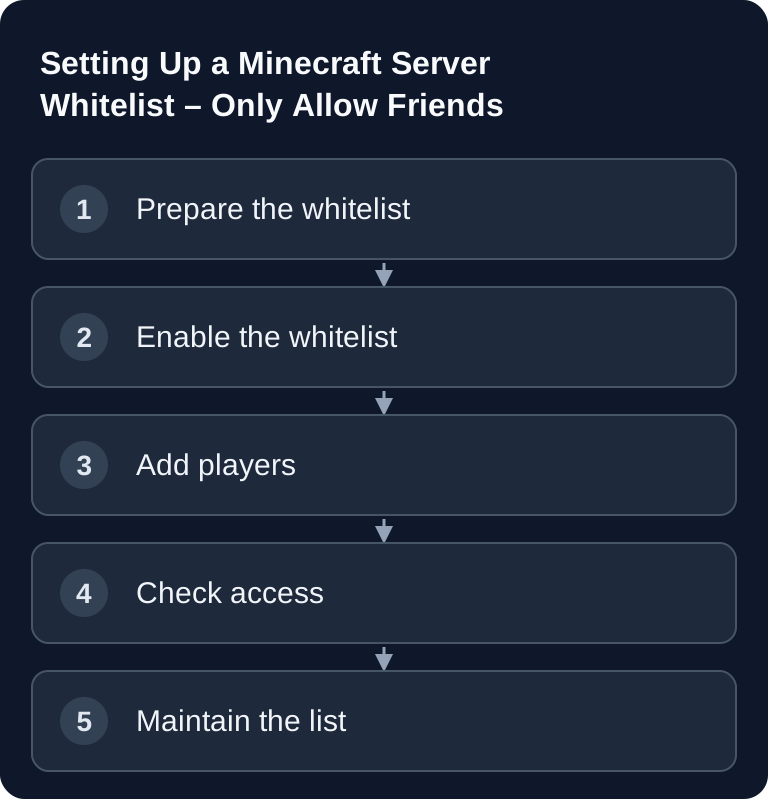
A Minecraft whitelist only allows approved accounts. Enable it with /whitelist on, add Java players with /whitelist add <PlayerName> and test access with a normal account. enforce-whitelist=true additionally ensures that players who were removed get disconnected on reload; the access list and operator permissions remain separate tasks.
Requirements
You need access to the server console, OP permissions in the game or access to the server.properties file. You should also know the players' exact Minecraft names. For Java accounts, the player name is normally enough. If Bedrock players join via Geyser, the name may appear with a prefix depending on the Geyser configuration; in the default example, a dot is used.
If you're just setting up the server in general, the in-depth guide Rent and Set Up a Minecraft Server – Complete Guide 2026 will help you. For other co-op setups with a similar access approach, you'll also find the Rent and Set Up a Valheim Server – Co-op Guide 2026.
Setting Up the Minecraft Whitelist
What Is the Whitelist?
The whitelist is an access control for your server. Only players on the list can join. It doesn't replace moderation, but it prevents unknown accounts from simply joining via the server address. For paid multi-game hosting, this is especially practical, because you can separate server access, support cases and operations more clearly: anyone who isn't on the list doesn't get in.
Microsoft documents the corresponding Bedrock command as /allowlist; there, /whitelist is mentioned as an alias and the actions add, remove, list, off, on and reload are described: Microsoft Learn on allowlist/whitelist. For Java servers, the server.properties entries and /whitelist commands shown below remain the practical foundation.
Enabling the Whitelist
In server.properties:
white-list=true
enforce-whitelist=true
While you're in server.properties anyway: the motd line determines your server list entry — you can style it in color with our free MOTD generator.
Or via in-game command:
/whitelist on
If you edit the file directly, stop the server beforehand or restart it afterwards. Changes via commands are more convenient during live operation, because you don't have to switch to the file every time.
Adding Players
/whitelist add <PlayerName>
For Bedrock players via Floodgate, you use its own whitelist command. The gamertag is specified without the Java name prefix:
/fwhitelist add <BedrockGamertag>
Floodgate also accepts the matching Bedrock UUID. This works even before the first successful join; a plain /whitelist add .Name, on the other hand, can fail due to Java name resolution. See the Floodgate features. With Geyser without Floodgate, first clarify which Java account authenticates the player.
Pay attention to the spelling. If a player can't join even though you added them, compare the name with the one shown in the login attempt or in the server logs. In Geyser setups, it's especially important whether a prefix is used and how upper/lower case is handled.
Managing the Whitelist
| Command | Description |
|---|---|
/whitelist list |
Show all players |
/whitelist add <name> |
Add a player |
/whitelist remove <name> |
Remove a player |
/whitelist reload |
Reload the list |
/whitelist on/off |
Whitelist on/off |
Use /whitelist list after every larger change. That way you immediately spot typos or accidentally duplicated names. When you remove a player, enforce-whitelist=true is important so the exclusion doesn't only take effect at the next connection attempt.
whitelist.json
The whitelist is stored in whitelist.json:
[
  {
    "uuid": "xxxxxxxx-xxxx-xxxx-xxxx-xxxxxxxxxxxx",
    "name": "PlayerName"
  }
]
Only edit this file if you know what you're doing. For normal operation, commands are safer, because the server manages names and UUIDs correctly. If you change the file manually, use /whitelist reload afterwards or restart the server.
Checking the Result
First use /whitelist list to check whether all desired players are included. After that, a listed player should be able to join. An account that isn't listed should be rejected. Also check the server console: there you can see whether the join attempt fails because of the whitelist, a wrong name or another problem.
For private projects, a short routine makes sense: add players, test the join, show the list, document the change. Especially with multiple admins, this prevents support questions from being left unresolved later.
Troubleshooting
Player is on the list but can't join
Check the exact name, the game mode and possible prefixes with Geyser. If in doubt, remove the entry with /whitelist remove <name> and then add it again.
Removed players stay online
Set enforce-whitelist=true and reload the list with /whitelist reload. Without this setting, removed players may stay connected until they disconnect, depending on the server state.
Changes in the file don't take effect
After changing server.properties, restart the server in a controlled way. /whitelist reload re-reads the entries from whitelist.json, but doesn't replace a restart for the server properties. Also check whether you edited the files of the active instance.
Confusing OPs and the whitelist
Operator permissions are administrative rights, not a clean access list. Keep OPs to a minimum and maintain the whitelist separately. That way it stays clear who may administer and who may only play.
Tips
- Enforce Whitelist: Enable
enforce-whitelist=trueso players get kicked when they're removed from the list - Avoid testing with OP: Test the access restriction with a normal account. Operator permissions can bypass the whitelist check;
enforce-whitelistdoesn't make OPs suitable test accounts. - Automation: Use plugins like EasyWhitelist for web-based management
FAQ
Do I need a restart after every change?
Not necessarily. If you use commands like /whitelist add, /whitelist remove or /whitelist reload, you can manage the list during live operation. After manual file changes, a reload or restart makes sense.
Is the whitelist better than a password?
For Minecraft, the whitelist is the more common way, because it allows specific accounts. A password doesn't protect against shared credentials, whereas a whitelist is tied to player names or accounts.
Should I always enable enforce-whitelist=true?
For private servers, that usually makes sense. The setting ensures that removed players don't stay online after a reload even though they're no longer on the list.
Does the whitelist work with mods and plugins?
Yes, the basic whitelist is a server feature. Plugins can offer additional management, but should be chosen deliberately and kept up to date.
What do I do for Bedrock players via Geyser?
With Floodgate, use /fwhitelist add <BedrockGamertag> without a name prefix, or the matching Bedrock UUID. Then check the list and an actual join. With Geyser without Floodgate, the whitelist applies to the authenticated Java account.