You install Satisfactory mods with SMM on the detected dedicated server installation. Check per mod whether Windows or Linux servers are supported. A copied Windows client folder does not replace properly compiled server files; for shared content mods, the version states of the server and clients must match.
Requirements
Before you start, you should have a working local Satisfactory installation, access to your server file manager or SFTP and a maintenance window for the server restart. Also plan a backup of your savegames before you test larger mod sets. Especially with production chains, power mods or new items, saves can become dependent on installed mods.
The primary source for mod management is ficsit.app. The platform is the central hub for Satisfactory mods, the Satisfactory Mod Manager and the SML mod loader. Use the respective mod page there to check notes on dependencies, supported game versions and known limitations.
If you only want to set up client mods for your own game, the guide Install Satisfactory Client Mods – Set Up the Satisfactory Mod Manager is a good complement. For other games with a similar mod sync, you can find, for example, the workshop process in Install Project Zomboid Mods or server-side mod management in the guide Install Factorio Mods on the Server.
Install the Satisfactory Mod Manager
The Satisfactory Mod Manager, SMM for short, is the practical standard way to install mods locally and also manage the SML mod loader.
- Download the Satisfactory Mod Manager
- Install SMM and select the Satisfactory installation path
- Search for and install mods via the SMM interface
- SMM manages dependencies and the SML (mod loader) automatically
After installation, open SMM and check whether your Satisfactory installation was detected correctly. If you use multiple installations or platforms, make sure you select the path you will also use later to join the server.
Choose Mods and Test Locally
Install mods locally first and test them in a separate world or with a copy of your save. This reduces the risk that a mod conflict directly affects your production server.
Popular Mods
| Mod | Description |
|---|---|
| Smart! | Smart building with extended tools |
| FICSIT Augmentation | Many QoL improvements |
| Refined Power | New power sources and power plants |
| Item Dispenser | Distribute items automatically |
| Pak Utility | Additional helper functions; not a blanket performance upgrade |
The table is meant as orientation. Before installation, always check the current mod page on ficsit.app, because compatibility and maintenance status depend on the respective mod project. Especially with larger game updates, mods may temporarily fail to load or need new versions.
Install Mods on the Server
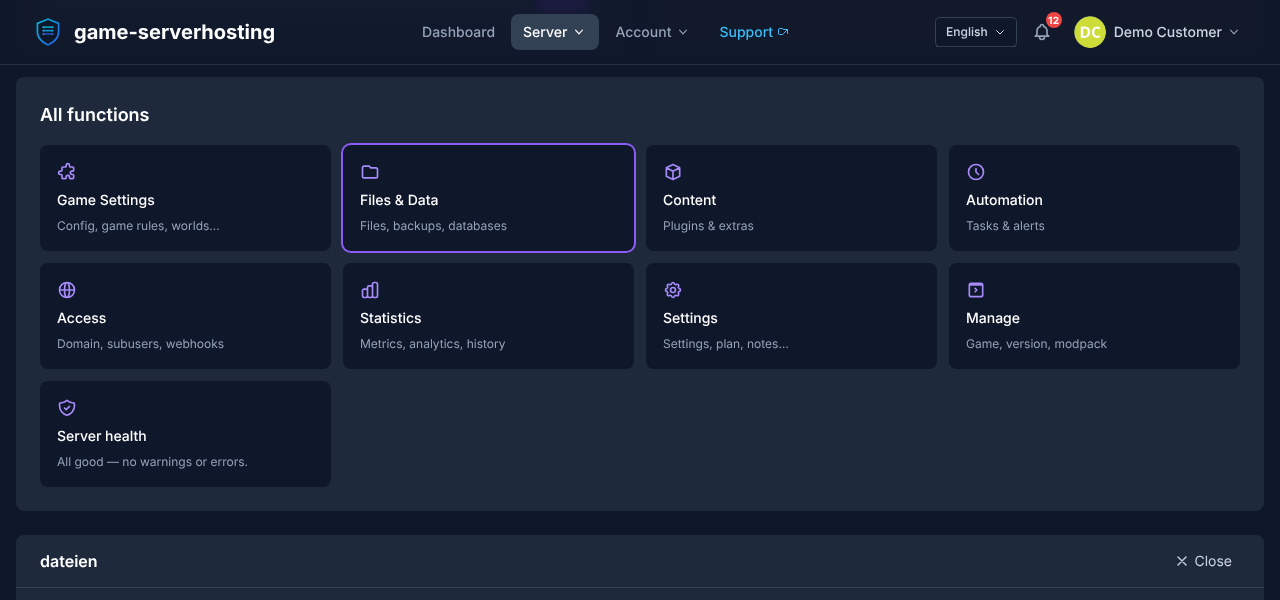
Here is how you get mods onto your dedicated server:
- Stop the server and back up the save.
- Add the remote installation in SMM using the existing SFTP details; select the server root directory containing
FactoryServer.shorFactoryServer.exe. - For each mod on ficsit.app, check the tick for your server operating system and apply the desired profile to the server installation.
- Start the server and test the client with the required shared mods.
The modding team documentation describes this server route and the matching server builds.
If your hosting panel offers a file manager, you can upload the folder there. With many files, SFTP is often more stable and clearer. Don't blindly overwrite folders if you are unsure: first compare the existing structure and only remove old mod versions deliberately, so that no duplicate or outdated files remain in the Mods directory.
Verify the Result
After the upload, you restart the server and connect with a client that has the same mod state. Then check three things: the server starts without mod loader errors, your client can join and the installed mods are actually active in the game. If joining fails, a version difference, a missing dependency or an incompatible mod is almost always involved.
For teams, a short mod list with version state is worthwhile, for example in Discord, a wiki or a text file in the project. That way all players know what they need to install before joining the server.
Mod Compatibility and Updates
- SML (Satisfactory Mod Loader) is installed automatically by SMM
- Shared content mods must be present on the server and clients in matching identical versions. Only explicitly one-sided mods may need separate profiles
- After every Satisfactory update, you should check all mods for new versions
When Satisfactory receives an update, mods can become incompatible. Afterwards, first open SMM and check whether mods are marked as incompatible or updatable. For critical servers, it's better to wait until the most important mods are updated rather than starting a production save directly with an uncertain mod state.
Update Mods After Game Updates
- Open SMM — incompatible mods are marked
- Wait until the mod developer releases an update
- Update mods and upload the mods folder to the server again
- Restart the server and synchronize with all players
Avoid mixed states: if you update locally, the server must get the same state. Conversely, players should not join with newer or older mod versions.
Troubleshooting
| Problem | Solution |
|---|---|
| Server doesn't allow connections | Check whether mod versions match on client and server |
| Crash on loading | Remove mods one by one until the crash stops |
| Mod missing after update | Check SMM for a new version and upload mods again |
| SML not found | Check the server installation selected in SMM, path and write permissions; reapply the matching profile there |
If the server doesn't start after an upload, first check the most recently added mods. Test them individually or in small groups on a save copy. Don't overwrite the production save without its content mods. This helps you find out faster whether a specific mod, a dependency or a combination of several mods causes the problem.
FAQ
Do all players need the same Satisfactory mods?
For shared content mods, server and clients need matching identical versions. However, check the declared client and dedicated server requirements for every mod: mods that are explicitly client-only or server-only do not have to be installed on both sides across the board. Missing required mods or mismatched shared versions can prevent joining or cause content to be missing.
Can I install mods only on the server?
Use SMM for the server installation and check the page and dedicated server compatibility for each mod. Shared content mods require matching client versions; mods that are explicitly server-side or client-side must be handled separately.
What do I do after a Satisfactory update?
Open SMM, check for incompatible or updatable mods and, for important worlds, wait for matching mod updates. Then you upload the updated mods folder to the server again and restart it.
Where do I find Satisfactory mods?
The central source is ficsit.app. There you will find mods, the Satisfactory Mod Manager and notes on dependencies or compatibility.
Should I create a backup before mods?
Yes. Create a backup of your savegames before new mods, larger updates or mod removals. Some mods change production chains or save states in such a way that removing them later can affect the world.