On Minecraft Java, Simple Voice Chat requires a matching server extension, the client mod, and its own UDP endpoint. At GSH, the setup assistant assigns this port. Afterwards, test real voice transmission; the panel status “Ready” confirms neither the microphone nor the client connection.
This guide applies to compatible Minecraft Java setups. A native Bedrock server or a Bedrock client does not get a Simple Voice Chat client from this.
Requirements
- A Simple Voice Chat version offered as compatible by the plugin browser, for Paper/Spigot or the mod loader you use.
- Permission to manage plugins. For the restart, you also need the corresponding server permission.
- The client mod matching the Minecraft version on every participating computer.
Java, Bedrock, and Geyser: What Works Together?
Simple Voice Chat is a Java mod or Java plugin with an accompanying client mod. Java players install the client mod matching the Minecraft version and can then speak and listen. A Bedrock client cannot load this Java mod, even if it can join the Java server via Geyser. For mixed groups, in-game voice chat therefore remains limited to Java players; for everyone together, you need an external voice service.
Geyser and Simple Voice Chat both use UDP, but they must not share the same address-port combination. When crossplay is active, Geyser needs its Bedrock port and Simple Voice Chat needs a separate UDP allocation. The ports the panel shows for your specific server are the ones that count. The entire process for Bedrock connections is explained in the guide Setting Up Minecraft Bedrock Crossplay with Geyser and Floodgate.
Setup in the Dashboard
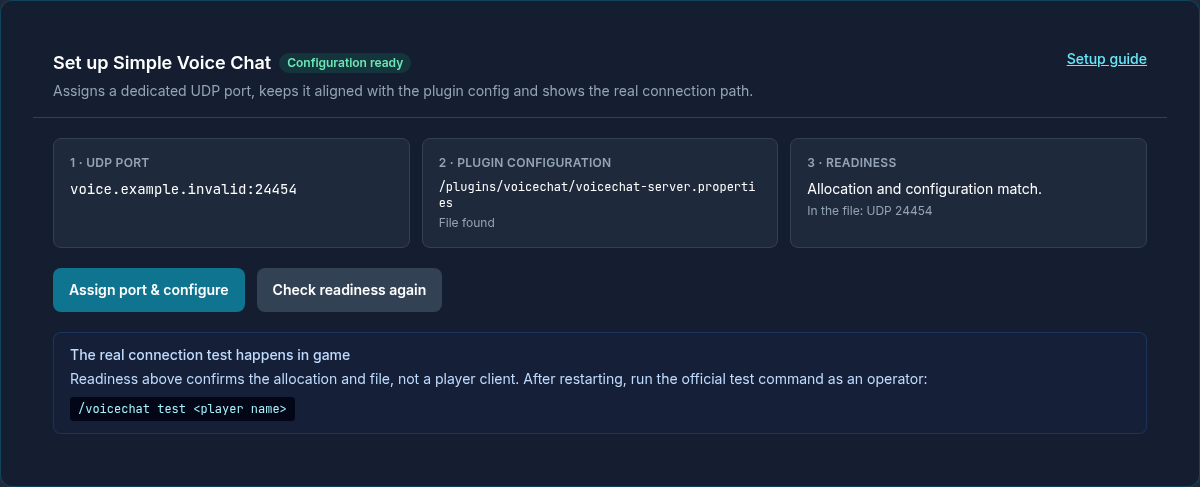
- Open your server and go to Plugins. Install or enable Simple Voice Chat.
- Open the Set up Simple Voice Chat box.
- Click Assign port & configure. The dashboard reserves its own UDP allocation, enters it in
voicechat-server.properties, and creates the file if it is still missing. You don't have to guess a port or reuse the main server port. - Adjust the values you want and click Save settings.
- If Restart required appears, restart the server via the assistant or the normal server controls.
Which Settings Can I Change?
| Setting | Effect |
|---|---|
| Maximum hearing range | Greatest distance in blocks over which normal speech can be heard. |
| Whisper distance | Range of whispering; it must not be greater than the maximum hearing range. |
| Codec | VOIP is optimized for speech. AUDIO prioritizes sound quality, RESTRICTED_LOWDELAY low latency. |
| Enable groups | Allows private voice groups regardless of player position. |
| Allow recordings | Determines whether clients may use the mod's recording feature. Inform your players about the rules and applicable law. |
| Force voice chat | Requires players to have the client mod. When turned off, clients without the mod can join by default but cannot use voice chat. |
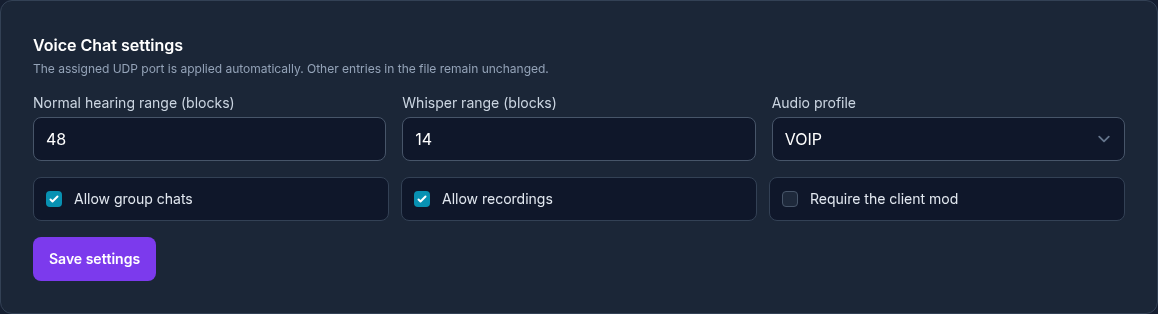
The port is deliberately only displayed and managed automatically. The assistant writes only the supported values, creates a backup before making changes, and leaves other entries in the file untouched.
Readiness and a Real Connection Test
In the dashboard, Ready means: the plugin file and plugin status match, a UDP port is assigned, the configuration exists and contains exactly this port. This is not a microphone test or an end-to-end internet test.
Therefore, install the matching mod on the client, connect, and press V by default to set up your microphone, speakers, and activation mode. Then run the following in the server console:
/voicechat test PlayerName
A generic web port checker is not a reliable substitute for this test with UDP.
If It Still Doesn't Work
- Check whether the plugin and client mod exactly match the Minecraft version and loader.
- Enable the plugin if the assistant reports “disabled”, and then check readiness again.
- Save after making changes and perform the requested restart.
- If the “not connected” icon stays in the game, open the client assistant with V and run
/voicechat test PlayerName. - After a restore from hibernation, the system re-syncs the allocation and configuration before starting; if you have problems, still check the displayed endpoint.
Official Sources
Feature scope and supported platforms: Modrinth project page. Technical details: Server setup, Server configuration, and Client setup. The required port separation with Geyser is documented by GeyserMC in the setup guide.
Last technically reviewed: September 21, 2026; updated on September 22, 2026 with the automatic setup at game-serverhosting.
FAQ
Do all players need the client mod?
For voice chat itself, yes — without the mod, a client can neither transmit nor hear. Whether players without the mod can join at all is determined by the “Force voice chat” setting: when turned off, they join the server normally and play without voice features; when turned on, they are rejected.
Can Bedrock players join the voice chat?
No. Simple Voice Chat is a Java mod; a Bedrock client cannot load it, not even via Geyser. On a network with crossplay, voice chat therefore remains reserved for Java players — plan on an external service for mixed groups.
Can Geyser and Simple Voice Chat use the same UDP port?
No. Both services need their own UDP allocation. Use the Bedrock port from the panel for Geyser and the separately assigned voice chat port for Simple Voice Chat.
Do I get a second UDP port for Simple Voice Chat at game-serverhosting?
Yes, automatically. The Bedrock port for Geyser is assigned when the server is set up, and the voice chat port is assigned by clicking Assign port & configure in the server dashboard. Both are separate, and you don't need to request, open, or forward any port.
Do I need to open or forward a port?
No. The assistant reserves its own UDP allocation, enters it in voicechat-server.properties, and continues to manage it. You don't have to guess a port or share it with the main server port.
The port checker reports the port as closed — is something wrong?
Probably not. Voice chat runs over UDP, and generic web port checkers are not a reliable tool for that. The dependable test is /voicechat test PlayerName in the server console, together with a real connection from a client with the mod installed.
What does “Ready” mean in the dashboard?
It means that the plugin file and plugin status match, a UDP port is assigned, and the configuration contains exactly this port. It is not a check of your microphone, speakers, or internet connection — for that, you need the client assistant with V and the test command.
Checking Network and Microphone Separately
First test the voice chat connection with the matching client mod and the server test command. If the connection is successful but nobody can hear you, check the selected microphone, operating system permission, activation mode, and mute status in the client. Then check hearing range or group channel with a second Java player. A missing UDP handshake is not fixed by a different microphone volume. Conversely, if the connection works, you don't need a new server port. If you need to ask for help, note the client and plugin version as well as the test result; Bedrock clients remain outside this voice channel because they lack the Java client mod.
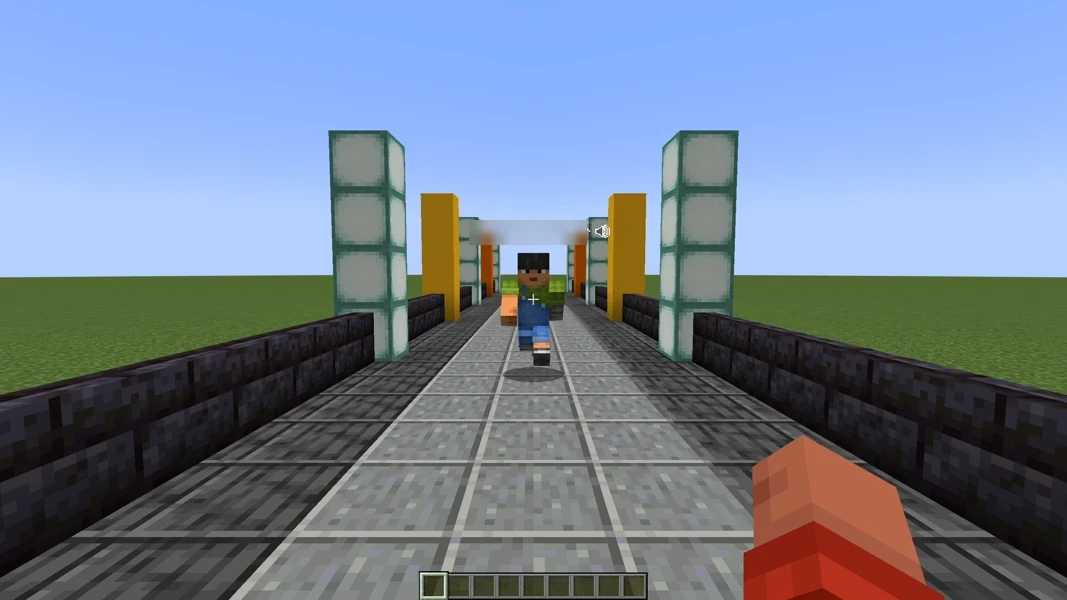
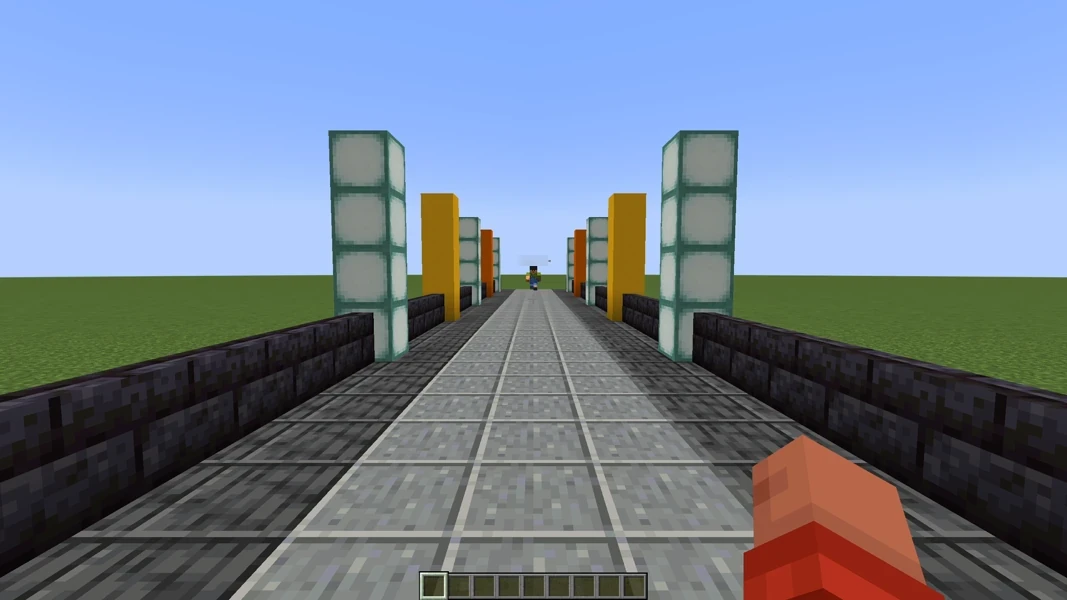
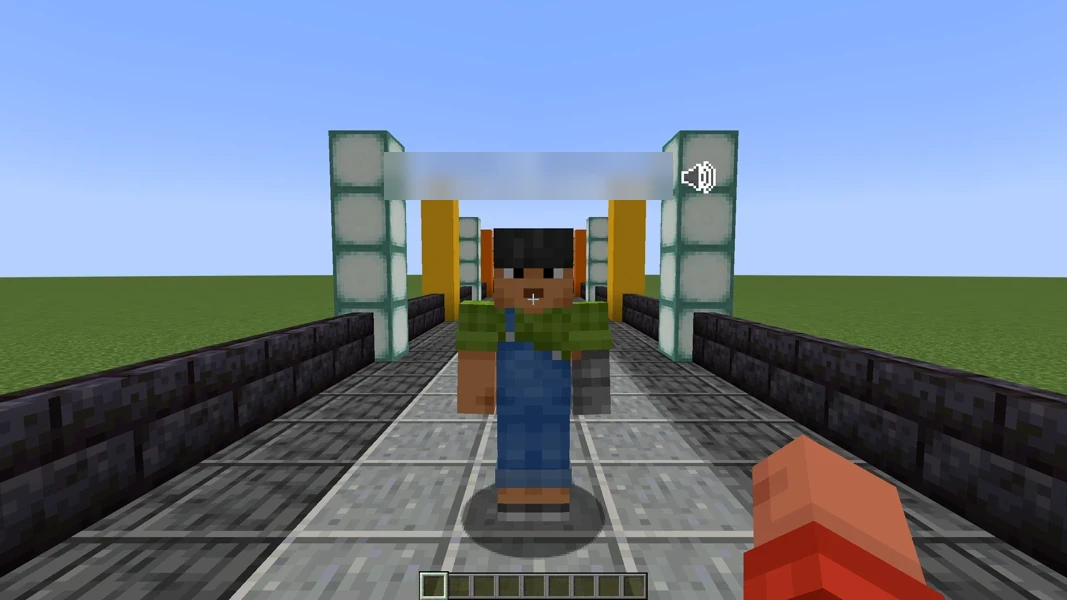
Simple Voice Chat: view an example
Our own captures from a demonstration environment. The version and setup shown may differ from your server.
- Close: the other player is loud and clear.
- He walks away. His voice fades.
- Out of range: no voice at all.
- He comes back. His voice is clear again.
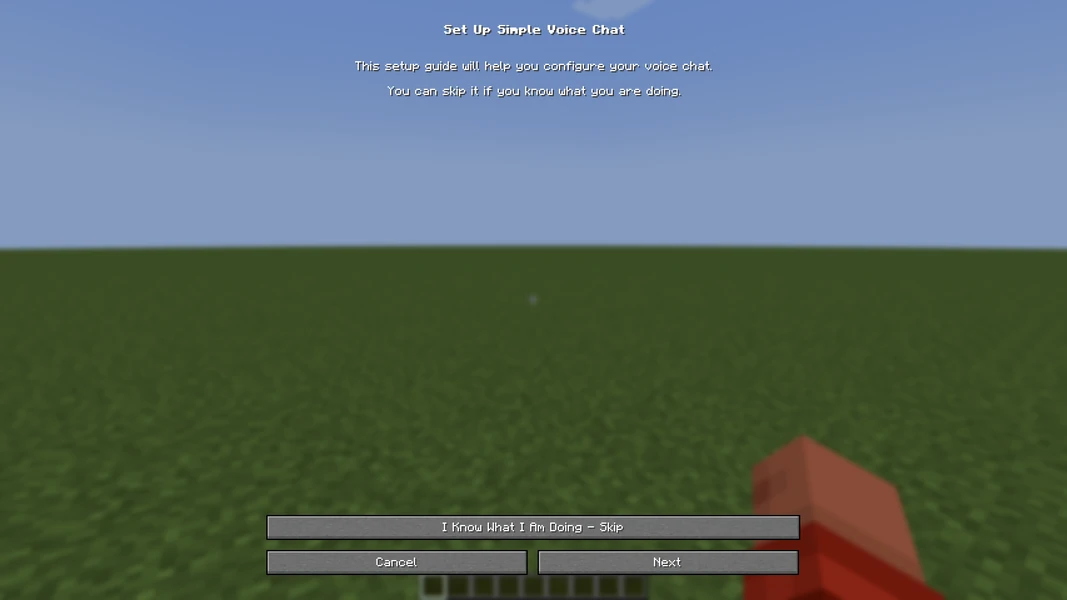
2.6.23
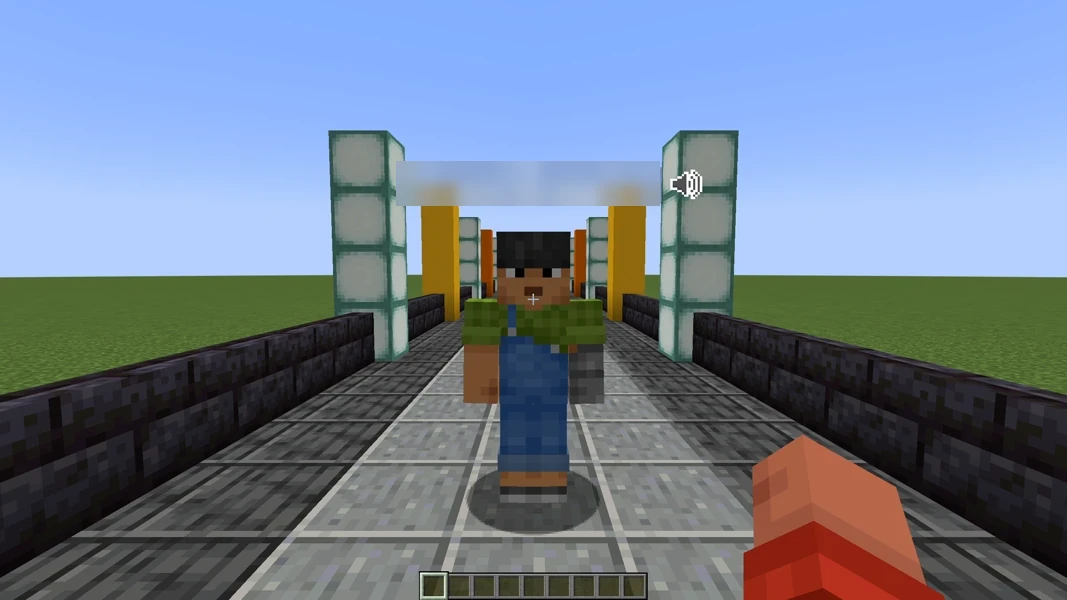
Simple Voice Chat 2.6.23 · Paper 1.21.1 · 2026-09-15
Simple Voice Chat 2.6.23 · Paper 1.21.1 · 2026-09-15
Simple Voice Chat 2.6.23 · Paper 1.21.1 · 2026-09-15
Simple Voice Chat 2.6.23 · Paper 1.21.1 · 2026-09-15