With “Automatic Updates” you control the intended update process of your game server. Only disable it with a concrete reason and a date to catch up. A frozen server version doesn't help if your friends' clients are already using an incompatible new version.
What Automatic Updates Mean for Us
Depending on the game, the automation works differently:
- Steam games (e.g. Rust, Palworld, Valheim, Satisfactory, ARK, V Rising, DayZ): The server checks on every start or restart whether a new version is available and installs it before booting up. If the server runs continuously, nothing happens until the next restart.
- Counter-Strike 2 and Minecraft Bedrock: Here, our fleet automation additionally keeps the server up to date, even without you restarting. It updates only when nobody is online and, for Bedrock, automatically creates a backup beforehand. Your worlds and configuration files are preserved in the process.
- Minecraft Java/Paper: Suitable Paper servers can automatically receive compatible runtime builds and system plugins during the intended quiet update window. The Minecraft version stays the same; this is not an automatic jump from one game version to the next. You choose such a version or software change deliberately in the panel. Other Java stacks and PocketMine have their own requirements.
When It Makes Sense to Disable Updates
- Rust and the force wipe: Rust forces a wipe with big monthly updates. If you want to wipe your server only on the weekend, for example, you can temporarily turn updates off so that an interim restart doesn't already pull the new version. Note: after the official force-wipe update, players with an up-to-date client can only join again once your server is updated as well.
- Mods and plugins: After a game update, mod frameworks (such as Oxide/Carbon for Rust or Workshop mods for other titles) often need a few hours to days to adapt. If you play heavily modded, wait with the update until the most important mods have caught up.
- Events, tournaments, speedruns: If a fixed version is needed, the toggle prevents a restart in the middle of the event from changing the version.
The Risk of an Outdated Server
For games with forced client updates, above all Minecraft Bedrock (mobile, console, Windows Store) and Counter-Strike 2, your friends' clients update automatically. A server on the old version then looks “broken”: the join fails with a version error message. Security and bug fixes also only reach your server with the update. Our recommendation: keep automatic updates on, unless you have one of the concrete reasons mentioned above, and re-enable them afterward.
How to Turn Automatic Updates Off or On
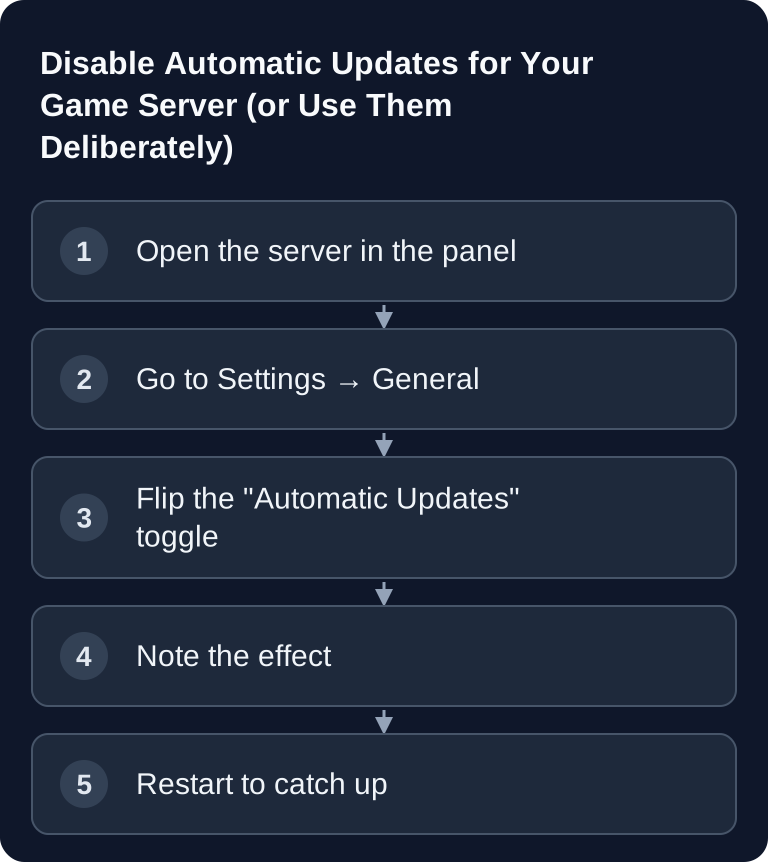
You can find the toggle in your server panel under Settings → General. It only appears for games where there is actually something to toggle. For Steam games, the change takes effect from the next restart; for CS2 and Bedrock, it pauses or reactivates our fleet automation immediately. Re-enable the intended updates and check the process shown for your stack as well as the build that was actually started afterward. A restart alone is not proof of a successful update job.
What You Should Do Before Disabling
A switched-off automation toggle is no substitute for a backup. Back up your state before you take over control — especially if you later catch up on the update manually and switch to a build your mods don't know yet. How to create and restore a backup is described in the guide on server backups; the procedure is the same for other games.
Also note why you disabled it and set yourself a reminder. The most common mistake is not the switching off itself, but forgetting: months later, friends wonder about a server that lets nobody in anymore, and nobody remembers the toggle.
After Re-Enabling
Depending on the game, the update process kicks in at the next start or in the intended maintenance window. Then check two things: whether the server reports the expected version and whether your mods and plugins still load. Mod frameworks like Oxide/uMod regularly lag behind larger game updates — after a longer update pause, the server may catch up several version jumps at once. For CS2, this affects the entire plugin stack; how to get it running again after an update is covered in Installing CS2 Plugins.
FAQ
Which games have the toggle?
All games whose server update can actually be controlled — including Rust, CS2, Minecraft Bedrock, Palworld, Valheim, Satisfactory, ARK, DayZ, Team Fortress 2 and many other Steam titles. For Java/Paper, you need to distinguish a compatible runtime build within the same Minecraft version from a deliberate version change. Which update option is offered depends on the installed stack.
Will I lose data when updates run automatically?
The update process replaces the server software and is designed to preserve the world and configuration. However, this does not guarantee that a save game or a mod is compatible with every new build. Back up important data additionally; for Bedrock, the automation creates a backup before the update and takes the player status into account.
Why don't I see the toggle on my Minecraft Java server?
The Minecraft game version and the Paper runtime build are different layers. A suitable Paper server can receive compatible runtime builds in the quiet update window while the Minecraft version stays the same. So check the stack and the available options in the update section; you choose a game version change deliberately yourself.
What happens if my server stays outdated for too long?
For games with forced client updates, current clients may fail on an incompatible server version. Re-enable the intended update process, wait for it to finish and then check build, join and extensions. A failed update job is not automatically fixed by repeated restarts.
Plan an Update Pause With an End Condition
Before switching off, note the server version, affected mods and the reason for the pause. Decide when you will re-enable it: for example after a suitable framework release or after the event ends. Also check whether your friends can even keep their client version. If the join is already being rejected because of a version mismatch, pausing further does not resolve the conflict. Back up the world before catching up and document build, join and mod load state after startup. In case of an error, examine the specific component first instead of leaving updates permanently switched off.