Distant Horizons extends the view in Minecraft Java with simplified distant terrain, known as LODs. For a good result, you need to consider regular render distance, LOD range, and available world data separately. This guide explains the settings and helps you narrow down missing terrain, loading stutters, and shader problems. The prerequisite is a Distant Horizons build that matches your Minecraft version, loader, and, if applicable, your shader stack.
What are LODs, and what remains normal Minecraft rendering?
LOD stands for "Level of Detail". Distant terrain can be displayed with fewer geometric details than blocks directly in front of you. This creates long-distance visibility without using the same level of detail everywhere. A surface visible far away is therefore not proof of active creatures or working farms at that distance.
The regular Minecraft render distance and the Distant Horizons range serve different purposes. A high LOD range alone does not make the near area more detailed. The mod describes this approach on its official project page.
These five controls should be kept separate
| Control | Purpose | Sensible reason to change it |
|---|---|---|
| Regular Minecraft render distance | Near area with regular detail rendering | The transition to the simplified distance is too close |
| DH render distance | Range of the displayed LOD terrain | The view does not extend far enough despite available world data |
| DH graphics profile | Quality presets for distant terrain | You want to compare rendering cost and visible detail |
| CPU load for DH | Budget for the mod's background work | Building new distant terrain disrupts the current play session |
| Distant generation | Provision of additional terrain data, depending on operating mode | The long-distance view should go beyond already available data |
Menus and allowed values depend on the build. Use the interface of your installed version; do not adopt someone else's configuration file just because the mod name is the same. The project FAQ explicitly names graphics profile, CPU load, and distant generation as starting points for stutters. DH project FAQ
Configuration example for Minecraft 1.21.1
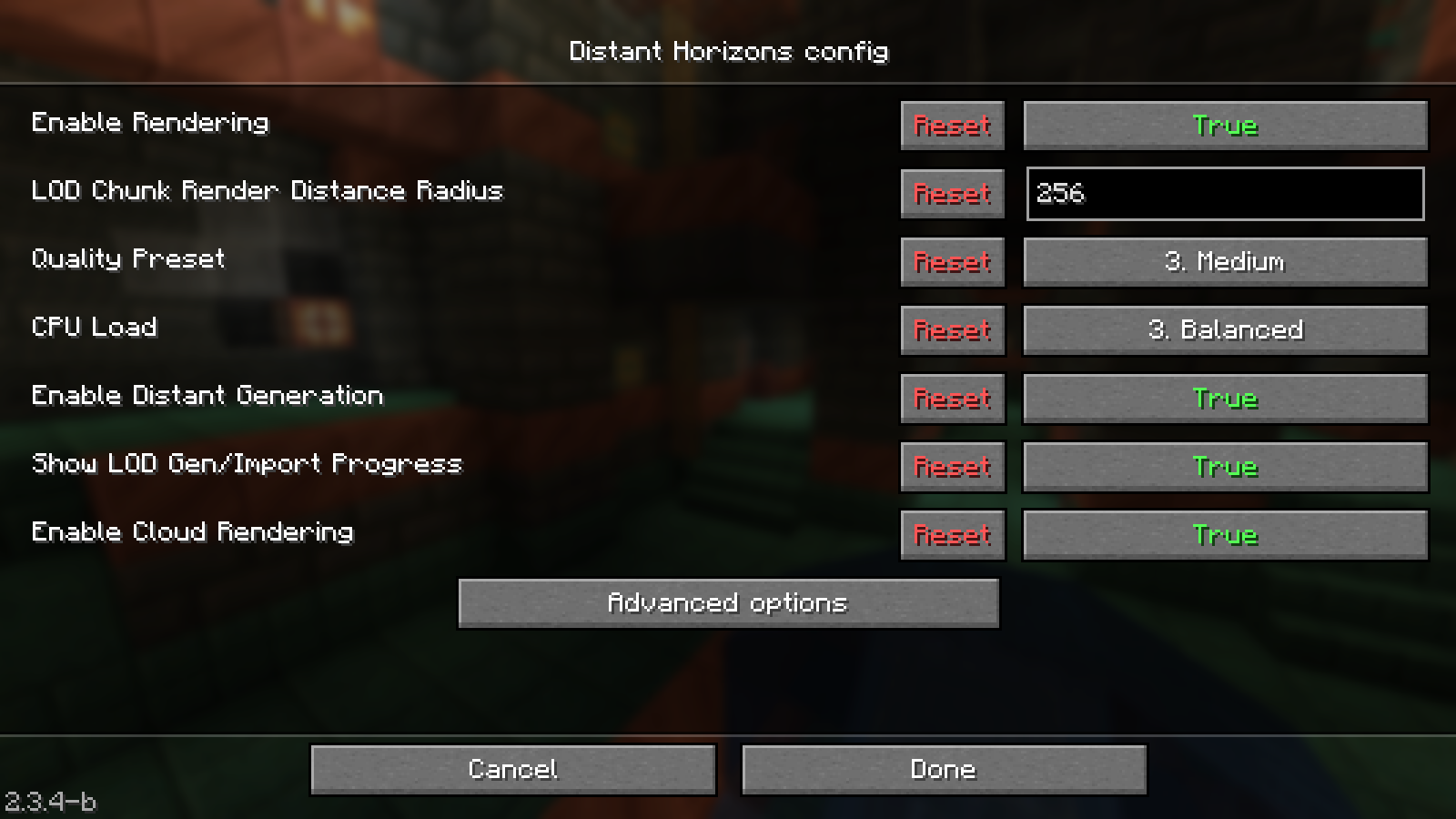
In the isolated reference setup with Distant Horizons 2.3.4-b for Minecraft 1.21.1 and NeoForge 21.1.248, config/DistantHorizons.toml was created. Under client.advanced.graphics.quality, lodChunkRenderDistanceRadius stands for the LOD radius in chunks. horizontalQuality affects how quickly detail quality decreases with distance; verticalQuality concerns overhangs and floating terrain forms, among other things. The comment warns that higher quality levels require additional memory and GPU resources.
The file generated in the test had an LOD radius of 256 chunks. This is an observed starting value for this build, not a recommendation for your computer. In a new world, distant generation can initially build up a very large number of tasks. Choose the radius based on your actual needs and wait for background work to finish before comparing visual smoothness. For manual changes, close the game, back up the file, and keep the existing section names and value types.
View original screenshot (1600 × 900)
Why terrain can be missing despite a high range
A range value describes how far data should be displayed. It does not prove that this data already exists. On a server with client-side DH only, terrain data is collected while exploring and stored between sessions. Any still-unknown part of the world therefore does not appear simply because of a higher slider value.
The project also describes an operating mode with DH on both client and server, where the server supplies LOD data. Whether this route is available and correctly configured for your version set must be checked against the specific build. Today's project description is not a compatibility guarantee for every older download. Official information on multiplayer operation
A fixed viewpoint is useful for diagnosis: visit a missing area normally, return, and compare. If it becomes visible afterward, that is an indication that data was previously missing. Do not change any other graphics options during this. Also check whether you are actually using the same world or the same server entry.
Do not delete the LOD data store as the first repair step. You might discard already built distant terrain and make comparison harder. With the game closed, back up the instance including the mod data belonging to the world before trying a targeted rebuild.
Configure Distant Horizons step by step
- Record versions: Note Minecraft, loader, and DH. Back up your instance and use an existing working profile for the first comparison.
- Disable shaders first: Open a known world and check whether the distant terrain is displayed at all. A working baseline image makes further diagnosis easier.
- Check data availability: Compare known terrain and newly explored terrain. Wait for background work before classifying an empty view as a permanent error.
- Change range one step at a time: Increase the DH range by one offered step. Check the same horizon and visual smoothness during normal play.
- Limit background load: If building new data is the main disruption, test a lower CPU budget. Separately check whether a lower graphics profile improves ongoing rendering.
- Add shaders last: Only now activate a shader suitable for the specific DH/Iris state. Check the same view again and the transition between near and distant terrain.
This is a comparison method, not a measured performance profile. Keep written notes of starting and comparison values. A high number is only useful if the additional view is visible to you and the play session remains pleasant.
Shaders, fog, and harsh transitions
Shaders must support the additional distant geometry. Iris provides special integration options for this; the existence of a working shader menu alone does not prove this support. Iris documentation for Distant Horizons
If distant terrain is visible without shaders and disappears with shaders, start by checking version alignment and the documented support of the pack. If it is missing in both cases, world data or disabled rendering is the more likely place to investigate. These are diagnostic hints, not definite proof of errors.
Fog changes the visibility of existing terrain. It does not create missing LODs. First check a noticeable transition with the shader's default profile. Then change only one fog option and compare the same time of day. Completely disabling all fog effects can make an edge stand out more strongly; it is not a universal fix.
Which next step matches my symptom?
| Symptom | Check first | Success is visible when |
|---|---|---|
| A specific distant area is missing | Visit the area normally, return, and compare | The previously missing outline becomes visible |
| Stutters while exploring | Compare known terrain and a lower background budget | Smoother behavior under the same conditions |
| Distance only disappears with shaders | Check supported version set and the shader default profile | Near and distant terrain appear together |
| More DH range makes no visible difference | Compare line of sight, fog, and available data | A specific additional landmark is visible |
Does DH increase my server's simulation distance?
The distant view is not a substitute for the server configuration of game simulation. Visible mountains do not mean that all game mechanics are active there. For delayed shared actions, the Minecraft server lag diagnosis helps.
Do all players need to use DH?
For purely client-side use, each player decides on their own distant view. A shared modpack or server-supported DH setup needs an aligned version set. For this, check the basics for mods and modpacks.
Should I simply order more server RAM for DH?
Do not derive a blanket RAM order from this. First check which work happens on your client and which happens on the server. For a shared world, the Minecraft server offer gives you a starting point; a specific DH server integration must also fit the selected software.
Related guides
- Minecraft Graphics Settings Explained: View Distance, Simulation, and FPS
- Configure Complementary Shaders: Shadows, Water, and Image Quality
This guide in other languages
Deutsch · العربية · বাংলা · Español · Français · हिन्दी · Bahasa Indonesia · Italiano · 日本語 · 한국어 · Nederlands · Polski · Português · Русский · Türkçe · اردو · 简体中文