Minecraft graphics settings determine how far you can see and how much work your computer has to do to render the image. Simulation distance, on the other hand, controls part of the active game world. This guide helps you find the right setting for your problem in Minecraft Java and compare changes in a traceable way. On a multiplayer server, you also need to distinguish between which values are set by your client and which are set by the server.
First clarify: Is the image stuttering, or is the world responding late?
If only the camera stutters on your computer, start with rendering. If blocks or creatures react late for several players, also check server performance. If other players jump around despite a smooth image, the connection may be involved. Several causes can occur at the same time.
FPS describes the frames output per second. Frametimes show how long individual frames take: short pauses can be disruptive even when the average FPS looks good. TPS describes the processing of the game simulation. A graphics slider is therefore not a general solution for server lag. For the shared world, see the diagnosis for Minecraft lag, TPS, and watchdog.
Which setting changes what?
| Setting | What it changes | When to investigate it |
|---|---|---|
| Render distance / view distance | Distance of the regular world rendering in the client | The view ends too early or large landscapes strain the computer |
| Simulation distance | Distance within which entities, among other things, are actively processed | Game mechanics change their behavior depending on distance |
Server-view-distance |
Server-provided view distance for regular chunks | All players have limited long-distance visibility despite a higher client view distance |
Server-simulation-distance |
Server-side distance for active processing | The shared simulation needs a different range |
| Shader quality | Cost and accuracy of additional visual effects | The image becomes slow mainly when a shader is enabled |
| Shadow quality and shadow distance | Level of detail or range of shader shadows | Shadows flicker or scenes with shadows cost a lot of performance |
| Resolution | Number of pixels being output | You want to check whether image rendering is the bottleneck |
| FPS limit and VSync | Target frame rate or synchronization with the display | Uneven frame output, tearing, or unnecessarily high load |
Minecraft introduced separate simulation distance with Java 1.18. Mojang describes it for entities, blocks, and fluids, among other things. Details of individual mechanics still depend on the version and server software. Mojang’s release notes
The two server keys are described in the reference for server.properties. Paper extensions from this documentation are not NeoForge settings.
View original screenshot (1600 × 900)
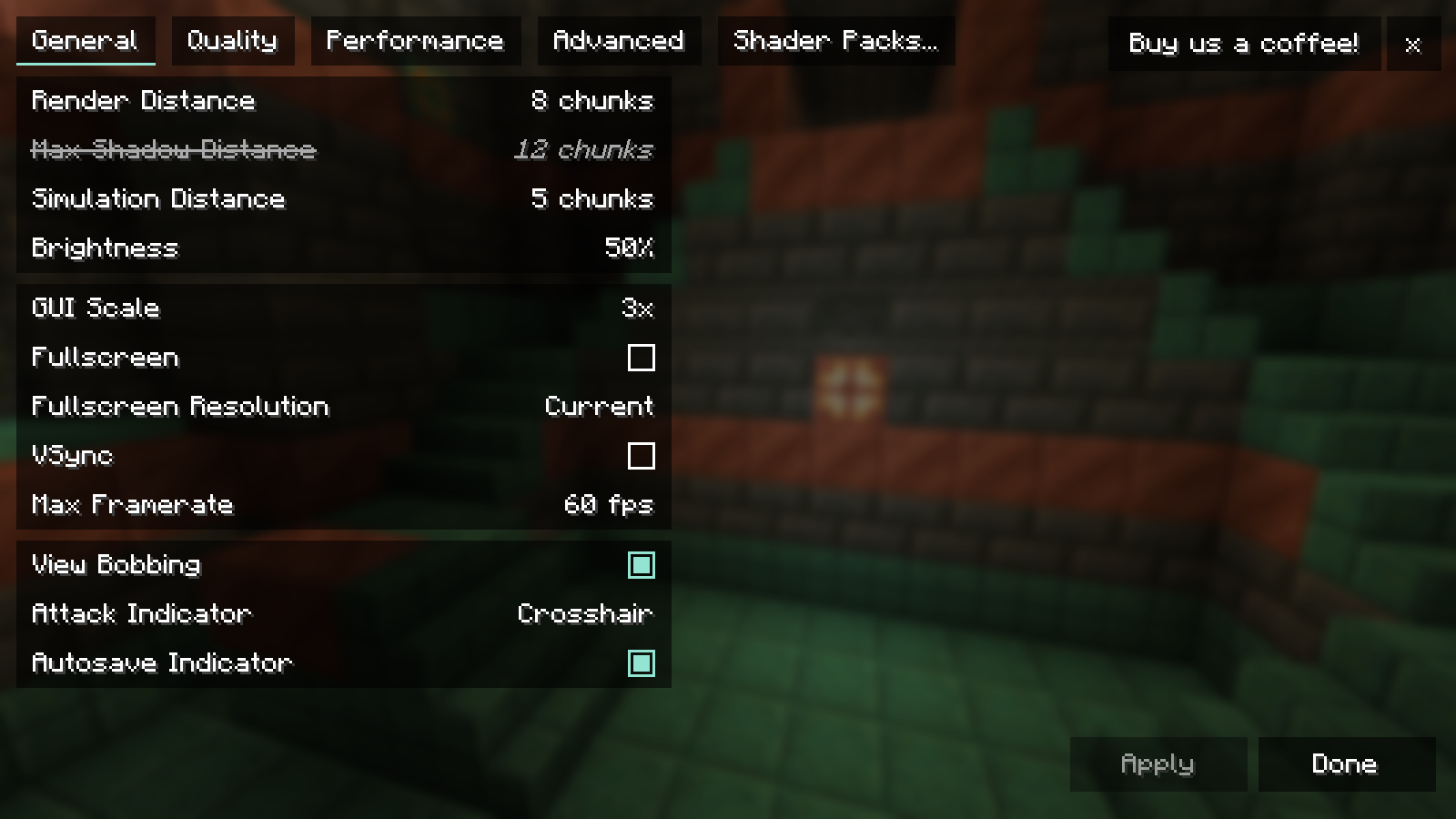
Set view distance and simulation separately
A distant mountain has to be visible for you to look at it. Its surroundings do not need to receive the same active game simulation as your immediate area. Conversely, a visible farm alone is not proof that its mechanics work at that distance. Chunk loaders and mod-dependent rules can also intervene.
First, change only the render distance in your instance’s graphics menu. Stay in the same place and compare the landscape. In a modpack, the menu layout and labels may differ because of graphics mods. Note the original value so you can switch back.
If regular long-distance visibility barely changes on a server, check the view distance it provides. Your client slider alone does not force additional server chunks. A higher server value, in turn, affects the shared infrastructure. Before making a server-side change, back up the configuration, plan for the required restart, and then check joining the server afterward.
Investigate simulation distance separately: use a concrete test mechanic, note the distance, and check the behavior before and after the change. A blanket promise that every farm works at a particular value would be unreliable across different mods and server types.
Investigate shaders sensibly
First compare the same scene without and with the shader. This comparison helps you narrow down the additional cost. It is not yet a statement about which individual shader option is responsible.
If the problem only occurs with the shader enabled, test a lower built-in quality profile. After that, you can raise individual effects again. Start with an effect whose difference you can actually recognize in your scene: shadows on the edge of a house, water at the shore, or clouds over an open landscape.
Changing the screen resolution can also help with diagnosis. If the game becomes noticeably smoother at a lower resolution, that points to image rendering being a relevant factor. If the behavior remains almost the same, that does not prove any particular other bottleneck. FPS limits, background tasks, and world loading can influence the comparison.
Compare one setting in five steps
- Secure the starting state: Note the game version, graphics mods, shader, resolution, and current setting. Keep a copy of the instance configuration.
- Choose a comparison scene: Use the same position, viewing direction, and, if possible, the same time of day. Wait until noticeable loading has finished.
- Change one thing: For example, lower only the render distance. Do not switch shaders, resolution, and several mods at the same time.
- Compare image and behavior: Check image stability, visible details, and possible errors. If you measure, repeat the same sequence several times and record the measurement duration.
- Document the decision: Keep the change only if the benefit justifies the visible drawback for you. Otherwise, restore the original value.
A useful log contains the setting, starting value, comparison value, test scene, observed difference, and decision. The statement “feels better” is valid for your personal choice; it should not be passed on as a measured FPS gain.
Common optimization mistakes
| Observation | Next sensible comparison |
|---|---|
| Only new terrain causes pauses | Compare an already visited area with the same graphics settings |
| Distant landscape is missing despite high view distance | Distinguish between client view distance, server view distance, and existing LOD data |
| All players experience delayed actions | Server diagnosis instead of further shader adjustments |
| The frame rate stays exactly at a fixed value | Check FPS limit, VSync, and display refresh rate |
| After several changes, the image is worse | Restore the saved state and compare changes individually |
Do I need Distant Horizons for more view distance?
Distant Horizons is an additional option for distant landscapes. It works with simplified geometry outside the regular detailed rendering. That is a different task from a higher simulation distance. Whether you need it depends on whether the normal view is enough for you and whether a suitable build is available for your instance. The project description explains the basic approach. Distant Horizons
Is there a best value for every PC?
No. Resolution, hardware, world, mods, and desired image stability differ. Use your instance’s working starting state and a repeatable comparison. Concrete recommendations only make sense with those prerequisites.
Do all other players need the same graphics settings?
Personal graphics values can differ. Required gameplay mods and their versions, however, must match the shared installation. The guide setting up mods and modpacks explains this.
Does a different server help with low FPS?
A server plan alone does not fix a local shader bottleneck. If you want to run a shared modified world, check the suitable server software and your modpack requirements in the Minecraft server offering. Each player still adjusts the graphics on their own computer.
Related guides
- Configure Distant Horizons: view distance, LODs, fog, and performance
- Configure Complementary Shaders: Shadows, Water, and Image Quality
This guide in other languages
Deutsch · العربية · বাংলা · Español · Français · हिन्दी · Bahasa Indonesia · Italiano · 日本語 · 한국어 · Nederlands · Polski · Português · Русский · Türkçe · اردو · 简体中文